Hotkeys
ON THIS PAGE
Settings → Hotkeys — bind global keyboard shortcuts to mixer actions: mute a channel, nudge a fader, recall a scene, start the engine. These work even when Aura Mixer isn't focused — anywhere in Windows, while you're in a game or another app.
Hardware volume keys
Redirect Vol+ / Vol- / Mute — instead of controlling the system volume, your keyboard's or headset's hardware volume keys can control Aura buses. Off by default.
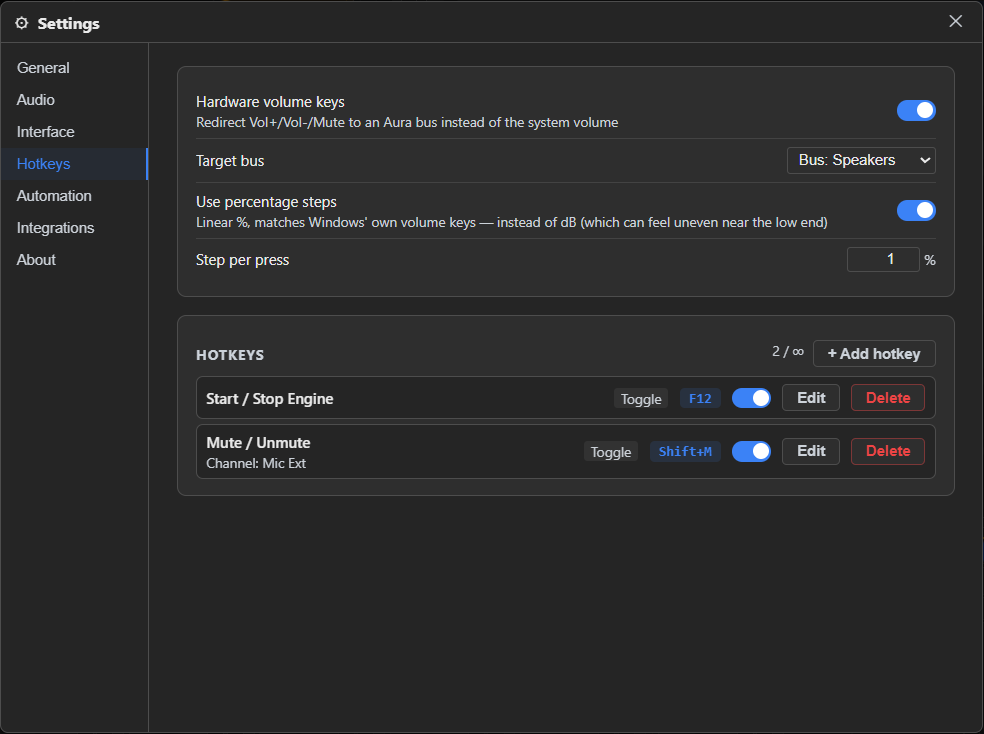
Turn it on and these options appear:
- Key layers — which bus the keys control, per modifier you hold. A fresh install has one layer: the plain keys control Main L+R. Add more with + Add layer: pick the modifiers to hold (Ctrl, Alt, Shift, Win, alone or together), the bus, and whether the layer applies to All scenes or Only this scene. A layer matches only when exactly those modifiers are held.
- Use percentage steps — linear percent per press, matching how Windows' own volume keys feel. Off uses dB steps instead, which is how the rest of the mixer measures level but can feel uneven near the quiet end (each press moves loudness by the same ratio, not the same amount).
- Step per press — how far one key-press moves the bus: 0.5–25% in percent mode, or 0.1–12 dB in dB mode.
- Hold to keep going — hold Vol+ or Vol- and the bus keeps moving by the same step, up to about 20 steps a second, so you can ramp the level instead of tapping. Release to stop. Mute acts once per press.
A headset knob or a bare media key can't hold Ctrl — for those, put a different bus on the plain keys in a scene (a layer set to Only this scene) instead of relying on a modifier.
When a scene doesn't have the bus
Layers point at buses by identity, and a scene can contain a different set of buses than the one you set a layer up in. The keys never go dead because of it:
- a layer set to Only this scene beats a global one on the same keys;
- a layer whose bus isn't in the current scene is skipped — the next layer for the same keys is used;
- with modifiers held and nothing usable, the keys act like the plain keys;
- with nothing usable at all, they control Main L+R.
When a layer you set up is skipped because its bus isn't in the scene, a short message says which bus is missing and what the keys control instead. In the list, such a layer is marked (missing) — it stays there, ready for when you're back in a scene that has the bus.
Adding a hotkey
Click + Add hotkey. Every hotkey binds one action to one key combo:
- Action — pick from the catalog below, grouped by category.
- Target (and sometimes Source / Destination) — which channel, bus, or group the action applies to, if it needs one.
- Value or Step (dB) — an absolute number or a relative nudge, for actions that need one.
- Mode — for actions that support it (see Toggle vs. Hold below).
- Key combo — click Click to set…, then press the keys you want (any combination of Ctrl/Alt/Shift/Win + a key). Press Esc to cancel a capture in progress.
The action catalog
| Category | Action | What it does |
|---|---|---|
| Mixer | Mute / Unmute | Mutes or unmutes a channel, bus, or VCA group. Supports Hold. |
| Mixer | Solo / Unsolo | Solos or unsolos a channel, bus, or VCA group. Supports Hold. |
| Mixer | Set Fader (absolute) | Jumps a fader straight to a dB value you set. |
| Mixer | Adjust Fader (relative) | Nudges a fader up or down by a dB step — safe to hold down and auto-repeat, it's clamped to the fader's range. |
| Mixer | Clear All Solo | Un-solos everything in one press — the same as the monitor bar's CLR SOLO. No target needed. |
| Mixer | Player: Play / Pause / Stop / Play-Pause toggle | Transport for a Player channel — targets a specific Player. |
| Mixer | Player: Next / Previous Track | Skips to the next or previous playlist entry (2+ tracks). |
| Mixer | Player: Cycle Repeat Mode | Steps a Player's Repeat through Off → All → One → Off. |
| Mixer | Player: Toggle Shuffle | Turns Shuffle on/off for a Player's playlist. |
| Mixer | Generator: Cycle Waveform | Steps a Generator channel through Sine → Pink → White → Click → Sine. |
| Mixer | Soundboard: Stop | Stops whatever's currently playing on a Soundboard channel. Triggering a specific pad isn't offered here — a pad's own hotkey is set directly in the pad editor instead. |
| Recorder | Bus: Start / Stop / Start-Stop toggle Recording | Transport for a Recorder bus — targets a specific Recorder bus. |
| Recorder | Bus: Pause / Resume / Pause-Resume toggle Recording | Holds a running recording without closing the file, and carries on again. |
| Routing | Bus Route On/Off | Turns a bus→bus route on or off in the routing matrix. Supports Hold. |
| Routing | Channel→Bus Send On/Off | Turns one channel's send to a specific bus on or off. Supports Hold. |
| Routing | Channel→Bus Send Level (absolute) | Sets a channel's send level to a bus, in dB. |
| Scenes | Recall Scene | Loads one of your saved scenes. |
| Engine | Start / Stop Engine | Starts or stops the audio engine — the same as the monitor bar's ▶/⏹. Supports Hold. No target needed. |
One scene or all of them
Every hotkey has an Applies to setting:
- All scenes (default) — the hotkey works in every scene. Use this for anything you press from muscle memory: the same keys should do the same thing wherever you are.
- Only “<scene name>” — the hotkey exists only while that scene is active. Use it for shortcuts that belong to one setup, such as a soundboard pad on your streaming scene. The option is available once a scene is active (recall or save one first).
If a scene has its own hotkey on the same keys as a global one, the scene's wins while that scene is active; the global one is shown as Replaced here.
Scene-only hotkeys live in the scene, so they come back whenever you recall it. Saving a new scene starts it with a copy of the active scene's own hotkeys and volume-key layers, so you don't set the same shortcuts up again after saving one. Overwriting a scene keeps the shortcuts it already has.
A hotkey whose channel or bus isn't in the current scene stays in the list marked (missing) and does nothing there — nothing is deleted or rewritten. It works again in any scene that has that channel or bus.
Toggle vs. Hold
Actions marked Supports Hold above can bind in two modes:
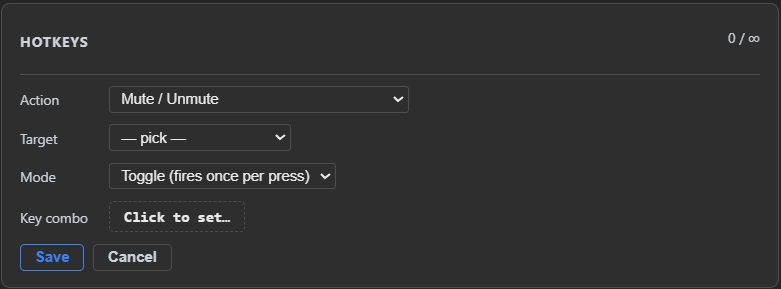
- Toggle (default) — one press flips the state (e.g. mute ⇄ unmute).
- Hold — push-to-talk or push-to-mute style: the action fires the moment you press the key down, and the opposite action fires the moment you release it. Pick Turn ON while held (e.g. mute only while the key is down — classic push-to-mute) or Turn OFF while held (push-to-talk: unmuted only while held, muted the rest of the time).
Managing your hotkeys
Every saved hotkey shows its action, target, mode badge (Toggle/Hold), and key combo in the list. From there:
- The toggle switch enables or disables it without deleting it.
- Edit reopens the form with everything pre-filled.
- Delete removes it.
If a hotkey's target was later deleted (a channel or bus removed from the mixer), its row is marked (missing) — the binding is harmless, it just won't do anything until you either restore the target or edit the hotkey to point somewhere else.
Free vs. Premium
Free includes up to 4 hotkeys — enough to cover the basics (mic mute, engine start/stop, a favourite scene). Premium removes the limit entirely. The volume-key redirect itself isn't limited on either tier.