Equalizer (EQ)
ON THIS PAGE
The EQ shapes a channel's tone — boosting what's missing, taming what's too much. It's a parametric EQ with up to 12 bands, drawn as a curve you can grab with the mouse.
Reach for it when:
- something sounds boomy, muddy, harsh or dull, and you can point to roughly where in the frequency range the problem lives;
- you want to add character — a presence lift, a warmth boost, a rumble cut — rather than just correct a fault.
Sound is made of frequencies, from low (bass) to high (treble). An EQ lets you turn specific frequency ranges up or down — think of a hi-fi's bass/treble knobs, but far more precise. Cut 200 Hz to remove "boom", boost 4 kHz to add "presence", roll off everything below 80 Hz to kill rumble.
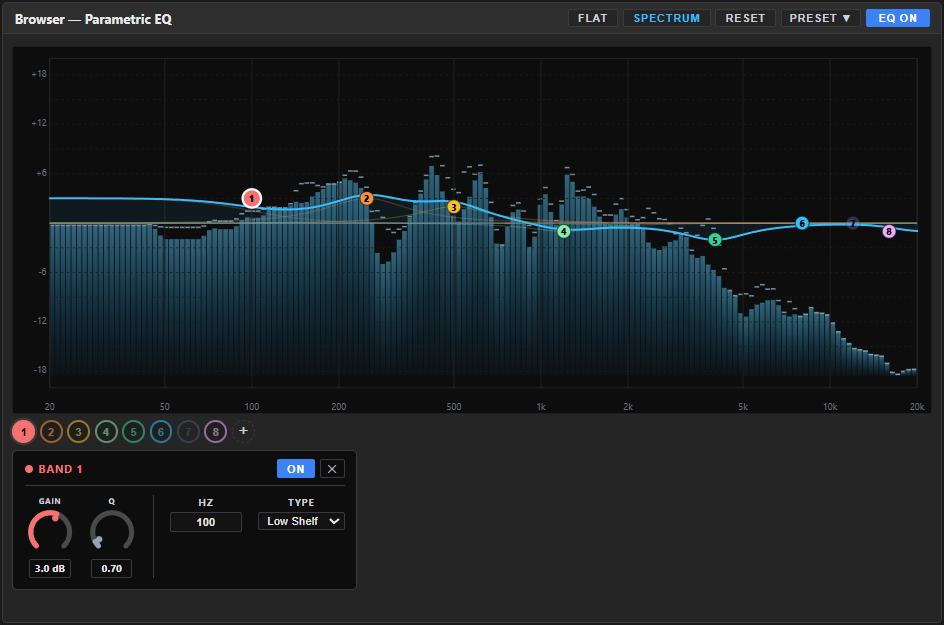
Where it lives
The EQ is a system node — it's always present on an input channel and can't be removed, only switched ON/off. It's the one system node with two access points, showing the exact same curve and bands in both places:
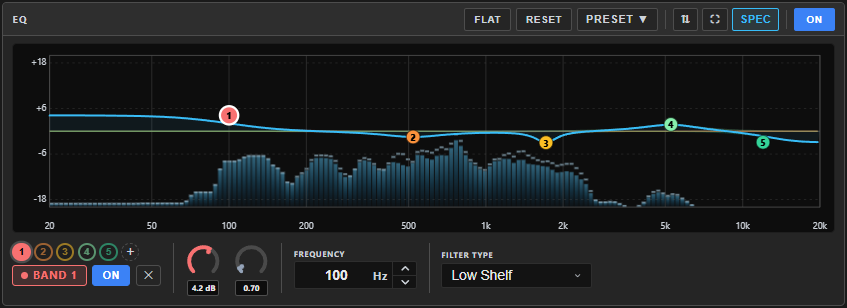
- The channel's own EQ tab — a full-size, dedicated view with room for every control.
- Pinned into the config screen's left dock — a compact version of the same editor, so you can shape tone side by side with the Gate or Compressor without switching tabs.
Editing a band in one place updates it everywhere — they're the same 12 bands, just two different-sized windows onto them.
The curve
The big graph is the EQ's response: left is low frequencies, right is high, the middle line is "no change". Each band is a draggable point:
- Drag a point up/down to boost or cut, left/right to change its frequency.
- The curve updates live as you drag, and so does the sound.
Bands
Numbered band badges (1, 2, 3…) sit below the curve, each in its band's colour. Click one to select it; the control strip beneath spans the full width and holds all that band's controls — the same strip in the EQ tab and in the EQ panel of the dock. + adds a band (up to 12). Next to the BAND n tag, each band has its own ON / OFF and a ✕ that deletes it (at least one always remains).
For the selected band:
| Control | Range | What it does |
|---|---|---|
| GAIN | −20…+20 dB | How much to boost (+) or cut (−). A dial — drag it, or click its value to type one. |
| Q | 0.1…10 | Width — low Q is a broad, gentle curve; high Q is a narrow, surgical one. |
| FREQUENCY | 20…20,000 Hz | The centre frequency the band acts on — type a value or step it. |
| FILTER TYPE | see below | The shape of the band. |
Band types:
- Bell — boosts/cuts around a centre frequency (the everyday workhorse).
- Low Shelf / High Shelf — lift or lower everything below/above a frequency (like bass/treble controls).
- High Pass / Low Pass — remove everything below/above a frequency (e.g. high-pass at 80 Hz to drop rumble).
- Notch — a very narrow, deep cut to kill a specific tone (hum, whistle).
Top-bar actions
- PRESET ▼ — apply or save a curve right from the title bar (see Presets below).
- SPEC (Spectrum) — toggles a live frequency analyzer drawn behind the curve, so you can see what you're shaping: where the bass piles up, where a harsh peak lives. It's on by default and the button glows cyan when active.
- FLAT — sets every band's gain back to 0 dB (keeps your bands and frequencies).
- RESET — restores the default 5-band layout: a low shelf at 100 Hz, bells at 500 Hz, 2 kHz and 8 kHz, and a high shelf at 16 kHz (asks to confirm).
- ON / OFF — switches the whole equalizer in or out of the signal (compare against the unprocessed sound).
In the dock, the same buttons appear alongside ⇅ (pin a different node into this slot) and ⛶ (maximize the panel to full dock height) — see the dock's two panels.
A good starting point
- Turn SPEC on and listen while watching where the energy actually sits — don't guess before you look.
- Cut before you boost: a narrow, moderate-Q cut on a problem frequency (boom around 200–300 Hz, harshness around 2–4 kHz) usually sounds more natural than boosting around it.
- For character rather than correction, a gentle wide-Q boost (a couple of dB) in presence (3–5 kHz) or air (above 10 kHz) goes a long way — big swings tend to sound obviously processed.
- Switch the EQ ON/OFF periodically to check you're actually improving the sound, not just changing it.
If it sounds wrong
| You hear… | Try… |
|---|---|
| The sound feels thin or lost its body after cutting | You likely cut too wide or too deep — lower Q and cut less. |
| A boost sounds harsh or "ringy" | Raise Q for a narrower boost, or reduce GAIN. |
| Everything sounds artificial or "EQ'd" | Pull every GAIN back toward 0 and start again with smaller moves. |
Presets
The PRESET ▼ dropdown in the title bar applies a saved curve in one click — no side panel eating into the layout; type a name and SAVE to store the current one. Once a preset is applied, the header shows Preset: name — see Knowing what preset is applied.
Aura Mixer doesn't ship a fixed set of EQ curves anymore — common shapes like a vocal presence lift or a podcast tilt live in the Workshop as starter presets; install the ones you want from Workshop ▸ Browse (or during first-run setup). Manage the list you've saved or downloaded (rename / delete / import / export) in Workshop ▸ My Library. Coming from Equalizer APO or AutoEq? Workshop ▸ My Library ▸ Import ▾ ▸ Equalizer APO reads an APO config (.txt) straight into a 12-band EQ preset — shelves included. The config's Preamp isn't applied (an EQ preset has no gain of its own); the preset's description suggests the matching Gain to set on the channel, so boosts don't clip.
Headphone corrections and sound goals
An EQ preset also knows what kind of curve it is, shown as a badge in the Workshop: HEADPHONE (flattens one pair of headphones), TARGET (a sound goal — footsteps, music, voice — layered on top) or COMBINED (both already merged). Aura uses the kind to decide where a preset belongs: a headphone correction is offered on your output bus (it should be applied once, at the very end of the chain), a target curve on an input channel, and a combined one only on an output. A preset with no kind is left to you.
The kind is filled in when you import a measurement (My Library ▸ Import ▾ offers Preset / pack, Equalizer APO, Headphone correction and Target / house curve), and you can change it in My Library — worth doing for older presets and for Equalizer APO files, where the kind is an educated guess.
If two curves end up fighting each other — a headphone correction sitting on an input channel (it corrects your headphones once per channel instead of once overall), or a combined curve used while a separate correction sits on a bus (corrected twice) — Aura says so with a notification and lists it in My Library under Worth checking, with a one-click Move to output where there's a single obvious fix.
In Simple mode, the Sound setup button does all of this for you — see Simple mode.
Output buses have the same EQ, used to correct the room or headphones rather than a single source — see Output EQ.
Related
- 3-band EQ / Graphic EQ — simpler, fixed-band FX inserts for a quick tonal push mid-chain, rather than this node's freely placed, adjustable-width bands.
- Noise Gate / Compressor — the channel's other two system nodes, both pinnable in the same dock.
- Output EQ — the same parametric EQ, applied to a bus instead of a channel.