The Channel Manager
ON THIS PAGE
The Channel Manager — Channels in the menu bar — is the mixer's control room: add, remove and reorder strips, and configure everything about the one you've selected, all from one window. Three tabs: 🎤 INPUTS, 🔊 OUTPUTS, 🎚 VCA GROUPS.
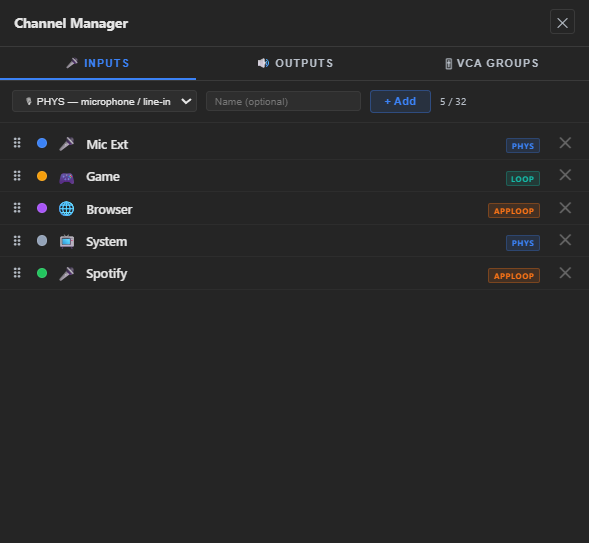
It's also where a Simple-view card's ⚙ gear takes you — there's no separate settings popup, just this window opened straight to that strip. (In the Advanced mixer, use SELECT for a strip's tabs and this window for its identity, source and routing.)
Layout: list on the left, detail on the right
Each tab is the same shape: a slim, drag-sortable list of every strip of that kind, and a detail panel on the right for whichever row you've clicked. Click a different row and the detail panel swaps to match — nothing to open or close.
- Reorder — grab a row's ⠿ handle and drag it up or down; the mixer strips follow the same order.
- Add — click + Add channel / + Add output / + Add VCA group at the bottom of the list. It becomes its own detail-panel state: pick a type, optionally a name, then confirm.
- Duplicate — an input channel's Duplicate channel button adds a copy right after it, named "… copy" (then "… copy 2" and so on), after an inline confirmation. The copy keeps everything: its input source and format, Gate, Compressor, EQ, FX chain, Spatial, the pre-fader Gain/Pan/Phase controls, the fader, icon and colour, and its sends. It starts muted — it plays the same source as the original, so unmuted you'd hear it twice — and isn't in a VCA group; unmute it (or point it at a different source first) when you're ready. An App channel's Mute original is switched off on the copy, since only one channel can own that app's Windows output. The button is greyed out when the channel limit is reached.
- Reset processing — an input channel's Reset processing button (next to Duplicate channel, after an inline confirmation) starts the channel's sound over without rebuilding the channel: the Gate, Compressor, EQ and Spatial go back to their defaults and switch off, the whole FX chain is emptied (the effects are removed, not just reset), and the pre-fader Gain, Pan, Phantom power, Phase invert and Pad controls go back to normal. The dock's pinned panels return to the default Gate and Compressor, and the "Preset: …" marks are cleared. Everything that makes the channel this channel stays: its name, icon and colour, its input source and format, mute and solo, its VCA group, its sends and routing, and its fader. Use it when a channel has been tweaked into a corner and you want a clean slate; it can't be undone, but a scene saved earlier remembers the old processing. Buses and VCA groups don't have this button.
- Remove — the detail panel's Delete button, with an inline are you sure? confirmation (switch it off in Settings → Interface → Delete Confirmation). Removal takes the strip's processing and routing with it — there's no undo, though a scene saved earlier remembers the full layout.
The Main L+R bus sits pinned at the bottom of the Outputs list — always there, not draggable, not deletable — but you can still click it to edit its device, EQ-adjacent settings and identity like any other bus.
Limits
The tab header shows your current count against your ceiling (e.g. 2/4 for inputs, 1/3 for outputs — the output count includes Main L+R), and + Add disables once you reach it:
- Free — 4 input channels, and Main L+R plus 2 more output buses; VCA groups are Premium-only.
- Premium — raises the ceilings to the app maximum (32 inputs · 15 buses + Main L+R · 8 VCA groups). A 🔒 Premium = unlimited link opens the upgrade page.
What each plan includes: Accounts & Premium.
Open a project that has more channels than your plan allows (say, on a fresh Free install) and the extra strips stay in place but are locked — marked with a 🔒 Premium badge — until you free a slot or upgrade.
Identity — name, icon, colour
Every detail panel starts with the same identity card: an editable name field, an icon picker, and a row of colour swatches. The colour also marks the strip's top edge on the mixer.
The icon picker offers the usual built-in set, but you can also upload your own image as a custom icon instead — handy for telling apart several similar-looking channels at a glance. An app-loopback (🎯 APP) channel additionally has an Auto-detect (from app) option: left alone, its icon automatically follows whatever program it's currently capturing (Spotify's icon while it's capturing Spotify, and so on); pick an icon yourself and it stops following and stays put until you switch back to auto-detect.
Inputs — source and routing
Below identity, an input channel's detail panel has:
- Source — the channel type (🎙 PHYS / 🔄 LOOP / 🎯 APP, or the generated PLAYER, GENERATOR and SOUNDBOARD — see Input Channels), and below it whatever that type needs: a device picker for PHYS/LOOP, or an app picker plus Include child processes for APP (with a ↺ refresh button).
- Channel Properties — Mode (mono / stereo / stereo→mono / 5.1 / 7.1) and quick Pan/Trim knobs.
- Routing — every output bus with an ON/OFF switch for this channel's send to it. Fine-grained per-bus level still lives on the channel's own SENDS tab; this is just the on/off list. (More on routing and sends.)
Outputs — type, device, and normalize/sync
An output bus's detail panel has:
- Output type — PHYS (a real device), APP (application capture, no cable needed) or RECORD (write to a WAV file) — see Output Buses.
- Output device — for a PHYS bus (and Main L+R), pick which speakers/headphones it plays to. Not shown for an APP or RECORD bus, which show a hint instead.
- Auto-level (Normalize) (🔒 Premium) and Sync — hold the bus at a target loudness, and delay/drift-correct it against other outputs. Full detail: Loudness & Normalization.
VCA groups — members
A VCA group's detail panel replaces Routing/Output settings with Members: two side-by-side lists, the group's current members on the left and every other channel on the right — click a channel on either side to move it across. See VCA groups for what a group actually does.