The Workshop — packs, collections & shared setups
ON THIS PAGE
The Workshop is Aura Mixer's built-in library of shareable audio setups: ready-made presets, packs and collections you download and apply in a click. Where a preset is one processor and a scene is your whole mixer, a pack sits in between — a multi-processor recipe for a single strip.
Open it with Workshop in the menu bar. It fills the window (press Esc or ‹ Back to leave) and has two sections along the top:
- Browse — the online catalog.
- My Library — everything you've saved or downloaded.
Three kinds of item
| Kind | What it is | How you use it |
|---|---|---|
| Preset | one processor's settings — an EQ curve, a gate, a spatial layout | apply it to a strip |
| Pack | a recipe for one strip — several processors set at once | apply it — every stage, or just the ones you tick |
| Collection | a curated bundle of other published items — e.g. a "Starter" set | install its items one by one; a collection is never "applied" itself |
Browse and download
The Browse landing shows shelves — a Games strip of chips (only games with published content appear), then Starter picks, New, Popular, and one shelf per item type. Type in the search box, tick a type chip (EQ / Gate / Comp / Pack / …), a game, or narrow further with the EQ-role and FX-type sub-chips, and the shelves collapse into one filtered grid. Sort by popularity, newest or name.
Click a tile to open its detail:
- a type badge (EQ / Gate / Pack / Collection / …), the author, version, download count and publish date;
- What's inside — the one visual on the page, for every item type (see below);
- author tags, and any screenshots or changelog the author added;
- a Needs a 5.1/7.1 channel note on a surround fold, so you know it wants a surround input;
- a Download button. Once you own it, the button reads Downloaded (or Update, when the Workshop has a newer version). Downloading only copies the item into My Library — it never touches your mix until you apply it.
What's inside
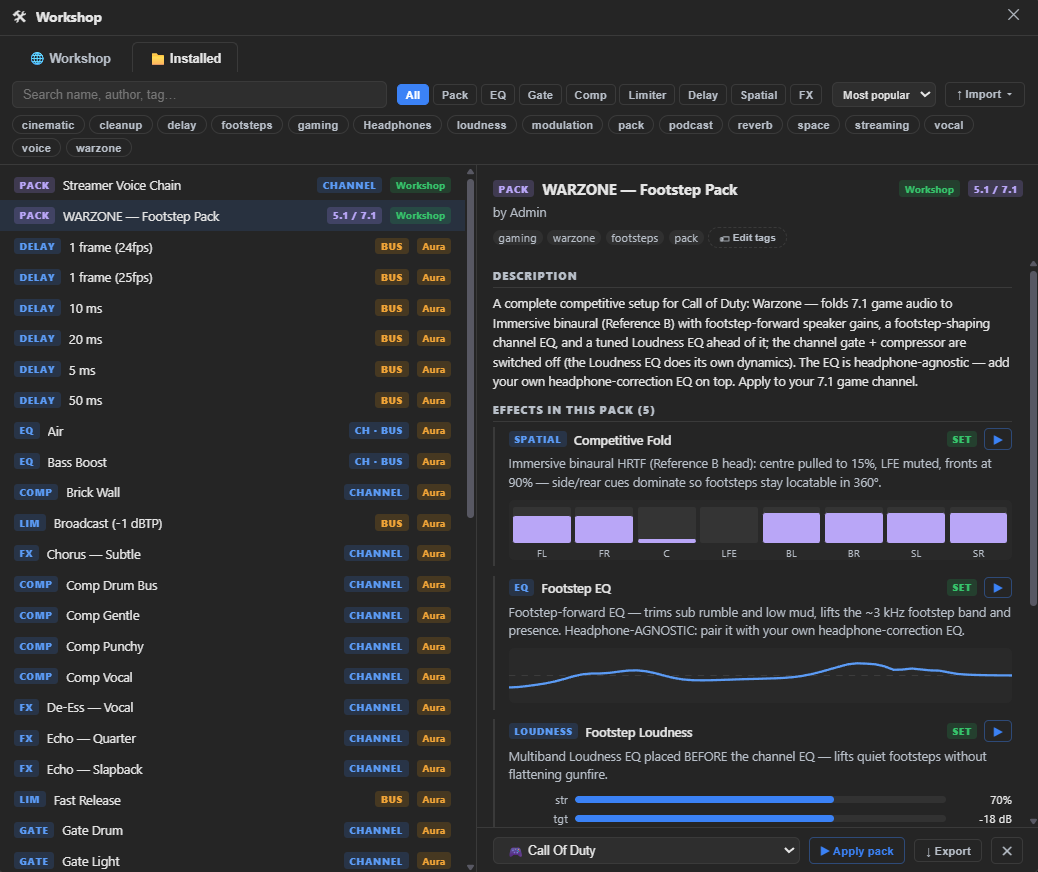
A pack shows its stages as an accordion — the first stage open, the rest one tap away. Each stage lists what it sets (or turns off), a short note from the author, and a preview, so you see exactly what a pack will do before you apply it.
A collection lists each bundled item — name, type, why it's included, and its live preview when you expand it. Each row has its own Download button, plus an Install N missing button and a count of how many you already have, so grabbing a whole set is one pass.
Applying a pack
Select a pack in My Library, click Apply…, and a dialog opens: a checklist of the pack's stages (each already ticked) and a target picker. Tick the stages you want, pick the channel or bus, confirm. (A single preset skips the dialog — pick a target from its Apply to picker and hit Apply.)
A pack's author chooses when applied how much it takes over, and the dialog states which before you confirm:
- Add to what's there — only the processors the pack actually configures change; everything else on the strip is left alone.
- Replace the whole pipeline — on top of that, any fixed slot the pack doesn't mention (a gate, a compressor…) is switched off too, so nothing left over from a previous setup can interfere. Your own values for those slots aren't wiped, just parked. Untick even one stage and the apply drops back to additive — a partial apply never switches anything extra off.
Packs know what they target: a surround pack (it folds 7.1 game audio to headphones) applies only to a 5.1 / 7.1 channel; a bus pack (an output EQ) applies to an output bus. The target picker only offers strips that fit, and greys out a stage that nothing can currently take, so you can't drop a surround fold onto a mono mic by accident.
A pack can bundle Premium processing (the Immersive spatial model, FX inserts). Those parts follow the same paywall as using the feature directly — downloading and inspecting the pack is always free, but a pack can't unlock a paid feature just by being applied.
My Library
Everything you've downloaded or created lives here. Select an item, and:
- Apply — a single preset applies straight to the strip you pick; a pack's Apply… opens the dialog above; a collection isn't applied at all (it's just a bundle of items — see its What's inside).
- Update — appears when the Workshop has a newer version of something you own; one click pulls the fix in, and a banner offers Update all when several are behind.
- ↓ Export — write a
.ngspfile for backup or sharing. Rename and Tags are here too, for presets you saved yourself. - Delete — remove it from this PC (asks to confirm). If you downloaded it, you can re-download any time.
Items you downloaded can't be renamed, retagged or exported — they're not yours to change — but you can still delete them.
Import ▾ brings things in from files: a saved .ngsp preset or pack, an Equalizer APO config, a headphone correction measurement (inverted into a correction curve) or a target / house curve measurement (used as measured). Anything the import had to compromise on — squeezing a high-resolution measurement into Aura's 12 bands, say — is shown to you rather than silently dropped. EQ presets carry a kind badge (HEADPHONE / TARGET / COMBINED) that decides where they're offered; see Headphone corrections and sound goals, and watch the Worth checking card for two curves that would fight each other.
Keeping things current. When the Workshop has a newer version of something you own, an Update button (and Update all for several) pulls it in. After an update, a bar offers to refresh every place you'd already applied the old version — only places you haven't tweaked since are touched; anything you adjusted stays as you left it.