Effects Rack (FX tab)
ON THIS PAGE
The FX tab is the channel's effects workshop — a visual signal-flow canvas where you drop in inserts (reverb, delay, de-esser…) and arrange the order they process the sound.
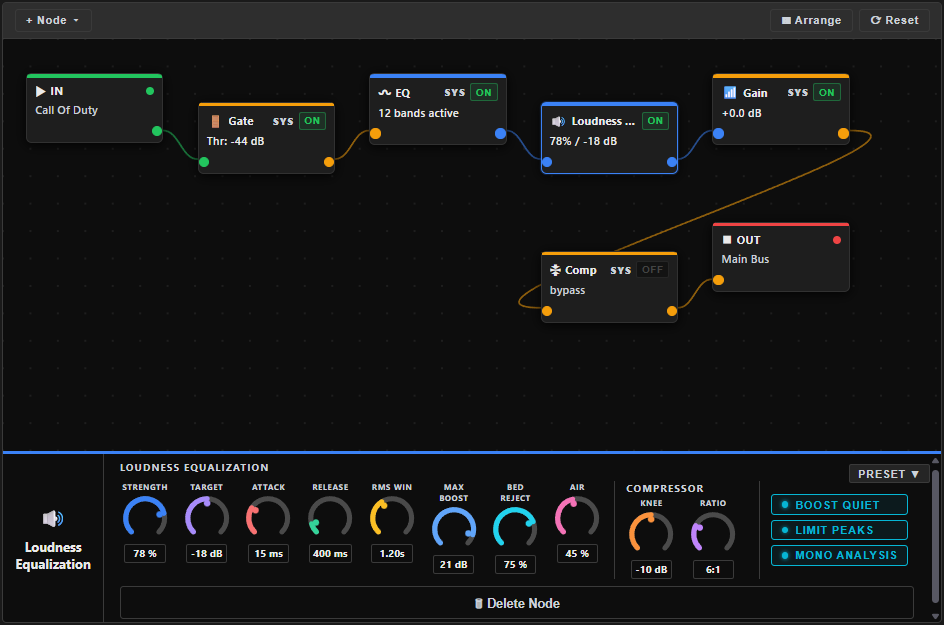
The FX rack is fully editable on the Free version — you can add and arrange effects — but the DSP only applies them with Premium. A banner reminds you: "you can configure FX, but it won't affect the sound." See Accounts & Premium.
How the canvas works
Signal flows left to right. Two endpoints are pinned: IN on the left, OUT on the right. Between them sit the processing nodes, and their horizontal position decides the order — a node further left processes the sound earlier.
There are two kinds of node:
- System nodes (badge SYS) — Gain · Gate · EQ · Comp. Always present, can't be deleted. These are the same processors you tune on the HOME, EQ, Gate and Compressor screens — the canvas just shows them in the chain and lets you reposition them.
- User inserts — everything you add yourself from the library. Each has a × to remove it — you'll be asked to confirm, since deleting a node and its settings can't be undone.
Adding an effect
Click + Node ▾ in the toolbar to open the library, grouped into Dynamics, EQ / Filters, Time / Space and Modulation. Pick one and it drops into the chain, just after the selected node. The full catalogue is in the Effects Reference.
Editing a node's parameters
Clicking a node on the canvas selects it (for pinning below) but doesn't open anything on the canvas itself — every node, system or inserted, has its own full panel in the left dock instead (the same two-slot dock the gate and compressor live in by default). Pin a dock slot to the node you want, or set a slot to ⟳ Follow FX tab selection so it automatically follows whatever you click here. The dock panel carries the node's knobs, its own PRESET ▾ and RESET, and — for effects where it means something (Limiter, Expander, De-esser, Loudness Equalization, Gain, Noise Suppressor) — a live level/gain-reduction meter while the engine is running. The parametric EQ, 3-band EQ, Graphic EQ and De-esser panels also have a SPEC button that overlays a live spectrum analyzer behind their curve.
Rewiring the chain
Every node has real input and output ports. Drag from one node's output onto another's input to change when it processes the signal — e.g. drop a de-esser's output onto the compressor's input to run it first. Valid targets light up as you drag; you can also drop onto IN or OUT to make a node run first or last. System nodes can be rewired too, and a chain you never rewire keeps its classic left-to-right order automatically.
Dragging a node's body just repositions it on the canvas for readability — position is purely visual now, the cables decide processing order. An Arrange button tidies the whole chain into neat rows (up to 5 nodes per row, with a short last row aligned to the right).
Bypassing one effect
Every node has an ON / OFF button in its header. Click it to bypass just that node while leaving the rest of the chain intact — the quickest way to A/B whether an effect is helping.
Resetting
RESET offers two choices (with a cancel):
- Inserts only (safe) — removes all the user effects you added, but keeps your Gain / Gate / EQ / Comp settings.
- Full pipeline (destructive) — also resets the system nodes to their defaults.
Reusing a setup
The FX canvas itself has no preset picker of its own, but every node's dock panel does — see Editing a node's parameters above. To reuse a whole chain, inserts included, snapshot the mixer as a scene.