Noise Gate
ON THIS PAGE
A noise gate is an automatic mute: when the signal drops below a threshold it closes and silences the channel; when you speak (or play) again it opens. It's how you stop a microphone from broadcasting fan hum, keyboard clatter and room tone between words.
Reach for it when:
- your mic picks up background noise (fans, keyboard, room tone) that you want silenced between words;
- you want a hard, clean on/off cut rather than the gentler thinning an Expander gives you.
Great for a talking microphone in a noisy room. Less useful on music or anything with a continuous quiet tail you want to keep — a gate can chop reverb or sustained notes off abruptly.
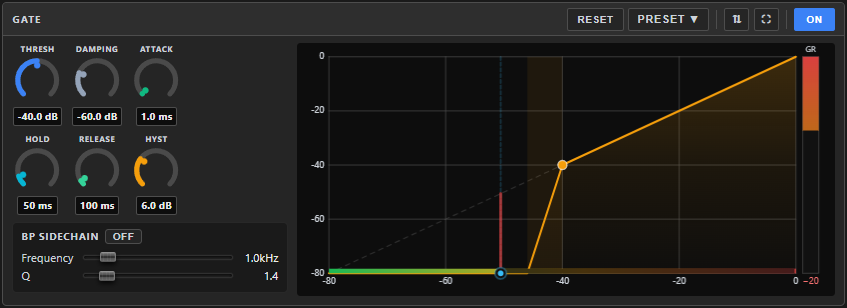
Where it lives
The Gate is one of the two system nodes that always ride along with an input channel — it's never added or removed, just switched ON/off. It lives in the config screen's left dock, by default in the dock's left slot, alongside the Compressor in the right slot.
The dock's two panels aren't fixed to Gate and Compressor, though — either slot can be pinned to any processor on the channel, including any FX insert you've added.
The dock: two panels, any node
The left dock has two side-by-side panels, and either one can show any processor on the channel — not just the gate and compressor that fill the two slots by default. Click the ⇅ button in a panel's header to open a picker:
- Pick a processor — Gate, Compressor, the parametric EQ, the system Gain trim, or any effect you've added on the FX tab — to pin that panel to it.
- Pick ⟳ Follow FX tab selection to have the panel automatically show whatever node you most recently clicked on the FX tab's canvas. A FOLLOW badge appears on the panel while this is on.
Click ⛶ to maximize a panel full-height — the other slot collapses to a slim header strip; click its own ⛶ to restore the even split. Hover a panel's title for a one-line explanation of what that processor does. Your pin/follow choice and maximize state are remembered per channel between sessions (as long as Follow is off — a panel set to Follow always tracks live, by design).
Every docked panel carries its own PRESET ▾ and RESET, and effect panels with a meaningful live level or gain-reduction to show (Limiter, Expander, De-esser, Loudness Equalization, Gain, Noise Suppressor) display it right on their graph while the engine is running. Once a preset is applied, the panel's header shows what's loaded and offers a way to revert or detach it — see Knowing what preset is applied.
Reading the panel
The graph shows the gate working: the incoming level and how much it's currently reducing the signal by. Above THRESH the gate is open and the line passes straight through; below it, the gate has clamped down toward the DAMPING floor.
Need more room? ⛶ in the header maximizes the panel to full dock height.
Controls
| Knob | Range | Default | What it does |
|---|---|---|---|
| THRESH | −80…0 dB | −40 | The level the signal must exceed to open the gate. Set it just above your background noise. |
| DAMPING | −80…0 dB | −60 | How much the gate attenuates when closed. Very low = near-full silence; nearer 0 = a gentle duck instead of a hard cut. |
| ATTACK | 0.1…200 ms | 1 | How fast it opens. Keep it short so word beginnings aren't clipped. |
| HOLD | 0…500 ms | 50 | How long it stays open after the signal drops — bridges short gaps between words. |
| RELEASE | 10…2000 ms | 100 | How fast it closes once hold expires. Too fast sounds choppy; too slow leaks noise. |
| HYST (Hysteresis) | 0…20 dB | 6 | The gap between the open and close levels. Stops the gate "chattering" on signals hovering right around the threshold. |
BP Sidechain
A band-pass sidechain makes the gate listen to a filtered version of the signal instead of the whole thing — so it opens only for sounds in a chosen frequency band. Its controls are tucked behind the vertical SIDECHAIN tab on the left edge of the panel: click it and they slide out over the dials, click it again to put them away (the graph stays visible the whole time). Toggle the sidechain ON, then set:
- Frequency (80–8,000 Hz) — the band to listen to.
- Q (0.3–10) — how narrow that band is.
Handy to make a gate trigger on, say, a voice's body while ignoring low rumble.
A good starting point
- Switch the gate ON. Stay quiet and watch the graph: note where your background noise sits.
- Set THRESH a few dB above that noise — silence should clamp shut, speech should open it cleanly.
- ATTACK ~1 ms, HOLD ~50 ms, RELEASE ~100–200 ms.
- If the gate flickers on quiet tails, raise HYST or HOLD. If cuts feel abrupt, raise DAMPING toward −30 dB for a softer duck.
If it sounds wrong
| You hear… | Try… |
|---|---|
| The gate chatters open/closed on a sustained quiet sound | Raise HYST or HOLD. |
| Word beginnings get clipped | Shorten ATTACK. |
| Cuts feel abrupt or unnatural | Raise DAMPING toward −30 dB for a softer duck instead of near-silence. |
| Noise still leaks through in the gaps | Lower THRESH, or raise DAMPING's attenuation (a lower number). |
Presets, bypass and reset
- PRESET ▾ in the panel header applies a saved setup, or saves the current one under a name. Once one is applied the header shows Preset: name — see Knowing what preset is applied. The same settings can also ride inside a pack.
- ON / OFF bypasses just this node.
- RESET returns every knob to its default (asks to confirm).
Related
- Compressor — the dock's other default slot; evens out level rather than cutting silence.
- Expander — a gentler downward push instead of a hard on/off cut, for when a gate feels too abrupt.
- Noise Suppressor — for steady background noise (hiss, hum, fan) that an adaptive floor handles better than a fixed threshold.
- Effects Rack — the FX chain this channel's Gate is a fixed part of.