Channel Setup
ON THIS PAGE
The SETUP tab is a channel's identity card and wiring panel: where its audio comes from, how it's labelled, and how its meter is calibrated. What you see at the top depends on the channel's type.
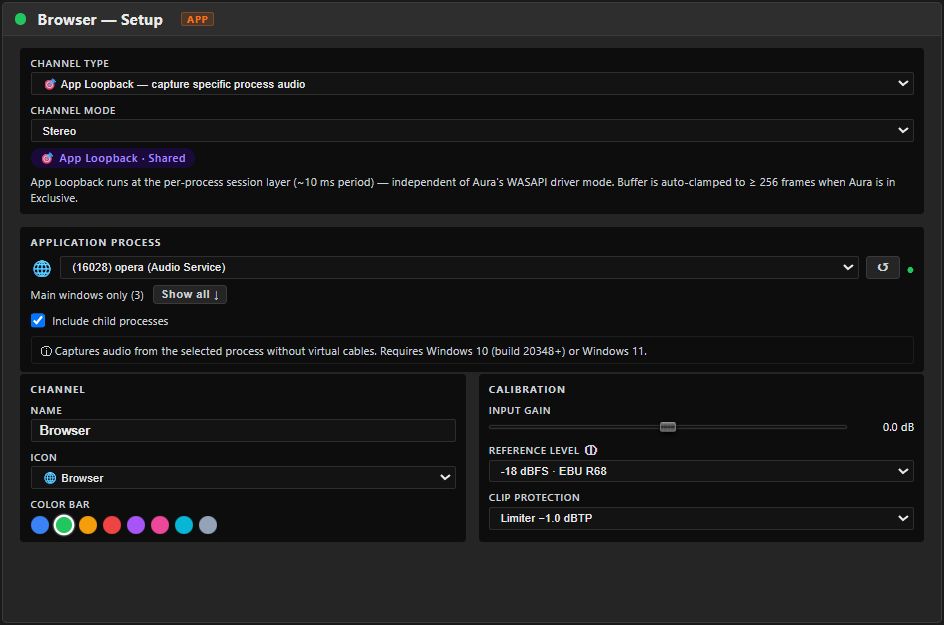
Input source (varies by type)
- 🎙 Physical — pick the recording device under Physical Input. Choose the channel mode (mono / stereo / stereo→mono, plus 5.1 / 7.1 if the device provides enough channels). Bit depth and sample rate aren't shown per-channel — they're fixed by the engine everywhere (32-bit float / 48 kHz).
- 🔄 Loopback — pick the output device to capture under Loopback Source; format follows that device.
- 🎯 App Loopback — pick the program under Application Process. ↺ refreshes the list; toggle Show all / Main windows only; tick Include child processes for apps that play through helpers (browsers, games). Tick Mute original to hear the app only through Aura — it moves the app's Windows output to a silent device so it isn't heard twice (see Capture a single app). Requires Windows 10 build 20348+ / Windows 11.
A virtual cable (VB-Audio, Voicemeeter, VAC…) doesn't need its own type — it's just another device, so pick it under 🎙 Physical like a microphone.
A capture badge shows whether the source is actively delivering audio and in which mode (Exclusive, Shared, or ⚠ Shared (device fallback) when a device can't do exclusive capture). If the device isn't running at Aura's 48 kHz, a ⚠ " kHz" warning appears — Windows is resampling it (which can crackle on virtual cables); set the device to 48000 Hz in Windows Sound → Recording → (device) → Advanced. A disconnected device appears as ⚠ … — disconnected until you reconnect or pick another.
Windows sound settings — this button opens Windows' classic Sound control panel (Recording tab), where you can adjust the device's sample format, levels and exclusive-mode permission — things that live in Windows, not Aura Mixer.
Channel
Identity and appearance:
- Name — rename the strip (name it by role:
Mic,Game,Stream). - Channel type — switch between Physical / Loopback / App Loopback. Pick this first — it decides which source-specific section appears above.
- Icon and Color bar — the icon and colour shown on the strip. Pick from the built-in set or upload your own image. An App Loopback channel can also be left on Auto-detect, which keeps its icon in sync with whatever program it's currently capturing.
Calibration
- Input gain (−20…+20 dB) — the same trim as the HOME tab's GAIN knob, here as a slider.
- Reference level — draws a "0 VU" tick on the channel's meter at a chosen standard: −18 dBFS (EBU R68), −20 dBFS (SMPTE), −14 dBFS (Streaming) or −23 LUFS (EBU R128). It's a visual reference for "ideal" level; it doesn't change the sound.
- Clip protection — a safety net on the channel's peaks:
- Limiter −0.3 dBTP / Limiter −1.0 dBTP — gently caps peaks at that true-peak ceiling.
- Hard clip (no limiter) — lets peaks clip squarely.
- Disabled — no protection.