Automation
ON THIS PAGE
Settings → Automation (Premium) — rules that trigger mixer actions on their own, without you touching a key or a fader: switch to a streaming profile when OBS launches, duck your game audio and mute your mic at the same time when a match starts, or recall a scene the moment your headset connects. Every rule follows the same shape: When something happens, Then do one or more things.
Automation is a Premium feature — the tab shows a locked preview until you unlock it. See Accounts & Premium.
Starting a rule
Click + Add rule. You'll be offered a handful of starter templates first:
- Duck a channel when an app launches — e.g. lower Discord when a game starts.
- Mute when an app launches — e.g. mute your mic when OBS starts.
- Mute when a device connects — e.g. auto-mute speakers when headphones plug in.
- Recall a scene when a device connects — e.g. switch profile when your headset connects.
Pick one to pre-fill the trigger and first action, or Start from scratch for a blank form. Either way, you still choose your own process, device, or target — templates only set the shape of the rule.
Triggers — "When"
Six trigger types, picked from an icon grid:
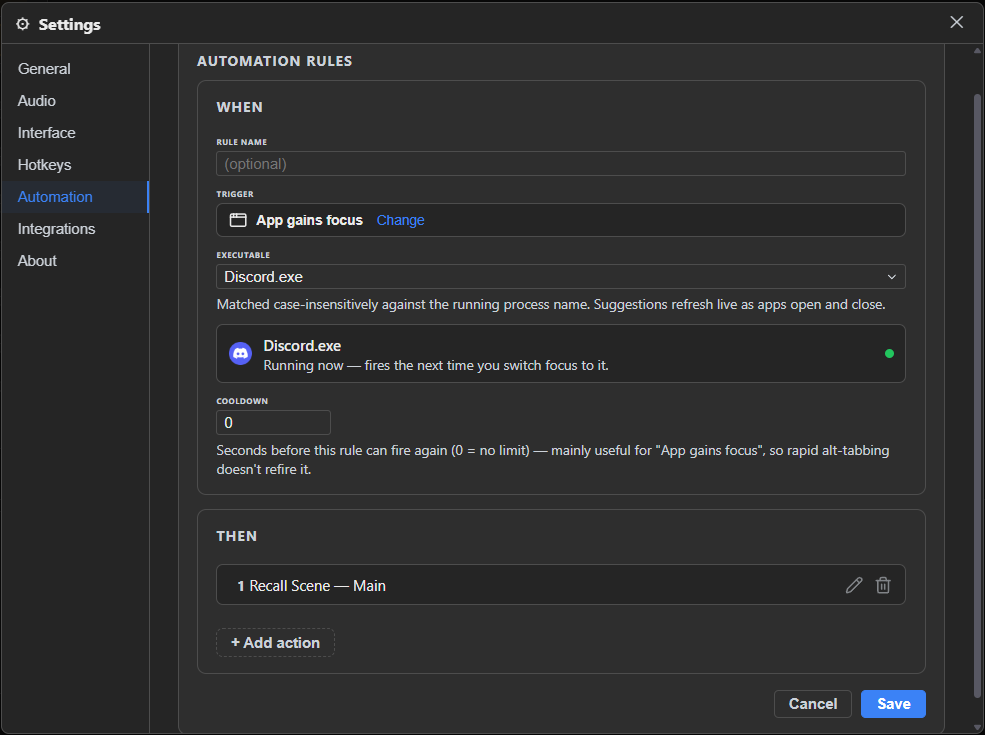
- App gains focus / App launches / App closes — type or pick a running process (e.g.
obs64.exe). Matched case-insensitively against the process name; it doesn't need to be running yet — a launch/close trigger legitimately targets an app that isn't open. A live status card shows whether it's running right now, with its icon when it is. - Device connects / Device disconnects — pick an audio device from the list (grouped Outputs / Inputs). Devices you've used before stay in the list even while unplugged, so you can write the rule now and plug the device in later. The status card shows whether it's connected right now — that's normal, not an error, and explains exactly when the rule will fire (e.g. "fires when you plug it back in").
- Signal above threshold — automatically ducks one channel while another is active. This one works differently from the other five — see Auto-duck rules below.
Cooldown
Every trigger except Signal above threshold has a Cooldown (seconds, 0 = no limit): the minimum gap before the rule can fire again. Mainly useful for App gains focus — without it, rapid alt-tabbing between two apps could refire the rule every time.
Actions — "Then"
A rule can run one or more actions in order, added one at a time from + Add action. The action picker is the exact same catalog Hotkeys uses — mute/solo, set or adjust a fader, toggle a route or send, recall a scene, start/stop the engine, plus transport for Player, Generator, and Recorder channels/buses if you have any — e.g. "start recording the instant a game launches," or "play a music bed when a scene recalls." (A Soundboard's Stop is available here too, but triggering a specific pad isn't — that only works as a per-pad hotkey, set in the pad editor itself.)
For actions that support it, Mode defaults to an absolute verb (e.g. Mute, not Toggle) — a rule fires on an event, so "mute the mic when OBS starts" should always mute it, not flip whatever state it happened to already be in. Pick Toggle explicitly if that's really what you want.
Each action in the list can be edited (pencil) or removed (trash) afterward.
Auto-duck rules ("Signal above threshold")
This trigger type replaces the whole When/Then structure above with something built specifically for ducking:
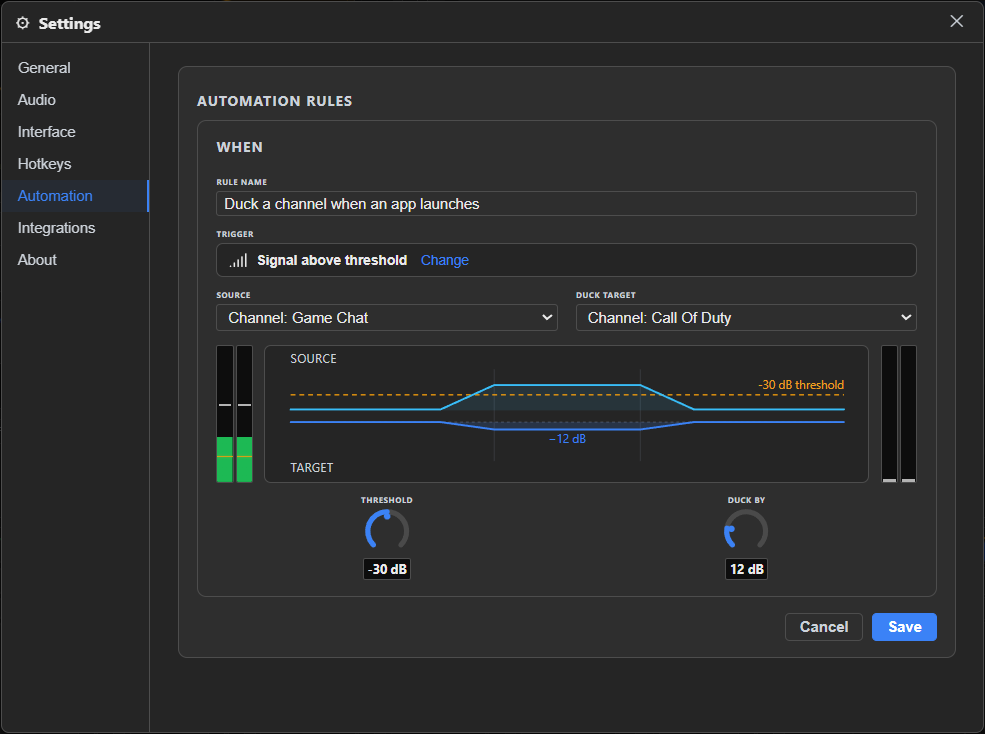
- Source — the channel to watch (e.g. your microphone).
- Duck target — the channel or VCA group to pull down while the source is active. A live meter, a curve diagram, and a second meter show the relationship as you tune it.
- Threshold (dB) — how loud the source needs to get before ducking kicks in.
- Duck by (dB) — how far the target drops while ducking is active.
Releasing isn't instant the moment the source dips below threshold — a short hold (about half a second) plus a few dB of built-in hysteresis keeps a normal pause between words or sentences from releasing and re-triggering the duck over and over (which would sound like pumping). You get one clean duck for as long as you're actually talking, not one per word.
Picking a VCA group as the duck target fans the duck out to every member channel. If the source channel itself happens to be a member of that group, it's automatically left out of its own duck — so "duck everything while I talk" works even with a group that contains your mic, without needing a second, mic-less copy of the group.
If more than one rule ducks the same target at once, the deepest request wins — they don't stack.
Managing your rules
Each saved rule shows a one-line summary of its trigger and actions. From there:
- The toggle switch enables or disables it without deleting it.
- The pencil reopens the form with everything pre-filled.
- The trash icon arms a delete — click Delete again to confirm, or Cancel to back out.
Whenever a rule actually fires, a short toast confirms it — naming the rule and what it did — so an automatic action never happens invisibly in the background.