Scenes — your whole mixer, snapshotted
ON THIS PAGE
A scene is a photograph of the entire mixer: every channel and bus, every fader, every EQ curve, every routing switch, every effect. Save one per context — Streaming, Gaming, Meetings — and switch your whole audio life with one click.
Open the Scenes window with Scenes in the menu bar.
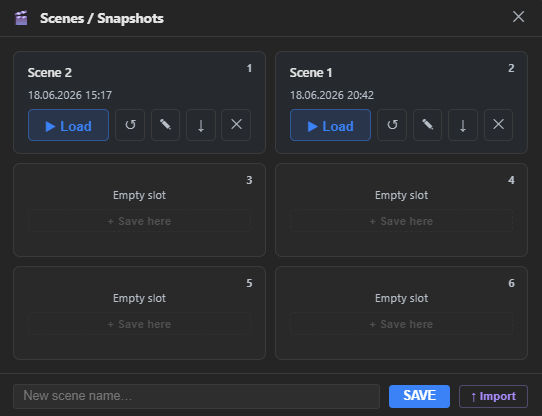
List on the left, detail on the right
Every saved scene shows up as a row in a scrollable list — up to 20 — with its name and when it was saved. Click a row to open its detail panel on the right:
- What's in it — chip lists of the channels and outputs the scene captures, so you can tell scenes apart without loading them.
- Notes — a free-form field for reminding yourself what a scene is for; click it to type. Purely descriptive — it's never read by the mixer.
- Usage — any global hotkey or automation rule bound to this scene, shown as chips. If you try to delete a bound scene, the confirmation calls that out first so you don't silently break a rule or shortcut.
- Load Scene — the big button that recalls it: the whole mixer snaps to the saved state.
- Overwrite / Export / Delete — replace the scene with the current mixer state, save it to a
.ngssfile, or remove it (two-step confirm either way).
Click New scene at the bottom of the list to save the current mixer as a fresh entry — type a name (optional) and press Save Current Mixer. Import scene… at the bottom of the window loads a .ngss file from disk as a new entry.
The active scene's name appears as the 🎬 chip in the monitor bar and stays there across a restart — reopen Aura Mixer and it still shows which scene you're on, even though the working mixer itself auto-saves independently (see below).
What's saved — and what deliberately isn't
A scene captures the full mixer state: channels with all their processing (EQ, gate, compressor, FX, spatial), buses with theirs, routing, sends, groups, fader positions, mutes.
Two things are intentionally left out:
- Solo states — solo is a temporary listening tool; scenes always load solo-free so a forgotten solo can't ambush your next session. (Why)
- Global app settings — driver mode, buffer size and theme belong to the app, not the mix.
Hotkeys are not part of a scene's mixer: the hotkeys you set to All scenes and your hardware volume-key settings stay as they are when you load a scene. A hotkey or volume-key layer set to Only this scene does belong to a scene: it's saved with it, works only while it is active, and a new scene starts with a copy of the one it was saved from. (Hotkeys)
Scenes vs. auto-save — no conflict
Aura Mixer continuously auto-saves your working state — close the app, reopen, everything's where you left it, no scene involved. Scenes are something else: named checkpoints you return to on purpose. Load a scene, tweak it for an hour, and the original snapshot stays untouched until you explicitly Overwrite it.
After loading a scene you immediately start "editing" it (auto-save tracks your tweaks as the working state). If the tweaked version is the better one — Overwrite it. If not — Load Scene again and you're back to the checkpoint.
Sharing and backup
The .ngss export is a plain file: park copies of your battle-tested streaming setup in cloud storage, move scenes to a second PC, or trade them with friends. One caveat travels with the file: device assignments reference your hardware, so on another machine the strips arrive intact but may need their devices re-picked in SETUP.