Presets — reusable processing
ON THIS PAGE
Where a scene photographs the whole mixer, a preset bottles one processor's settings so you can reuse them — an EQ curve, a gate setup, a compressor character, a spatial layout. Build something you like once, save it, and drop it onto any channel forever.
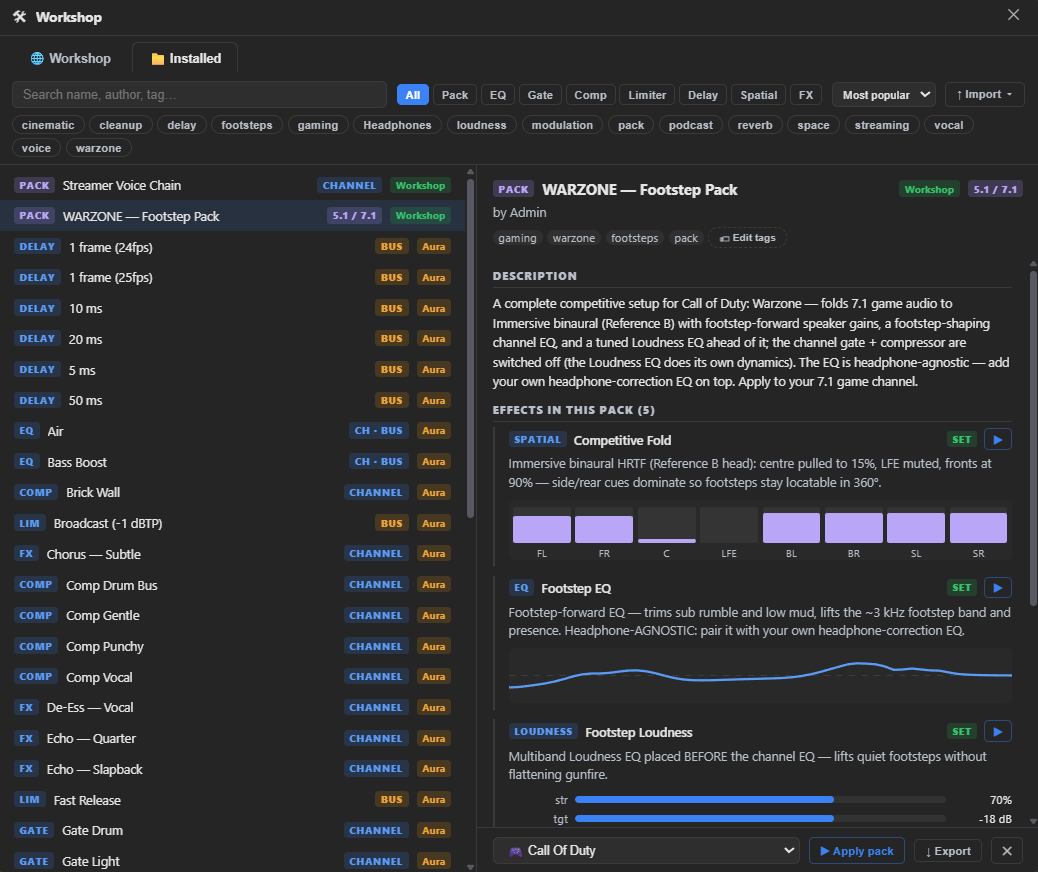
Want to reuse a whole chain at once — gate + EQ + comp + spatial together? That's a pack, part of the Workshop.
Where presets live
On each processor panel — Gate, Compressor, the EQ tab, the Spatial tab, and any FX-insert (including a channel's own Limiter) all have a preset picker. Pick one and it applies to that processor instantly. An output bus's own Limiter and Delay have no preset system — they're plain always-on settings, the same category as Output Gain.
Manage your library in the Workshop. Open Workshop ▸ My Library (menu bar) to see every preset you've saved or downloaded — channel presets (EQ, Gate, Comp, Spatial, FX) together in one list. From there you can:
- Rename and retag an item you saved yourself.
- ↓ Export / Import ▾ — write a
.ngspfile for backup or sharing, or bring one back in (the same menu also reads Equalizer APO configs and headphone measurements). - ✕ Delete — remove a preset from this PC. If you delete one you downloaded, you can re-download it from the Workshop any time.
You apply a preset from each processor's own PRESET ▾ (above); My Library is for housekeeping.
In Simple mode, each block's preset picker also has a Default entry at the top — pick it to reset that block to factory values without saving one of your own first.
Knowing what preset is applied
Once you apply a preset (or a pack stage) to a processor, its header shows a small Preset: name tag so you always know what's loaded. Keep tweaking a knob afterwards and the tag picks up a · modified suffix, plus a ↺ button next to it — click it to snap that processor back to exactly what the preset set, discarding your tweaks.
Every preset menu also has an ✕ Detach preset entry. Unlike revert, detaching doesn't touch your settings at all — it just removes the Preset: name tag, so your current sound stays exactly as it is but stops being tracked as "loaded from" that preset. Use it once you've adjusted a preset enough that it's really its own thing now.
Starter presets
Aura Mixer no longer ships a hardcoded preset library. Instead, a curated set of starter presets — speech-friendly gate settings, vocal compression, common EQ shapes, game folds — lives in the Workshop under Starter picks. The first-run setup offers them, and you can browse and install them any time from Workshop ▸ Browse. They're decent defaults and better teachers: install one, look at what it did to the knobs, adjust to taste, save your own version.
Saving your own
Dial in the processor on any channel, then type a name into the Save as… field in that panel (the EQ tab has its name field and SAVE button in the presets list). Spatial presets save the same way — from the PRESET ▾ menu on the Spatial tab. Name it for what it does (Mic — warm, Stream limiter -1dB), because in three months "Preset 4" will mean nothing.
Scene, pack, or processor preset?
Three scopes, smallest to largest:
| You want to… | Use |
|---|---|
| Reuse one processor's settings (a compressor, an EQ curve) | Processor preset |
| Apply a ready-made multi-processor recipe (footstep boost, a voice chain) | Pack — from the Workshop |
| Snapshot and switch your entire mixer between contexts | Scene |
| Share any of these | Export to file — .ngsp (presets) or .ngss (scenes) |
A processor preset touches one block; a pack sets several at once; a scene captures every channel and bus. To save your own whole setup, snapshot it as a scene; reusable multi-processor recipes are packs — downloaded from the Workshop.