Output Setup
ON THIS PAGE
A bus's SETUP tab is where you point it at a device and set its loudness behaviour.
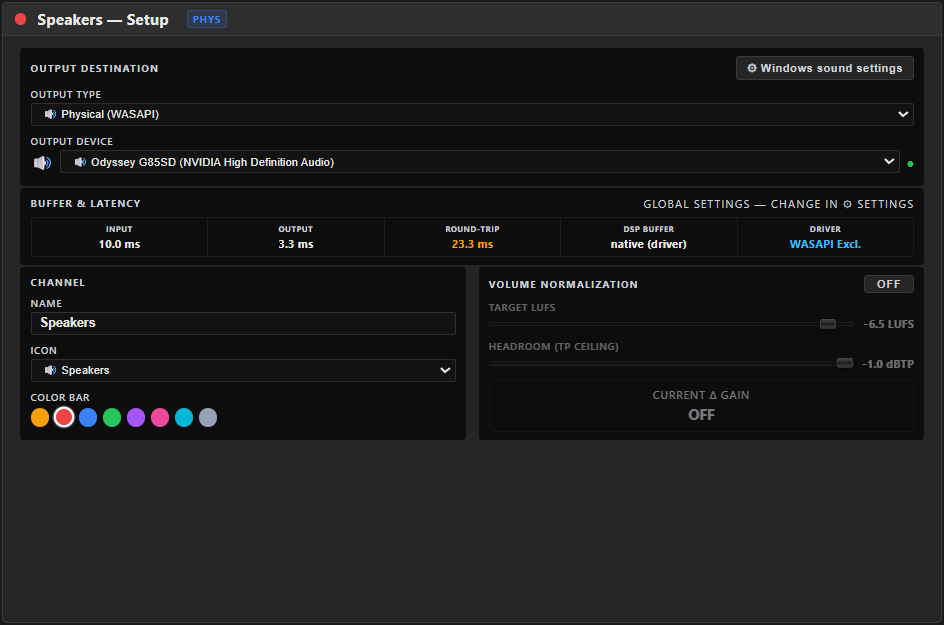
Output Destination
Output type, at the top of the section, decides what's shown below it:
- 🔊 Physical — a real playback device: headphones, speakers, a second sound card, or a virtual cable's playback endpoint (VB-Audio, Voicemeeter, VAC…) picked from the same device list. A disconnected device shows as ⚠ … — disconnected and keeps its place until you reconnect it or choose another — audio resumes automatically on reconnect.
- 🎥 Application (capture) — the bus is rendered by a hidden helper so a capture app (e.g. OBS's Application Audio Capture) can grab it directly, with no virtual cable. In your streaming/recording app, add an Application Audio Capture source and choose "Aura Mixer — ". There's no device to pick here — it plays out loud on the system's default device, so route it to something you're not personally listening on.
A status dot shows whether the device is live. The Main L+R bus is badged MAIN LR.
Windows sound settings — opens Windows' classic Sound control panel (Playback tab) to adjust the device's format, level or exclusive-mode permission.
Volume Normalization 🔒
Holds the bus at a consistent loudness so your output meets a streaming or broadcast target without you riding the fader. Toggle it ON, then set:
- Target LUFS (−36…−5) — the loudness to aim for (e.g. −14 LUFS for many streaming platforms).
- Headroom (TP ceiling) (−24…−1 dBTP) — the true-peak ceiling the normalizer won't exceed.
A live CURRENT Δ GAIN read-out shows exactly how much the normalizer is adding or removing right now. This is a Premium feature — see Loudness & Normalization for the full picture.
Drift Correction
When two devices run on slightly different clocks, audio can slowly drift out of sync — not a fixed offset you'd fix with Output Delay, but a gradual creep. The Drift Correction dropdown handles it:
- Auto (PLL) — tracks and corrects drift automatically. A JITTER meter shows the live clock difference.
- Manual — dial a fixed correction in ±200 ppm (positive = the input is running fast, negative = slow).
- Disabled — no correction.
Most people leave this on Auto. Reach for Manual only if you've measured a specific, consistent drift on this bus and want to compensate for it directly.