Output Delay
ON THIS PAGE
Output delay shifts an entire bus later in time. The classic use is lip-sync — nudging audio back to line up with video that your capture or display has delayed — and aligning multiple speaker zones so they hit your ears together.
It lives in the left panel of the bus config screen (next to the Limiter), with an ON / OFF switch.
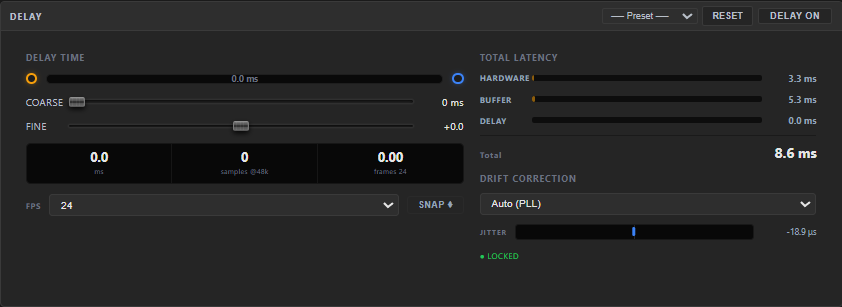
Setting the delay
- COARSE (0…500 ms) — the main delay amount.
- FINE (−5.0…+5.0 ms) — a small offset for precise alignment.
A timeline shows input → delayed output, and the total is displayed three ways at once:
- milliseconds
- samples (at 48 kHz)
- video frames — at a selectable FPS (23.976, 24, 25, 29.97, 30, 60). SNAP ⌖ rounds the delay to the nearest whole frame — perfect for matching a video editor's frame timing.
Latency breakdown
A small meter shows where your total delay comes from — Hardware + Buffer + your Delay — and the grand total, so you can see the real end-to-end latency of that bus. This tab has no preset picker of its own — a delay/drift value is calibrated to your own room and gear, not something you'd share.
If audio is ahead of the picture, add delay until they line up — set your editor's frame rate as the FPS, then nudge COARSE/FINE and use SNAP. If audio is behind, the delay is usually on the video side; reduce buffering or capture latency instead.
If two devices slowly slip out of sync over time (not a fixed offset you can dial in once), that's Drift Correction — it lives on this bus's SETUP tab, not here.