Routing and Sends
ON THIS PAGE
Routing answers "where does this channel go?" — sends answer "and how much of it?". Three views, one system: the matrix or the graph for the big picture, the SENDS tab for fine control.
The Routing Matrix
Open it with Routing in the menu bar. It's a grid: channels down the left, output buses across the top, and every crossing point is a switch.
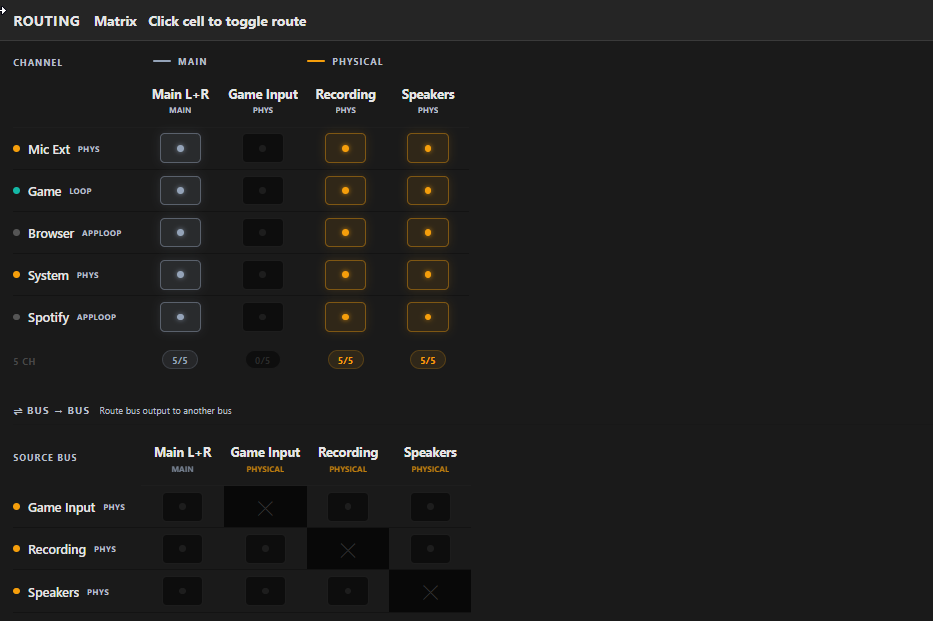
- Click a cell to toggle that route on or off. Lit cell = this channel feeds this bus.
- Columns are grouped and colour-coded by bus type; the bottom row counts how many channels feed each bus (
4/7). - New channels start routed to Main L+R, so you always hear something by default.
This is where the "independent mixes" idea from Output Buses becomes physical: the music channel's row simply has no lit cell under the stream bus. Done — copyright-safe.
BUS → BUS routing
Next to the main grid sits a second, smaller matrix for feeding one bus into another (the diagonal is blocked — a bus can't feed itself) — the two share the same bus columns, so you can compare channel and bus routing at a glance without scrolling past one to see the other. Click a cell and the source bus flows into the destination bus, where it's processed together with everything else routed there — the destination's EQ, limiter and fader all act on the combined signal.
Each bus→bus feed has its own level, set on the source bus's SENDS tab under "… → other buses" (an on/off switch plus a send fader, like a channel send).
The route carries the source bus's channels at their own balance, before the source bus's master fader, EQ and limiter. So the amount reaching the destination is governed by the per-route send level — riding the source bus's own fader (for its own listeners) doesn't change what's routed onward.
In the app the bus→bus send's PRE/POST switch is fixed and shows POST (tooltip: "Bus→Bus sends are always POST fader"). Don't let that wording mislead you — the signal is still tapped before the source bus's master fader/EQ/limiter, exactly as described here; "POST" just means the feed is always on and can't be flipped.
Why nest buses? Treat a sub-mix as one source. Route a "Music" bus into both your Main bus and a Stream bus: the same music sub-mix reaches both, each destination adds its own processing, and the per-route send sets how much Music each one receives.
The Routing Graph
Prefer wires to a grid? Toggle Matrix to Graph in the same Routing overlay — or List to Graph on any SENDS tab — to see the same routes drawn as a node graph: channels on the left, output buses on the right, cables between them.
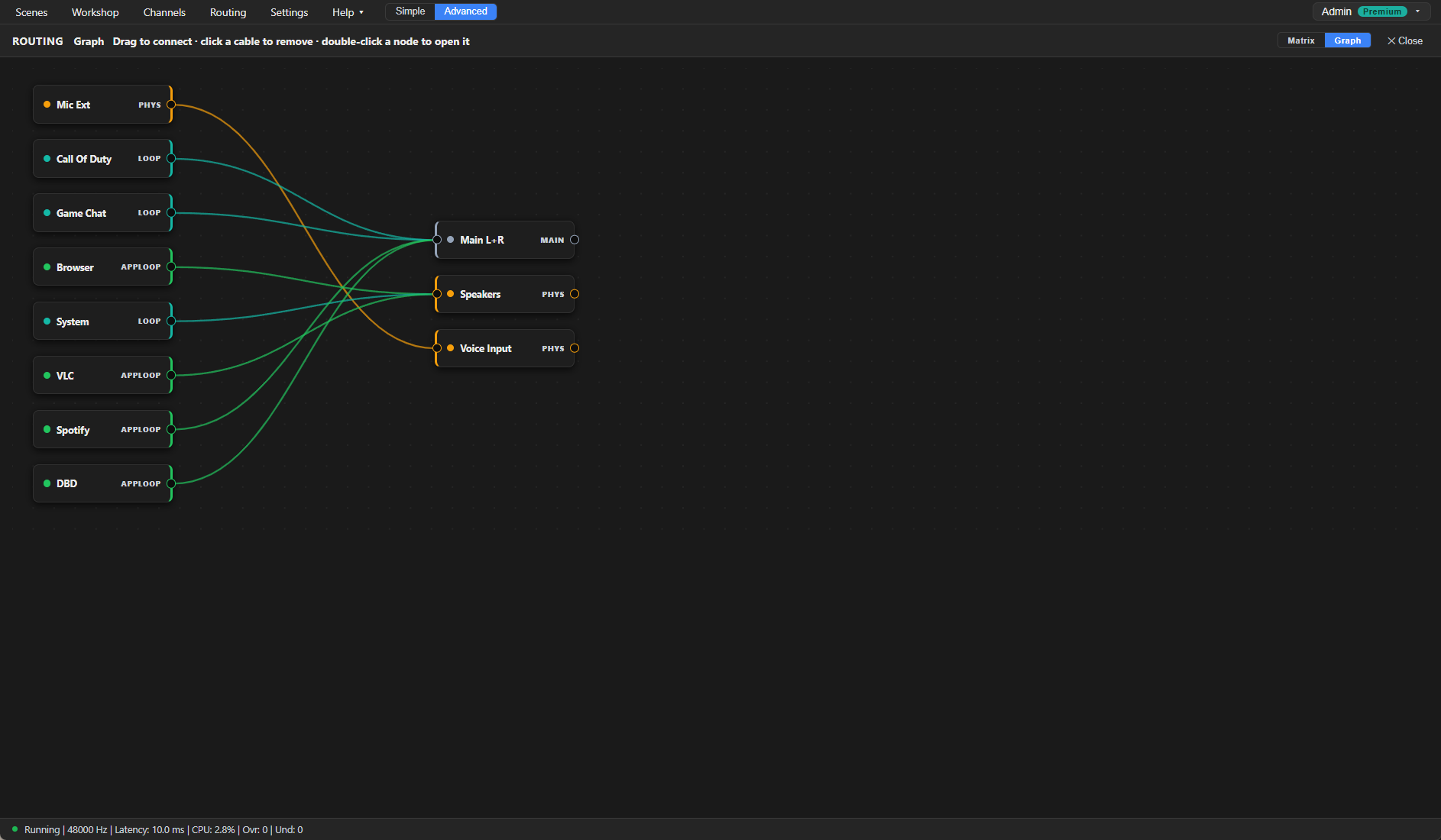
- Connect — drag from a channel's output port (the small handle on its right edge) onto a destination bus and release. A cable appears.
- Disconnect — click any cable to remove that route.
- Open a node — double-click a channel or bus to jump straight into its SENDS tab, already selected.
- Bus → Bus feeds are drawn as dashed arcs with a direction arrow, in a lane to the right of the output buses — the same feeds from the section above, just wired instead of gridded.
While dragging a bus→bus cable, only the buses that wouldn't close a cycle light up as valid drop targets. Anything that would route a bus back into itself — directly, or through another bus — never highlights, and dropping on it does nothing.
The graph comes in three scopes, all reading and writing the exact same routing state as the matrix:
| Scope | Where | Shows |
|---|---|---|
| Global | Routing overlay (menu bar → Routing) | every channel → every output, plus all bus→bus feeds |
| Input | a channel's own SENDS tab, Graph toggle | just this channel → the outputs it can feed |
| Bus | an output bus's own SENDS tab, Graph toggle | every channel feeding this bus, plus any bus it exchanges a route with |
The SENDS tab — levels, not just switches
A lit matrix cell sends the channel at full level. Often you want some of a channel — music a little quieter in the stream than in your ears. SELECT a channel → SENDS tab: one strip per output bus, each with:
- ON/OFF — the same switch as the matrix cell, in list form.
- Send fader (−60…+10 dB) with a dB readout and a mini level meter — how much of this channel feeds that bus. Drag, scroll, or click the value to type; the level is independent per bus.
- PRE/POST — where the send taps the signal:
- POST (default) — after the channel fader. The send follows your mixing: pull the channel down, every POST send comes down with it. Right for normal mixing.
- PRE — before the fader. The send stays constant no matter what the fader does. Right for feeds that must not follow your local mix — e.g. a clean mic feed to a recording bus while you ride the fader for your own monitoring.
Output buses have a SENDS tab too, showing the same routes from the receiving side. Either tab also has its own List / Graph toggle, so you can flip to that channel's or bus's routing graph without leaving the tab.
Matrix, Graph or SENDS — which to use?
| Task | Tool |
|---|---|
| Wire up the whole setup, see everything at once | Matrix or Graph |
| Trim how loud a channel is in one particular mix | SENDS tab |
| Quick on/off of a single feed while mixing | Any of the three — they're the same switches |
| See routing as a grid you can scan by eye | Matrix |
| See routing as wires you can trace and rewire by hand | Graph |