Capture a single app
ON THIS PAGE
Sometimes you want just one program on its own fader — Spotify separate from your browser, your game separate from Discord — without routing your whole system through virtual cables. That's exactly what an APP channel does: it captures one application's audio directly, and nothing else.
App capture uses a Windows feature that needs Windows 10 build 20348+ or Windows 11. On older builds, use a LOOP (whole-device) channel instead — see the note at the bottom.
1. Add the channel
Menu → Channels → INPUTS tab → + Add a 🎯 APP channel. Name it after the app (Spotify, Chrome, Game).
2. Pick the program
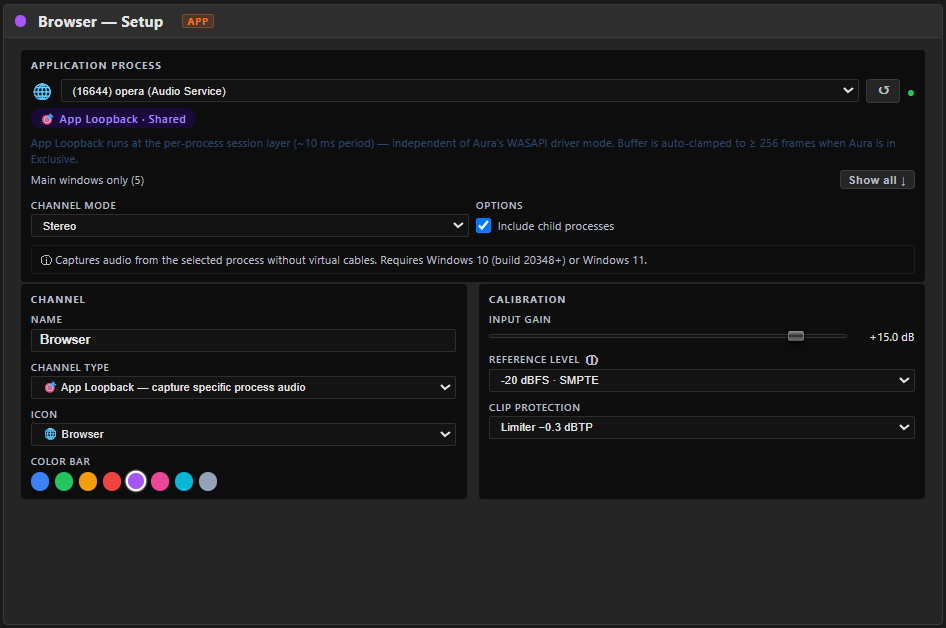
SELECT the channel → SETUP tab → under Application Process, choose the program from the list. Don't see it? Make sure the app is running and playing sound, then click ↺ to refresh.
Browsers and many games play audio from a helper process, not the main window. With this enabled the channel follows all of them, so you don't lose sound when the app spawns a tab or sub-process.
3. Confirm and route
Play something in the app and watch the INPUT meter on the HOME tab — it should move. Then route the channel wherever you like in the Routing matrix (your ears, your stream, a recording bus — its own independent path).
APP vs LOOP — which capture?
| 🎯 APP | 🔄 LOOP | |
|---|---|---|
| Captures | one chosen application | everything on a playback device |
| Virtual cables needed | none to capture — a silent output to avoid hearing it twice (below) | none |
| Best for | isolating Spotify, a browser, a game | "give me all system sound on one fader" |
| Requires | Windows 10 20348+ / Win 11 | any Windows 10 |
Hear the app twice? Turn on "Mute original"
App capture listens to the app — it doesn't take it away from its own Windows output. So the app keeps playing where it always did, and you can end up hearing it twice:
- straight from your headphones, next to Aura's processed copy, or
- twice inside your mix — when Windows plays into a virtual cable that a System channel records, the app is in that System channel and in its own APP channel. It sounds hollow, phasey and too loud.
Tick Mute original — hear this app only through Aura (SETUP tab, right under Include child processes; also in the Channel Manager). Aura moves that app's Windows output to a silent output and keeps capturing it from there — so the only copy left is Aura's.
- Silent output — Auto picks an unused virtual output nobody listens to (for example Steam Streaming Speakers, or a VB-Cable input Aura doesn't record). If none is found, pick one yourself from the list.
- The channel tells you what's going on: Windows output moved to … when it worked, or Still playing on … when the app ignores the move — some apps (Discord, some games) use the output device chosen in their own settings; set it to Default there, or restart the app.
- With the option off, the channel warns you when it notices the app being heard twice.
- It's the same setting as Windows Settings → System → Sound → Volume mixer → (app) → Output device — you'll see the silent output there while the option is on.
- Aura gives the app its own output back when you turn the option off, stop the engine or close Aura. Restore all does it for every app at once. An app that was already closed when Aura gave things back stays on the silent output until Aura next sees it running — so if a game is silent while Aura is closed, start the game with Aura running (or click Restore all while the game is open) and it gets its own output back within a couple of seconds.
- The first sound an app plays after it starts can still go to its old output for a moment — Windows only lets Aura move an app once it has played something.
Good to know
- Buffer size. Loopback and app capture are happiest with a buffer of 256 samples or higher (Settings → Audio). If a freshly captured app crackles, bump the buffer up.
- Spotify and other DRM apps. Some protected players (Spotify is the famous one) refuse to play when they detect their audio is being captured, especially in WASAPI Exclusive mode — it's an anti-piracy measure, not a bug in Aura Mixer. Work around it by capturing that music with a LOOP channel on your output device, or by playing it through a browser instead.