Interface Tour
ON THIS PAGE
This tour covers the Advanced console — the full mixing desk. New to audio, or just want the easy, mostly-automated view? See Simple mode, and switch between the two with the Simple / Advanced toggle in the menu bar.
One window, five zones. From top to bottom:
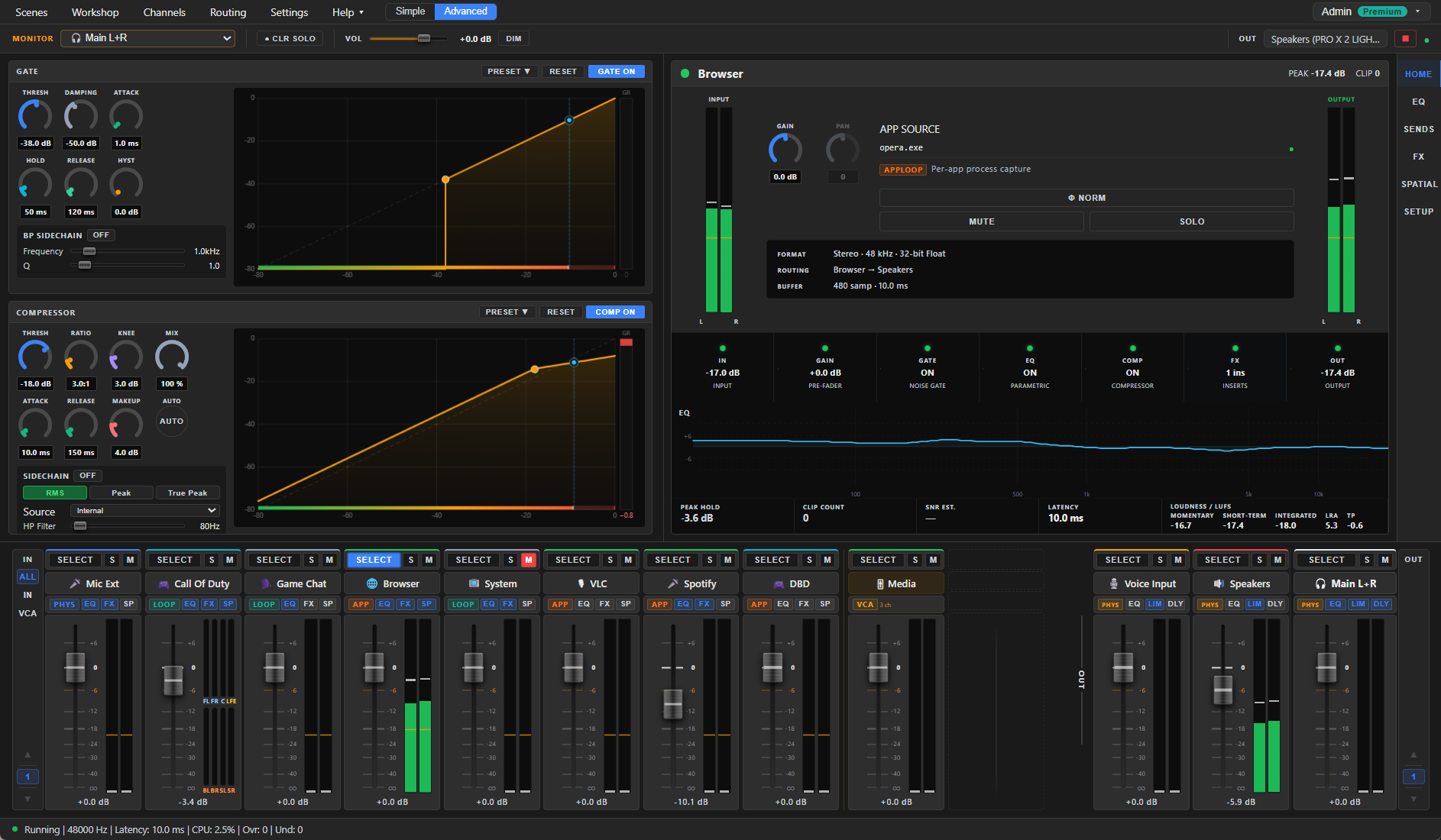
┌──────────────────────────────────────────────────────────────┐
│ ① Menu bar      Scenes · Workshop · Channels · Routing · …   │
├──────────────────────────────────────────────────────────────┤
│ ② Monitor bar   MONITOR · CLR SOLO · VOL · DIM · OUT · ▶/⏹  │
├──────────────────────────────────────────────────────────────┤
│ ③ Mixer         [inputs…]   [VCA groups]   [output buses]    │
├──────────────────────────────────────────────────────────────┤
│ ④ Config screen [Gate/Comp] [HOME EQ SENDS FX SPATIAL SETUP] │
├──────────────────────────────────────────────────────────────┤
│ ⑤ Status bar    Running | 48000 Hz | Latency | CPU | Ovr/Und │
└──────────────────────────────────────────────────────────────┘
① Menu bar
Five entries open a window; a Help menu, the Simple / Advanced toggle and your account button sit beside them:

| Entry | Opens | What for |
|---|---|---|
| Scenes | Scenes / Snapshots | Save and recall complete mixer setups (up to 20, import/export). |
| Workshop | Workshop | Full-screen store — browse and download community presets, packs and collections; My Library manages what you've saved or downloaded (apply / update / rename / delete / import / export). Per-processor presets also apply straight from each panel's PRESET ▾. |
| Channels | Channel Manager | Add, remove, reorder and configure inputs, outputs and VCA groups. |
| Routing | Routing matrix | The big grid: which inputs feed which outputs. |
| Settings | Settings | Driver mode, buffer size, theme, startup behaviour, hotkeys, automation, integrations, About. |
| Help ▾ | A small menu | Homepage, Documentation and Discord open in your browser; Setup wizard re-runs the first-launch setup; Find my best profile starts the HRTF listening test. |
| Account (far right) | Account window | Activate Premium with a license key — there's no sign-in. Once Premium is active the button shows the license name with a Premium tag. See Accounts & Premium. |
Between Help ▾ and the account button sits the Simple / Advanced view toggle — flip to the easy, mostly-automated view anytime (see Simple mode). It's the same mixer either way; switching loses nothing. When a new version is available, a blue ⬆ Update badge appears right after the toggle — click it to review and install (Updates).
② Monitor bar
Your "control room" — it decides what you hear, without touching the mix anyone else receives.

- MONITOR dropdown — pick which bus you're listening to (Main L+R, any physical or virtual output).
- ● CLR SOLO — lights up when any channel is soloed anywhere; click to clear all solos at once.
- VOL fader + readout — your listening volume only. Double-click resets it.
- DIM — instantly drops monitoring by −20 dB (toggle). For when someone walks in mid-session.
- 🎬 Scene chip — shows the active scene's name, if one is loaded.
- OUT — the device the Main bus is playing to (configure it in Main L+R → SETUP).
- ▶ / ⏹ + status dot — start/stop the audio engine. Green dot = running. A ⚠ appears here if the engine hits an error — hover it for details.
③ The mixer
The heart of the app, in three sections from left to right:
Input channel strips
One strip per source. Top to bottom:
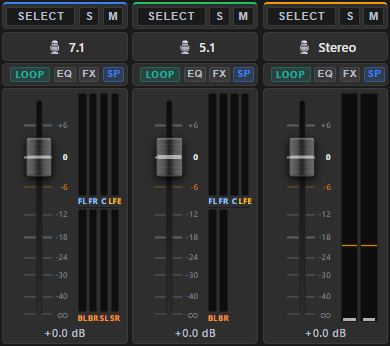
- SELECT — opens this channel in the config screen (④).
- M / S — mute and solo.
- Name + icon, with a colour tag you can customise.
- Type badge —
PHYS(mic/line-in/virtual cable),LOOP(whole device),APP(single application), plusPLAYER,GENandPADSfor the generated types. More in Input Channels. - EQ / FX / SP — three small switches: the channel's equalizer, its effects rack (bypasses every insert at once) and its spatial processing. Lit = on; click to switch the whole block on or off without leaving the mixer. (Output buses have EQ / LIM / DLY — equalizer, limiter, delay.)
- Fader + dB scale + VU meter — level control and live metering. Surround sources show one meter bar per speaker channel.
- dB readout — the fader's exact position.
Fader gestures: drag to set; scroll the mouse wheel for steps of about 1 dB (hold Shift for finer ones); double-click to reset to 0 dB. These gestures work on virtually every slider and knob in the app — and clicking a value lets you type one in.
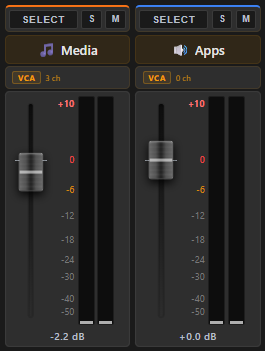
VCA groups
Group faders. A VCA strip moves the level of every channel assigned to it — proportionally, without rerouting any audio. Classic use: one "GAME" fader for five game-related channels.
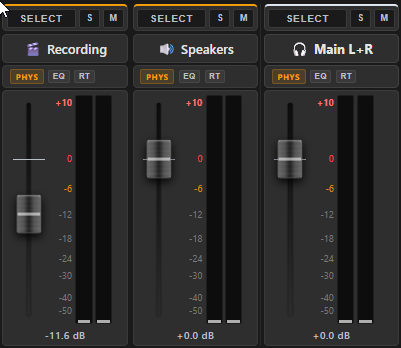
Output buses
Same strip anatomy as inputs, but each represents a destination: the Main L+R master, your headphones, or a virtual output feeding OBS or Discord. Each bus carries its own independent mix.
④ Config screen
Press SELECT on any strip and this area shows everything about it. Two parts:
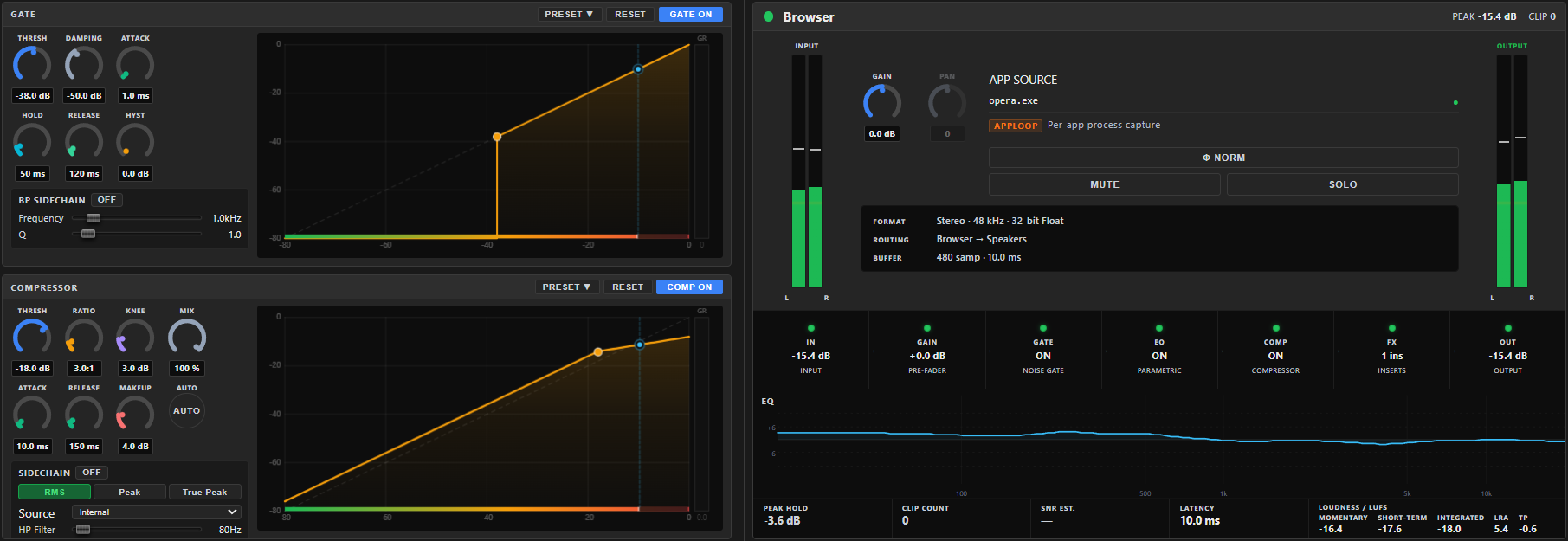
Left panel — dynamics. Always visible for the selected strip:
- For an input channel: a two-slot dock, showing GATE and COMP (noise gate and compressor) by default — but either slot can be pinned to any other processor on the channel (EQ, Gain, or any FX insert), or set to follow whatever you select on the FX tab. Each panel carries its own presets, RESET, and an ON switch. See Noise Gate for the full picture.
- For an output bus: LIMITER and DELAY (a fixed pair, not a pinnable dock).
Right panel — tabs. Depending on what's selected:
| Selected | Tabs |
|---|---|
| Input channel | HOME · EQ · SENDS · FX · SPATIAL · SETUP |
| Output bus | HOME · EQ · SENDS · SETUP |
| VCA group | HOME · MBR (members) · SETUP |
Quick orientation:
- HOME — the channel at a glance: input/output meters, GAIN and PAN knobs, phase invert, pad, a clickable signal-flow strip showing which processors are active, and PEAK/CLIP counters.
- EQ — parametric equalizer with a draggable curve, up to 12 bands.
- SENDS — fine level control of this strip's feeds to buses.
- FX — the insert effects rack (reverb, delay, de-esser, noise suppressor…).
- SPATIAL — stereo width, balance, Haas delay and binaural HRTF positioning.
- SETUP — the source/destination device, channel mode, calibration and housekeeping.
⑤ Status bar
One line of engine vitals, updated every second:

Running | 48000 Hz | Latency: 10.0 ms | CPU: 2.3% | Ovr: 0 | Und: 0
- Latency — buffer-induced delay, set by the buffer size in Settings → Audio.
- CPU — how much processing the DSP engine is using.
- Ovr / Und — overruns and underruns: moments where audio data arrived too fast or too late. Occasional ticks are harmless; steadily climbing numbers mean crackles — see Crackling and latency in Troubleshooting.
A Join Our Community button sits at the far right of the bar — it's always visible (unlike the Discord link tucked into Settings → About) and opens our Discord server in your browser.