Spatial — Stereo Tools
ON THIS PAGE
The SPATIAL tab controls where a sound sits in space and how wide it feels. It has several modes; this page covers Stereo (the everyday one). Binaural 3D is on the next page.
Reach for it when:
- music or game audio feels flat or narrow and you want to widen it;
- a stereo source's image needs nudging left or right without touching individual channel pans.
Turn the whole tab's processing on or off with ON / OFF (top right).
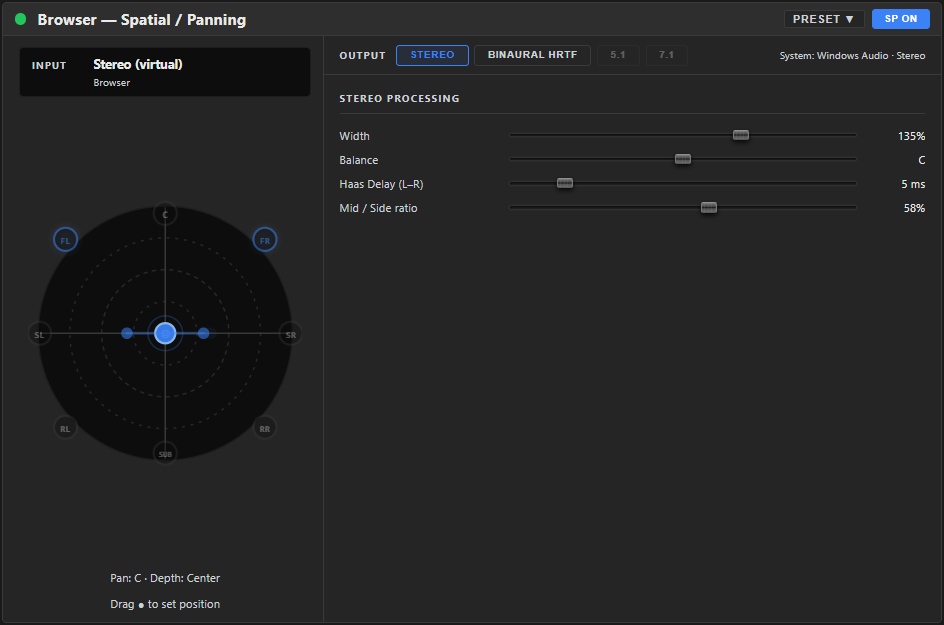
Where it lives
Spatial is a dedicated tab on the config screen for the selected channel — HOME · EQ · SENDS · FX · SPATIAL · SETUP — not a node in the dock or the FX chain, so it has no add/remove step and can't be pinned into the dock.
Reading the diagram
On the left is a polar diagram — a top-down view of you (centre) and the sound's position. Stereo mode has no front/back parameter, so the Balance dot only moves along the horizontal axis — drag it to place the channel left/right; the readout below shows the position. It's a visual twin of the sliders on the right.
The diagram is live: two dots spread apart as Width increases, reflecting the combined effect of Width and the Mid/Side ratio together — exactly what the engine applies, not Width alone — and a faint trailing dot shows Haas Delay on the side it actually delays. Per-speaker glow appears when a surround source is folded, so you can watch the spatial image move, not just set it.
Mode strip
Across the top right: Stereo · Binaural HRTF · 5.1 · 7.1.
- Stereo and Binaural HRTF are available now.
- 5.1 and 7.1 output modes are greyed out — not available in this version. (You can fold a 5.1/7.1 source down to headphones — see Binaural HRTF.)
Controls
| Control | Range | Default | What it does |
|---|---|---|---|
| Width | 0…200 % | 100 | Stereo spread. 100 % is unchanged, 0 % collapses to mono, >100 % widens beyond the speakers. |
| Balance | −100…+100 | 0 | Shifts the existing stereo image left or right (keeps both channels, unlike pan). |
| Haas Delay (L–R) | 0…35 ms | 0 | Delays one side slightly to push the image toward the other — a wide, natural-sounding spread. |
| Mid / Side ratio | 0…100 % | 50 | How much of the Width setting is actually applied to the mid/side image. At 0 % Width has no effect at all; at 100 % it applies in full; at the default 50 % you get half of it (Width 200 % behaves like 150 %). |
If the same sound reaches one ear a few milliseconds before the other, your brain places it toward the earlier side — without it sounding like an echo (that only kicks in past ~35 ms). A few ms of Haas delay widens a stereo source convincingly while keeping it mono-compatible.
A good starting point
- Start with Width at 100 % and listen — that's the source's own natural width, unchanged.
- Raise Width gradually if it needs to feel bigger; watch the diagram's two dots spread as you go.
- If widening starts to feel hollow or thin in the centre, lower Mid / Side ratio (or Width) — it scales the widening back toward the source's natural image. If Width doesn't seem to do much, check the ratio isn't near 0 %.
- Use Balance only if the source's image is genuinely off-centre — it's rare to need it on a well-recorded stereo source.
If it sounds wrong
| You hear… | Try… |
|---|---|
| Widening makes the centre feel hollow or "phasey" | Lower Mid / Side ratio, or back off Width. |
| The image collapsed to mono unexpectedly | Check Width hasn't been set near 0 %. |
| One side sounds delayed or echoey | Lower Haas Delay — above roughly 35 ms it starts to sound like a distinct echo rather than width. |
Width vs Balance vs Pan
- Pan (on the HOME tab) positions a mono source between left and right.
- Balance nudges a stereo source's existing image sideways.
- Width makes a stereo source narrower or wider.
Reach for stereo tools to make music and game audio feel bigger; leave a mono voice mic centred and narrow.
Presets and bypass
- PRESET ▾ in the tab header applies a saved setup, or saves the current one under a name. Once one is applied the header shows Preset: name — see Knowing what preset is applied. Manage saved/downloaded setups in Workshop ▸ My Library.
- ON / OFF bypasses the whole tab's processing — no separate reset button; dial each control back to its default manually, or revert to the applied preset.
Related
- Spatial — Binaural HRTF — full 3D positioning on headphones, the tab's other mode.
- Effects Rack — for effects that shape tone or dynamics rather than stereo image.