Spatial — Binaural 3D (HRTF)
ON THIS PAGE
The Binaural HRTF mode of the SPATIAL tab places a sound anywhere around your head — left, right, above, behind, near or far — on ordinary headphones. It's how a game or movie can feel genuinely three-dimensional through two earcups.
Reach for it when:
- you want to hear where a sound is coming from, not just that it's playing — footsteps, enemy positions, ambient effects placed convincingly in 3D;
- you're on headphones and want a surround game or movie's speaker layout folded down to something spatial instead of collapsed to plain stereo.
Immersive and Custom HRIR are Premium models. Generic and Enhanced are free, including 3D positioning (Azimuth/Elevation/Distance) and folding a 5.1/7.1 source to headphones.
A head-related transfer function describes how your head, shoulders and the shape of your ears subtly filter a sound depending on which direction it comes from. Recreate those filters on headphones and your brain perceives the sound as coming from a real point in space, not "inside your head".
Where it lives
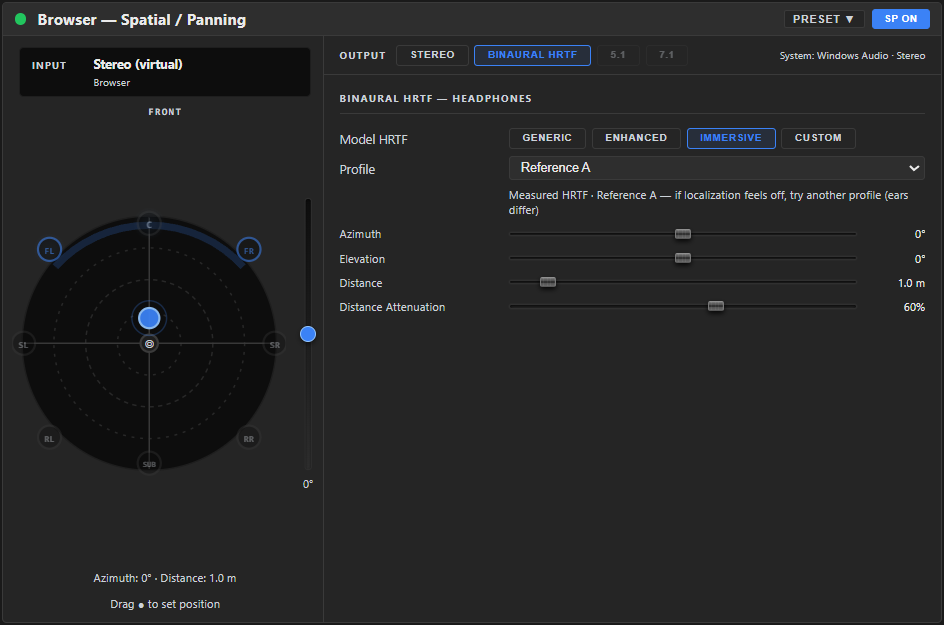
Spatial is a dedicated tab on the config screen for the selected channel — HOME · EQ · SENDS · FX · SPATIAL · SETUP — not a node in the dock or the FX chain, so it has no add/remove step and can't be pinned into the dock. Switch to Binaural HRTF in the mode strip to get here.
Choosing a model
The Model HRTF row picks how the 3D filtering is computed — four options:
- Generic — synthetic ITD/ILD — synthetic timing/level cues (Woodworth ITD + raised-cosine ILD). Light, no ear-shape cues. (Free.)
- Enhanced — synthetic pinna cues — Aura Mixer's own model, adding synthetic pinna (outer-ear) colouration for stronger front/back and height. (Free.)
- Immersive — measured 3D audio — real measured HRTFs from a research database (SADIE-II), the most lifelike option. Selecting it reveals a second Profile dropdown: pick Reference A/B (neutral heads) or one of 18 measured personal profiles. Not sure which one is best for your ears? Click Find my best profile right under the dropdown for a short guided listening test instead of auditioning all 20 by hand — see Finding Your Best HRTF Profile. (Premium.)
- Custom HRIR — import .wav / .sofa — load your own HRIR profile. Click IMPORT and choose a
.wavor.sofa(the AES69 standard) file; once imported it appears in the HRIR File list. (Premium.)
A locked model shows a 🔒; on Free, a channel set to Immersive or Custom HRIR plays through the free Enhanced model instead.
Treble softening (Custom HRIR)
An imported HRIR can sound slightly bright or harsh in the highs. The Treble softening slider — shown only when the Custom HRIR model is selected — applies a gentle high-shelf cut to the binaural output to take that edge off.
| Control | Range | Default | What it does |
|---|---|---|---|
| Treble softening | −6…0 dB | −1.5 dB | High-shelf cut on the binaural output. 0 = off; more negative = softer highs. |
It updates in real time (no reload) and is saved with the channel. Applying the shelf to the final binaural output is mathematically identical to baking the cut into every HRIR — convolution is linear — so it costs nothing extra while letting you dial it by ear.
Reading the diagram
The same polar diagram as the Stereo tab, now with a front/back axis — a point source's position (set by Azimuth) shows as a dot you can drag around the circle. Above it, an elevation gauge shows height when the source is placed above or below ear level — drag it, or double-click to reset to 0°.
When a surround source is folded (see below), the diagram instead shows the fixed speaker layout, with a glow on whichever speaker is currently active.
Positioning a stereo/mono source
When the channel is mono or stereo, the source becomes a single point you place in 3D:
| Control | Range | Default | What it does |
|---|---|---|---|
| Azimuth | −180…+180° | 0 | Direction around you (0° front, ±90° sides, ±180° behind). Linked to the diagram dot. |
| Elevation | −90…+90° | 0 | Height — below, level, or above. |
| Distance | 0.1…10 m | 1 | How far away the source sits. |
| Distance Attenuation | 0…100 % | 60 | How strongly distance reduces level (realism of "far away"). |
Folding a surround source to headphones
If the channel's source is 5.1 or 7.1 (set in Channel Setup), Binaural HRTF instead folds all those speakers down to a 3D headphone image, with each speaker fixed at its real-world angle. The panel then shows per-channel levels — a slider (0…100 %) for each speaker (front L/R, centre, surrounds, etc.) so you can balance the fold.
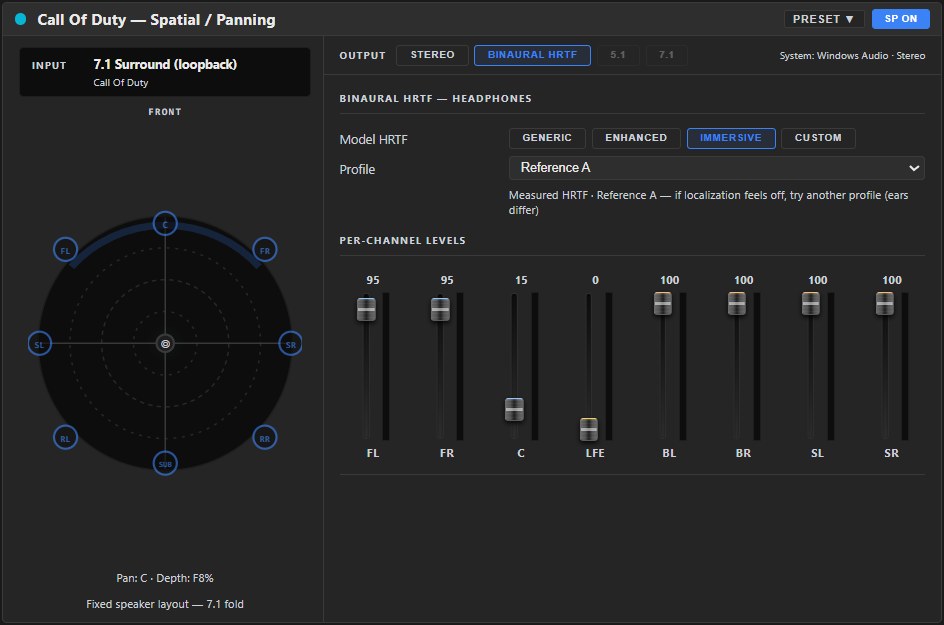
This is the headphone-surround use case: feed a 7.1 game or movie into a channel and hear it placed around you on stereo headphones.
the surround→binaural fold runs first on the channel — before Gain, Gate, EQ and Comp — because those processors are stereo-only. Your channel EQ and Comp therefore shape the already-folded binaural signal, not the raw surround feed. (See How Audio Flows.)
This is different from the 5.1 / 7.1 output modes in the mode strip (which would send to multichannel hardware) — those are greyed out and not available in this version. Folding a surround source to headphones is available now.
A good starting point
- Start with Generic and place the source with Azimuth/Elevation — confirm the basic positioning feels right on your headphones before reaching for a fancier model.
- Move up to Enhanced for stronger front/back and height cues, still free.
- If you're on Premium and want the most lifelike result, switch to Immersive and run Find my best profile rather than guessing between 18 measured profiles by ear.
- For a surround game or movie, feed it into a 5.1/7.1 channel (see Channel Setup) and let the fold handle positioning — balance individual speakers only if something feels off.
If it sounds wrong
| You hear… | Try… |
|---|---|
| Can't tell front from back | Move up from Generic to Enhanced or Immersive — front/back cues need pinna colouration, which Generic doesn't model. |
| A measured (Immersive) profile sounds off or hard to localise | HRTF is personal — try a different Profile, or run Find my best profile instead of guessing. |
| A Custom HRIR sounds too bright or harsh | Increase Treble softening (more negative). |
| Surround fold sounds unbalanced | Adjust individual speaker level sliders in the fold panel. |
Presets and bypass
- PRESET ▾ in the tab header applies a saved setup, or saves the current one under a name. Once one is applied the header shows Preset: name — see Knowing what preset is applied. Manage saved/downloaded setups in Workshop ▸ My Library.
- ON / OFF bypasses the whole tab's processing — no separate reset button; dial each control back to its default manually, or revert to the applied preset.
Related
- Spatial — Stereo Tools — the tab's other mode, for width and balance rather than 3D positioning.
- Finding Your Best HRTF Profile — the guided listening test for picking an Immersive profile.
- Loudness Equalization — its AIR control and this page's directional cues are often tuned together for competitive gaming audio.
- Channel Setup — sets a channel's source to 5.1/7.1, which is what triggers surround folding here.