The HOME Tab
ON THIS PAGE
Press SELECT on any input channel and the config screen opens on HOME — the channel's cockpit. Everything important about that channel at a glance: its levels, its core controls, the order its processing runs in, and how loud it really is.
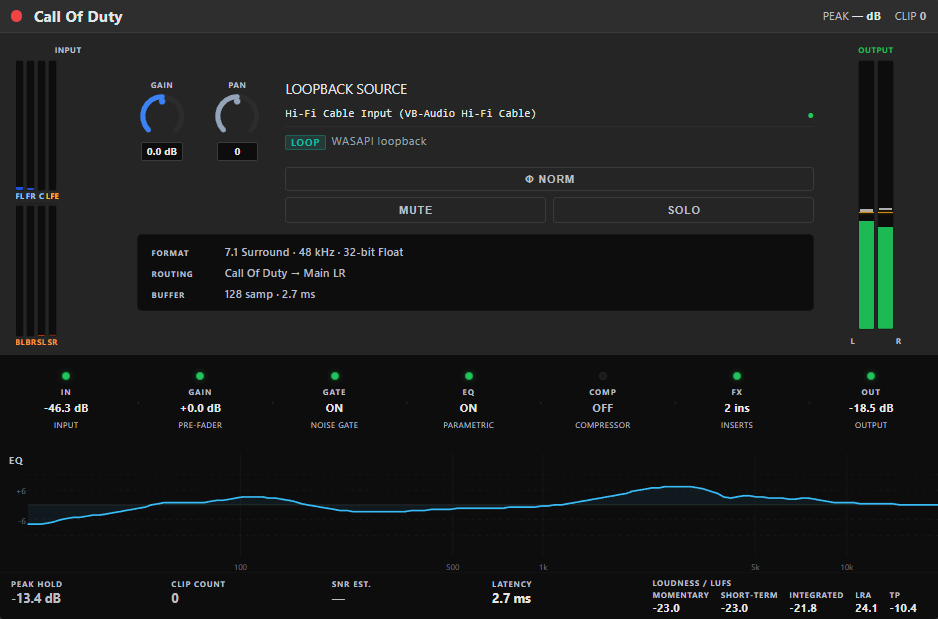
Top bar — name + health
The strip's colour dot and name sit at the top. On the right, PEAK and CLIP give a quick health read.
Meters and core controls
The middle row, left to right:
- INPUT meter — the signal arriving from the source, before processing. Your first checkpoint when something's wrong. Surround channels show one bar per speaker.
- GAIN knob (−20…+20 dB) — sets a healthy working level coming in. PAN (−100…+100) places a mono/stereo channel in the stereo field.
- Source + buttons — the hardware source, plus toggles:
- Φ NORM / Φ INV — flips the signal's polarity (phase). Useful when combining two mics that partly cancel each other.
- PAD OFF / PAD ON (physical inputs only) — a −20 dB attenuator for hot sources that would otherwise overload.
- MUTE / SOLO — the same as the strip's M/S, with bigger targets.
- OUTPUT meter — the channel after its processing. Comparing INPUT vs OUTPUT shows what the chain is doing.
A small info card reports the live FORMAT, ROUTING (e.g. Microphone → Main L+R) and BUFFER / latency.
GAIN sets the level into the processing (so the gate and compressor react correctly); the fader sets how loud the finished channel sits in the mix. Set gain first, mix with the fader.
The signal-flow strip
A row of blocks showing the channel's processing in order, each lighting up when active:
IN → GAIN → GATE → EQ → COMP → FX → OUT
This is the default order audio travels in (why it matters); if you've re-wired the chain on the FX tab, this strip still shows the default layout. The EQ and FX blocks are clickable — they jump straight to those tabs. A block reads ON, OFF or FLAT so you can see at a glance what's shaping the sound. Below it, a mini EQ thumbnail previews your curve (click to open the full EQ).
Stats & loudness
The bottom row of read-outs:
- PEAK HOLD — the highest level reached (click to reset). Turns red if it hit the ceiling.
- CLIP COUNT — how many times the signal clipped (click to reset). Anything above 0 means pull GAIN or the fader down.
- LATENCY — this channel's processing delay.
- LOUDNESS / LUFS 🔒 — live loudness metering: Momentary, Short-term, Integrated, LRA and True Peak, to broadcast standard (BS.1770). Click any value to reset the integrated reading. (A Premium feature — see Accounts & Premium and Loudness & normalization.)