How to Record Audio Directly From Aura Mixer (No Separate App Needed)
You don't need Audacity, OBS, or any other app running just to capture a session. A Recorder bus writes any mix — your mic, your game, or everything at once — straight to a WAV file, free, with no separate software.
QUICK ANSWER
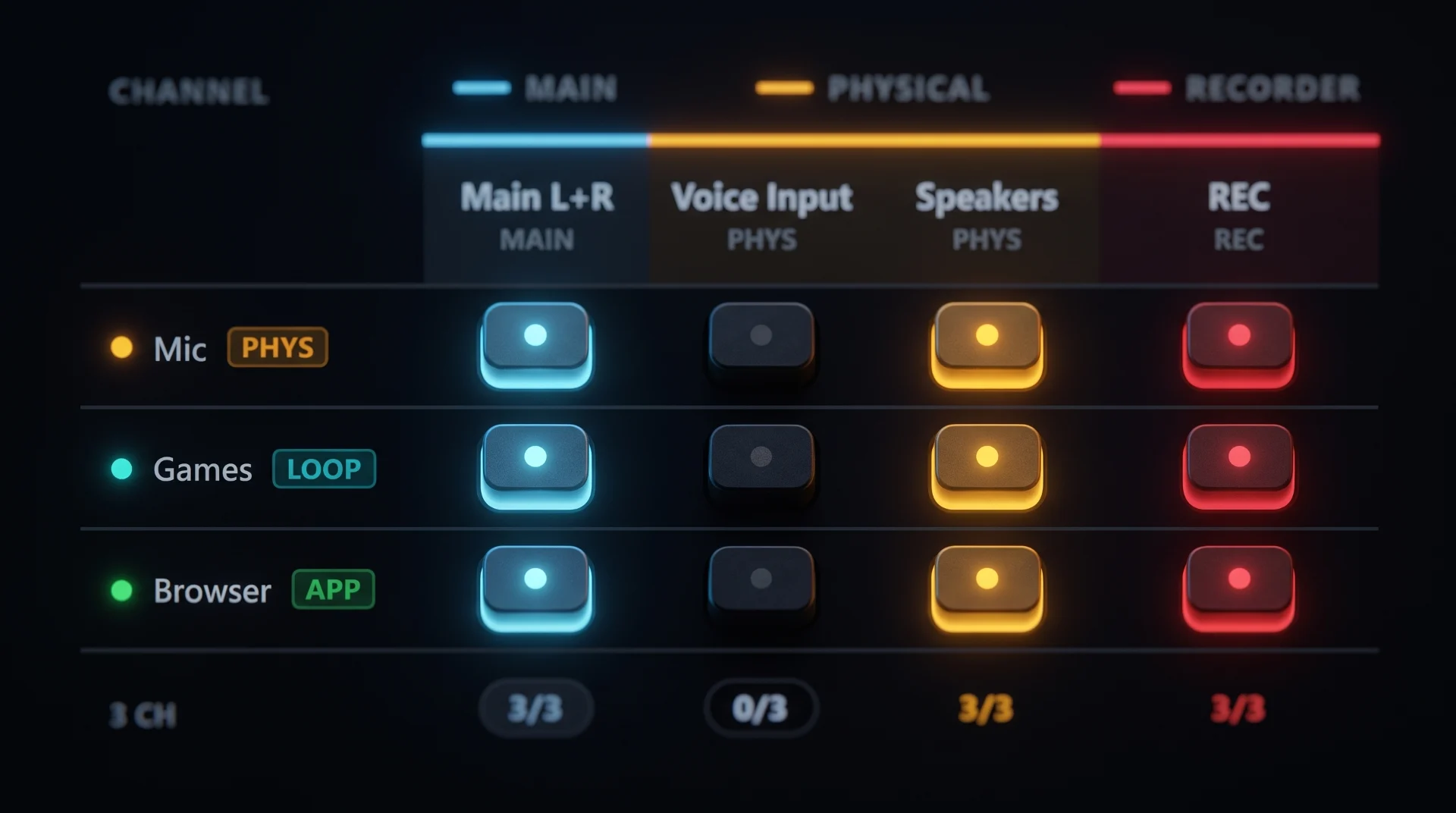
- Add an output bus, set its type to RECORD — write to a file, and route whatever channels you want captured to it (Routing matrix) — mic only, game only, or everything together.
- Select the bus and open its HOME tab — that's where Start, Pause and Stop live, along with a live waveform and an elapsed time / file size readout.
- Files land in one shared folder (Settings ▸ Media) and are named automatically — nothing to configure per take.
- It's completely free, records exactly what that bus's meters show (after its own EQ/Limiter/Normalization), and you can run several Recorder buses at once for separate, simultaneous takes.
- Two safety guards protect you by default — auto-stop after 120 minutes, and auto-stop if free disk space drops below 500 MB — both adjustable in Settings ▸ Media.
Sometimes you just want to capture what's happening in Aura Mixer — a podcast take, a voice memo, a quick clip of gameplay audio — without opening Audacity, OBS, or anything else. A Recorder bus does exactly that: route whatever you want to it, press one button, and it writes a WAV file to disk. No extra software, no Premium.
Unlike a general recording app, a Recorder bus captures one specific mix — whatever channels you route to it — and nothing else. That's the whole point: it's not a system-wide recorder, it's a precise one.
What you need
- Aura Mixer 0.6.0 or newer (download).
- Your input channels already set up — mic, game, music, whatever you want to capture.
- Nothing else. Recorder is entirely free, and needs no other app running.
Step 1: Add a Recorder bus
- Open Channels in the menu bar, then the OUTPUTS tab.
- Click + Add output.
- Set the type to RECORD — write to a file, and name it something like Recording.
- Click Add Output.
There's no device to point this at — like an Application-capture bus, a Recorder bus doesn't play out loud anywhere. It only ever writes to a file.
Step 2: Choose what it captures
Open Routing in the menu bar and light the cells for whatever you want in this take — just your mic, just your game, or several channels mixed together into one file.
A single Recorder bus always writes one file of whatever's routed to it. If you want your mic and your game as two independent files, add a second Recorder bus and split the routing between them — one channel set per bus.
Step 3: Start, pause and stop
SELECT the Recorder bus and open its HOME tab. This is where the actual transport lives — not on the mixer strip, which only shows a pulsing REC badge as an at-a-glance "is something rolling" indicator.
- Start begins a new take, with a live scrolling waveform and a running elapsed time / file size readout.
- Pause / Resume holds the file open without closing it.
- Stop closes the file. Once you've recorded something, its filename is clickable and reveals it directly in Explorer.
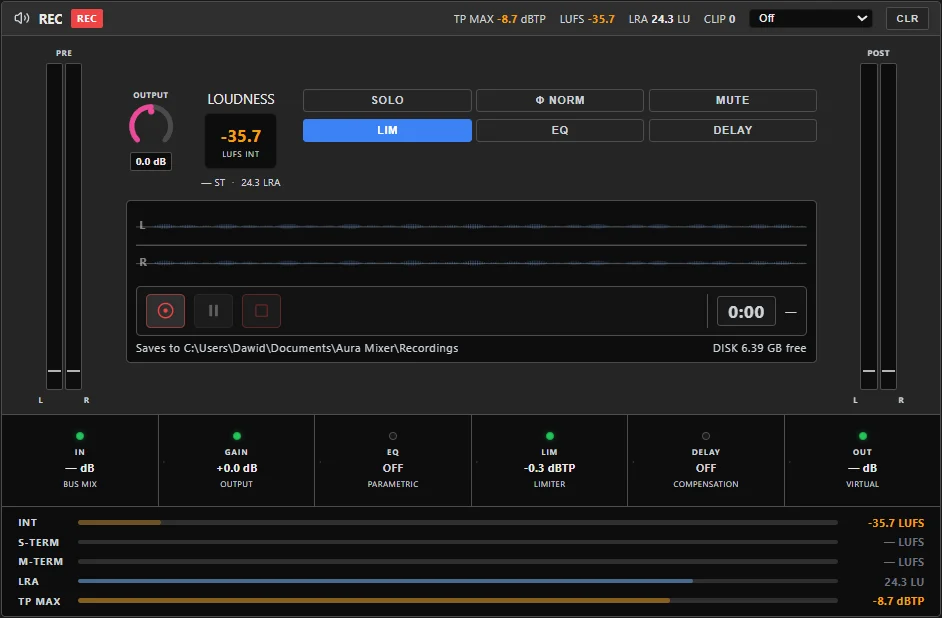
Every take is saved as {Bus name}_{date}_{time}.wav into one shared folder for every Recorder bus — nothing to name or choose per recording. Change that shared folder in Settings ▸ Media.
Step 4: Check the result
After pressing Stop, click the filename to reveal it in Explorer, and play it back. Remember it captured the bus's processed signal — including that bus's own EQ, Limiter or Loudness Normalization, if any are on. If you wanted a completely unprocessed capture, switch those off on the bus before recording, not after.
Good to know
| Thing | What it means |
|---|---|
| Bit depth | Set per-bus, 16-bit or 24-bit, on the bus's SETUP tab. |
| Multiple Recorder buses | Each is fully independent — run several at once, each with its own file and its own transport. |
| Safety guards | Auto-stops after a set duration (120 min default) or below a set free-disk threshold (500 MB default) — both in Settings ▸ Media, either can be turned off. |
| Restarting the app | Recording state isn't remembered — every session starts idle, whether or not something was recording when you closed Aura Mixer. |
| Simple mode | Recorder buses get the same full transport in the Media tray as Player and Soundboard, plus a live REC tag in the tray's header while something's running. |
Make it yours
- Start recording automatically. Start Recording, Stop Recording and Toggle Recording are available as Hotkeys and Automation actions — e.g. start recording the moment a specific game launches.
- Also need a separate mix for streaming, not just a local file? Same idea, different bus type — see how to send different audio on stream.
- Playing to more than one destination at once, recording included: how to play audio on two devices at once covers the general routing idea this all builds on.
If something's off
| You notice… | Try… |
|---|---|
| Start won't do anything | That bus already has a take running — check its HOME tab; one bus records one session at a time. |
| A warning about the destination folder | It's been moved, deleted, or is on an unplugged drive — fix the path in Settings ▸ Media. |
| A recording stopped on its own | It likely hit a safety guard — the duration limit or the free-space threshold. Check and adjust them in Settings ▸ Media. |
| The file sounds different from what you expected | It captured that bus's processed signal — its own EQ, Limiter or Loudness Normalization included. Switch those off on the bus first for a raw capture. |
| You wanted your mic and game as separate files | One Recorder bus only ever writes one mixed file — add a second bus and split the routing between them. |
Frequently asked questions
Is this Premium? No. Recorder is completely free — no Premium gate at all.
Can I record my mic and game as two separate files? Yes, but not from one bus. Add two Recorder buses, route mic to one and game to the other, and start both — one bus only ever writes one mixed file of whatever's routed to it.
Where do the files go? One shared folder for every Recorder bus, shown and changeable in Settings ▸ Media, with a shortcut to open it in Explorer.
What if I forget a recording is running? Two safety guards catch that automatically: a maximum duration (120 minutes by default) and a minimum free-disk-space threshold (500 MB by default). Both are adjustable, and both can be turned off.
Does it record the raw signal or the processed one? The processed one, after that bus's own EQ, Limiter and Loudness Normalization. Turn those off on the bus first if you want an unprocessed capture instead.
Frequently asked questions
Is this Premium?
No, Recorder is completely free.
Can I record my mic and game as two separate files?
Yes, but not from one bus. Add two Recorder buses, route mic to one and game to the other, and start both — one bus only ever writes one mixed file of whatever's routed to it.
Where do the files go?
One shared folder for every Recorder bus, shown and changeable in Settings ▸ Media, with a shortcut to open it in Explorer.
What if I forget a recording is running?
Two safety guards catch that automatically: a maximum duration (120 minutes by default) and a minimum free-disk-space threshold (500 MB by default). Both are adjustable, and both can be turned off.
Does it record the raw signal or the processed one?
The processed one, after that bus's own EQ, Limiter and Loudness Normalization. Turn those off on the bus first if you want an unprocessed capture instead.