How to Play Audio on Two Devices at the Same Time (Speakers and Headphones)
Aura Mixer doesn't have one master mix — it has as many independent mixes as you need, each going to its own destination. Here's how to send different audio to different outputs, using speakers and headphones as the example.
QUICK ANSWER
- In the Channel Manager (menu bar ▸ Channels ▸ OUTPUTS), add a second output bus, set its type to PHYS — physical output, and pick the device you want it to play to.
- Open Routing (menu bar ▸ Routing) and use the matrix to choose which channels feed which bus — a channel can feed one, several, or all of your buses at once.
- Each bus mixes and processes its channels completely independently — muting or EQ'ing a channel on one bus never touches the others.
- Free includes 2 output buses (plus Main L+R); Premium raises that to 15 if you need more independent mixes.
- The same mechanism is what powers sending a separate mix to a stream, a recording, or Discord — this guide covers the basic version; see the linked pages for those specific jobs.
By default, everything in Aura Mixer plays out of one bus — Main L+R — to whatever device you picked during setup. But nothing forces your music, your game, and your voice chat to share that single destination. Aura Mixer can send different audio to different outputs at the same time, each with its own volume and its own processing, without touching your Windows sound settings mid-session.
This guide builds the simplest version of that: music and general sound on your speakers, while a game or call stays on your headphones. The same mechanism — one bus per destination, routing decides who feeds whom — is also what a later guide uses for sending a separate mix to a stream or a recording.
What you need
- Aura Mixer, any recent version (download).
- Two playback devices Windows already recognizes — for example, speakers and headphones both plugged in (to different outputs, not a single splitter). Check they both show up in the classic Windows Sound panel (
mmsys.cpl) before starting. - Nothing else — this works entirely on Free.
Step 1: Add a second output bus
- Open Channels in the menu bar, then the OUTPUTS tab.
- Click + Add output.
- Set the type to PHYS — physical output and give it a name — Speakers is a good, obvious choice.
- Click Add Output.
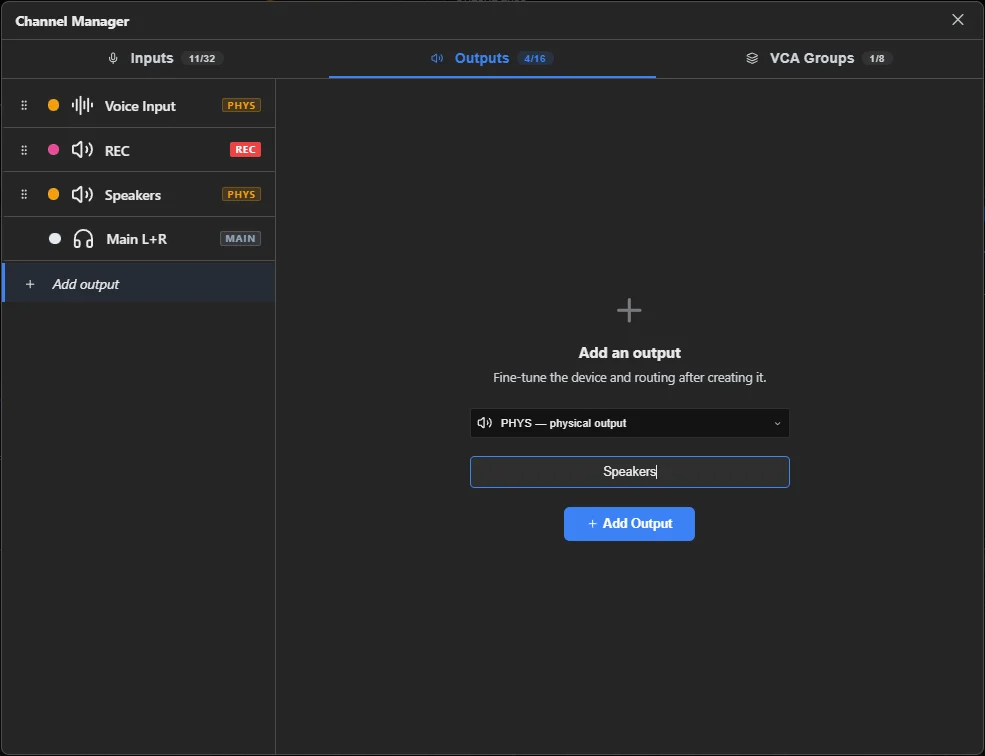
You now have two independent output buses: the always-there Main L+R, and your new Speakers bus.
Step 2: Point the new bus at its device
With the new bus selected, open its SETUP tab and pick the Output Device — the speakers (or whichever second device) you want this bus to play through. Leave Main L+R pointed at whatever it already plays to (your headphones, most likely).
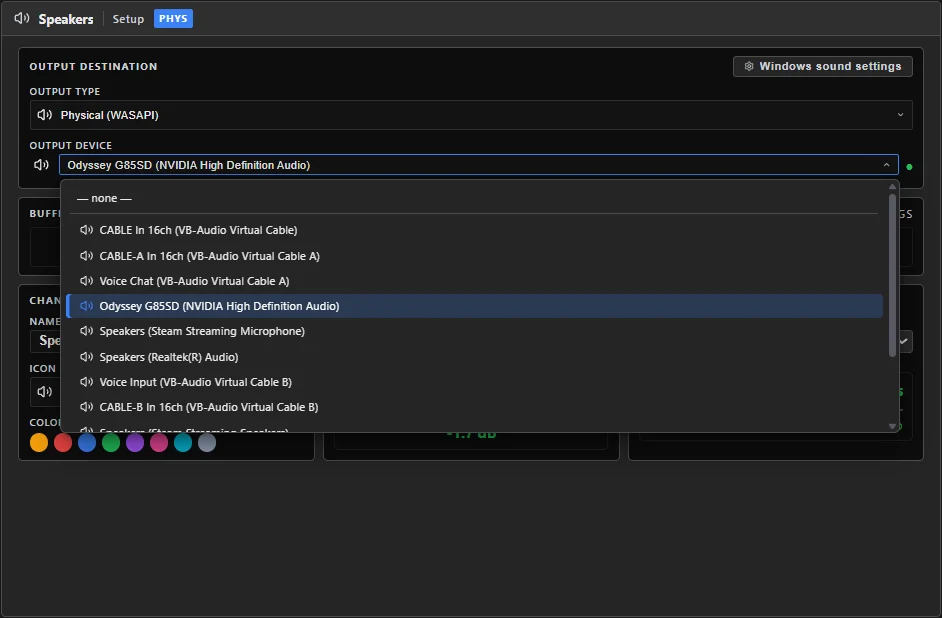
It has to show up in Windows first. The Windows sound settings button on this same tab jumps straight to the classic Sound panel if you need to check or enable it there.
Step 3: Decide what goes where
Open Routing in the menu bar. This is the matrix: your input channels down the left, your output buses across the top. Every crossing point is a switch.
- Find the channel you want on speakers (say, a music or browser channel) and click its cell under Speakers to turn it on.
- If you don't want that same channel on your headphones, click its cell under Main L+R to turn it off.
- Leave your game/voice channel lit only under Main L+R.
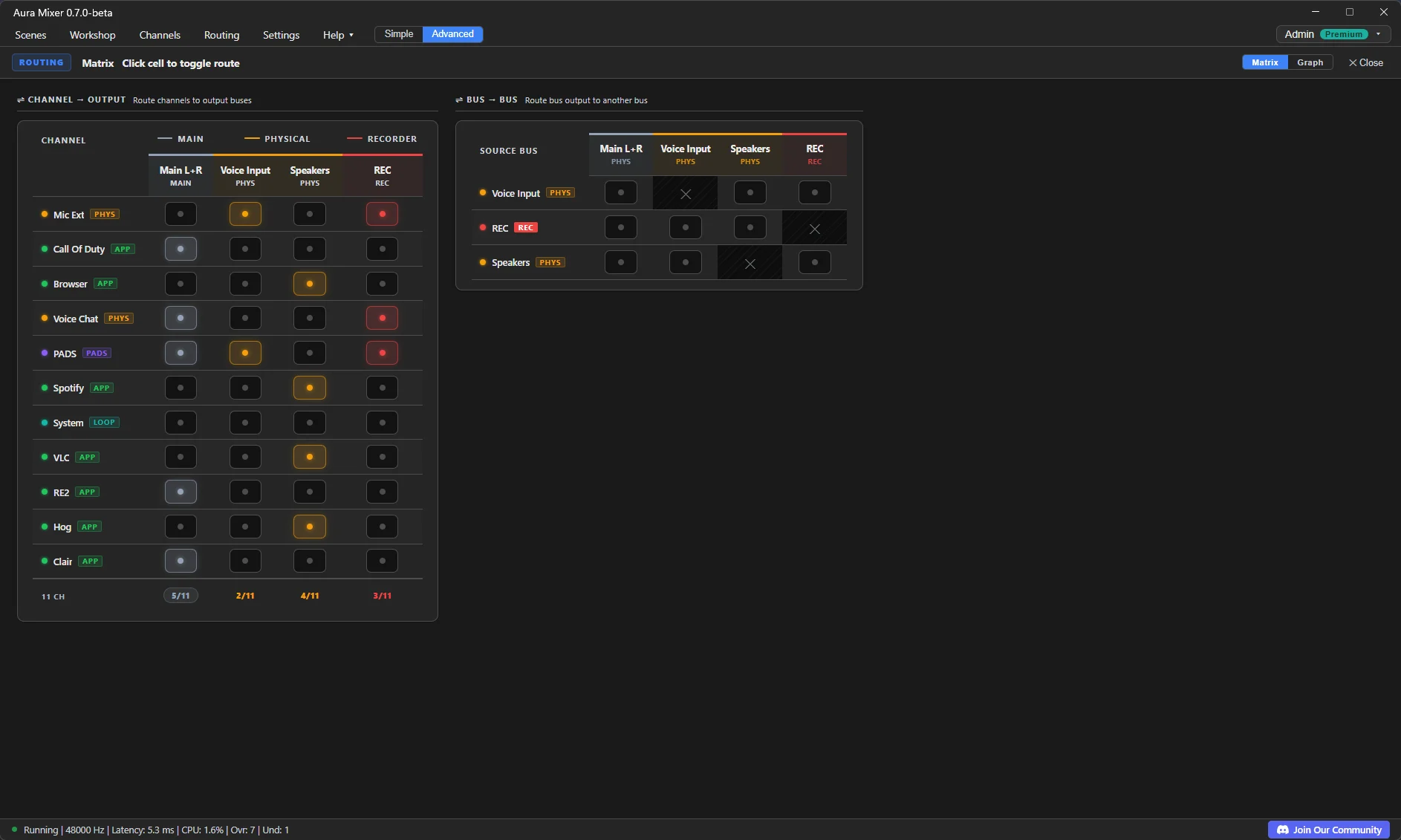
A channel isn't limited to one destination — leave it lit under both columns and it plays on both buses at once, each at full level by default.
The matrix is just on/off. For an actual level difference — say, music a touch quieter on Speakers than what you hear yourself — open that channel's own SENDS tab instead: it has a separate fader per bus, in dB.
Step 4: Check it worked
Play something on the channel you routed to Speakers only. You should hear it from that device and not from your headphones. Then mute that channel, or pull its Speakers fader down — your headphones mix (Main L+R) shouldn't react at all, since the two buses are completely independent once routed.
Why several mixes?
| Bus type | What it does | Typical use |
|---|---|---|
| PHYS — physical output | Plays to a real device | A second listening zone, like this guide's example |
| Application capture (APP) | A hidden helper renders the bus so a streaming/recording app can grab it directly — no virtual cable | Handing a clean mix to OBS or another capture app |
| Recorder | Writes straight to a WAV file instead of playing out loud | Recording a session with no device involved at all |
You always keep Main L+R — it's the one that can't be deleted — and add as many of the others as your plan allows (Free: 2 total; Premium: 15, plus Main L+R).
Make it yours
- Different level per destination, not just on/off — use each channel's SENDS tab instead of only the matrix.
- Feed one bus into another — build a sub-mix once and route it into several destinations at once; also on the Routing & Sends page.
- Hold a bus at a steady loudness — an optional, separate step covered in Loudness & Normalization (Premium).
- Send a mix to a stream instead of a second device — same idea, different bus type: Stream with OBS.
- Record straight to a file — see Recorder, the third bus type from the table above.
If something's off
| You notice… | Try… |
|---|---|
| The new bus has no sound at all | Check its SETUP tab actually has a device picked, and that at least one channel is routed to it in the matrix. |
| Both devices play the same thing | You may have left a channel lit under both buses — that's not a bug, just uncheck the one you don't want it on. |
| The device you want isn't in the list | It has to be visible to Windows first — check the classic Sound panel (Windows sound settings button on the bus's SETUP tab). |
| You only have one physical output on your PC | Two devices plugged into the same single jack (e.g. via a splitter) still look like one device to Windows — Aura Mixer routes between devices Windows already sees as separate, it can't split one. |
| "+ Add output" is greyed out | You've reached your plan's bus limit (2 on Free, shown as a count at the top of the OUTPUTS tab) — Premium raises it to 15. |
Frequently asked questions
Can one channel feed more than one output at once?
Yes. Routing is a grid, not a single choice: light up as many cells as you want for that channel, and every output bus it feeds mixes and processes it independently.
Do I need any extra hardware to play to two devices?
No, as long as Windows already sees both as separate playback devices (e.g. speakers and headphones plugged into different outputs). Aura Mixer routes between devices Windows already knows about; it can't split one single physical jack into two.
Why can't I add a third output bus?
Free is capped at 2 output buses (plus the always-there Main L+R). Premium raises that to 15.
What's the difference between the Routing matrix and a channel's SENDS tab?
The matrix is on/off switches to wire everything at a glance. The SENDS tab sets how much of a channel reaches one particular bus, in dB, once it's already wired.
Can a bus feed another bus?
Yes. Bus-to-bus feeds exist for building sub-mixes — set from the source bus's own SENDS tab, "… → other buses".