How to Send Different Audio On Stream (No Virtual Cable Needed)
The golden rule of streaming: what you hear and what your viewers hear aren't the same thing. Here's how to send OBS a separate mix — your mic and game, but not your music or private calls — with no virtual cable at all.
QUICK ANSWER
- Add a second output bus named Streaming (Channels ▸ OUTPUTS), set its type to APP — capture for OBS.
- In OBS, add an Application Audio Capture source and pick "Aura Mixer — Streaming" — no virtual cable needed.
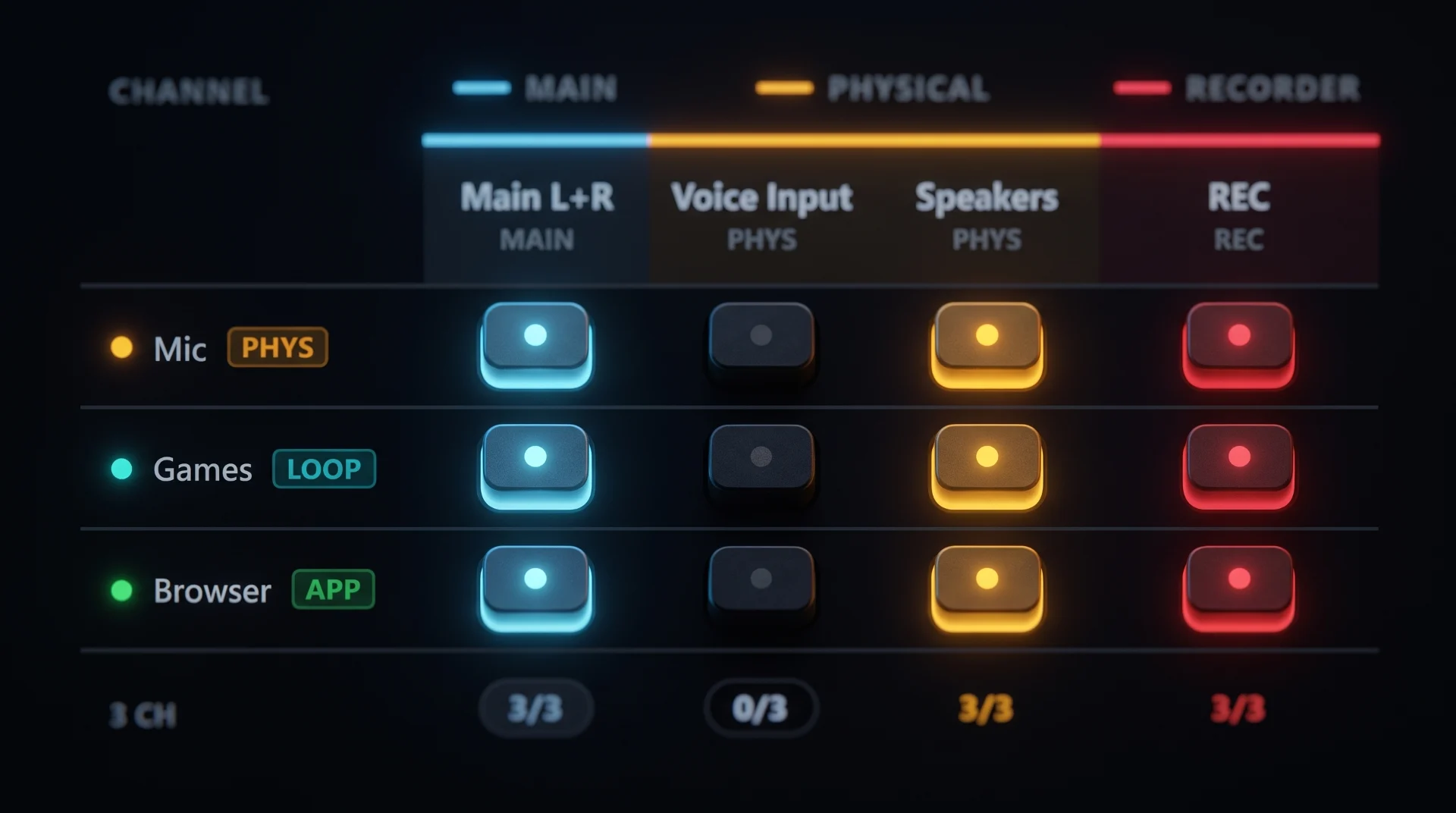
- Use the Routing matrix to light your mic and game under both Main L+R and Streaming, but leave music and Discord voice lit only under Main L+R.
- Make sure your headphones (or whatever you personally listen through) aren't also Windows' current default playback device — the Streaming bus always plays there too, and you don't want to hear it twice.
- Set MONITOR to Streaming to hear exactly what your viewers hear before you go live.
The golden rule of streaming: what you hear and what your viewers hear are not the same thing. You want music in your ears; your stream can't have it — background music is one of the most common reasons streams get muted or claimed after the fact. You want to talk to friends on Discord; your viewers shouldn't hear that private conversation either.
Aura Mixer solves this with a second output bus: one mix for you, a separate one for OBS. This guide sets it up with no virtual cable at all.
What you need
- Aura Mixer, any recent version (download).
- OBS, or any other app with an "Application Audio Capture" style source.
- Your input channels already set up — mic, game, music. New to Aura Mixer? Do the Quick Start first.
- Nothing else — this fits entirely inside Free's 2 output bus limit.
Aura Mixer's onboarding wizard has a streaming step that can create this bus for you. Check Channels ▸ OUTPUTS for a bus already named Streaming before creating a new one.
Step 1: Create the Streaming bus
- Open Channels in the menu bar, then the OUTPUTS tab.
- Click + Add output.
- Set the type to APP — capture for OBS, name it Streaming.
- Click Add Output.
There's nothing to point it at — unlike a physical bus, an Application-capture bus has no device picker at all. It's meant to be grabbed directly by your streaming app instead.
Step 2: Decide what goes where
Open Routing in the menu bar. Light the cells for what your stream should actually carry:
| Source | Main L+R (you) | Streaming (OBS) |
|---|---|---|
| Microphone | ✓ | ✓ |
| Game | ✓ | ✓ |
| Music | ✓ | — |
| Discord voice | ✓ | — |
The trick is Music and Discord voice: lit under Main L+R so you hear them, dark under Streaming so your stream stays copyright-safe and private.
The matrix is on/off. For an actual level difference — say, game audio sitting under your voice on stream but punchier for you — use that channel's own SENDS tab instead, with an independent fader per bus.
Step 3: Capture it in OBS
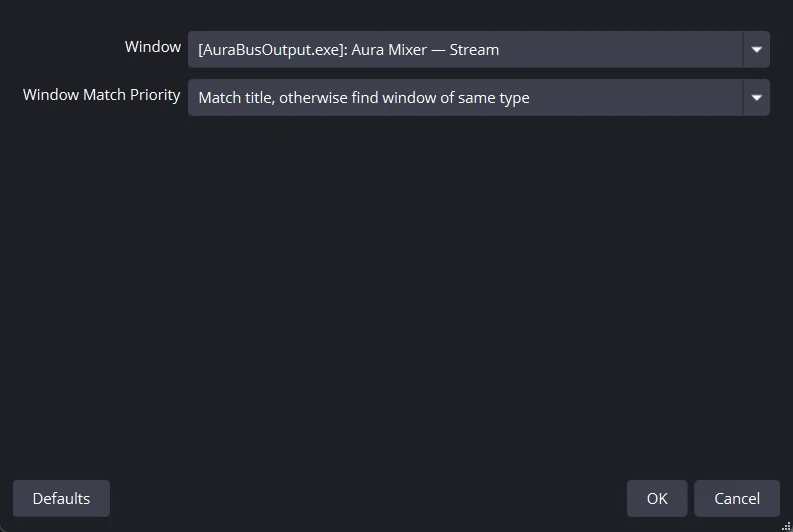
In OBS (or your app of choice), add a source ▸ Application Audio Capture, and set it to "Aura Mixer — Streaming".
Disable OBS's own Desktop Audio source — otherwise you're capturing your entire Windows mix on top of this isolated one, which defeats the point.
An Application-capture bus always plays out loud on Windows' current default playback device — there's no separate device setting for it in Aura Mixer. If your headphones happen to also be that Windows default, you'll hear the Streaming bus a second time, layered over Main L+R. Fix it in Windows' own Sound settings by setting a different device as default (your headphones can stay Main L+R's device either way) — not by looking for a picker inside Aura Mixer, since there isn't one for this bus type.
Step 4: Hear exactly what your viewers hear
In the monitor bar, set MONITOR to Streaming. Your headphones now play the exact mix going to OBS — no music, no private chat, levels as the audience gets them. Check it, then switch MONITOR back to Main L+R for your own full mix.
If you'd rather use a virtual cable
No Application Audio Capture in your recording app, or it's an older version? Use a PHYS — physical output bus instead: install a virtual audio cable (VB-Audio, Voicemeeter, VAC), point the Streaming bus's device at the cable's input, and point your app's Audio Input Capture at the cable's output. Everything else — routing, sends, monitoring — works exactly the same.
Make it yours
- Save it as a scene so one click restores the whole setup next time — menu ▸ Scenes.
- Want a private mix for Discord too, not just OBS? That uses the same virtual-cable mechanism as the alternative above — see Discord Voice Setup.
- Also want your headphones correctly EQ'd for what you hear on Main L+R? See how to make your headphones sound better with a free EQ correction.
- Playing to more than two destinations at once — the same routing idea, generalized: how to play audio on two devices at once.
If something's off
| You notice… | Try… |
|---|---|
| OBS's Application Audio Capture source is silent | Check the bus's type is really APP — capture for OBS, and that at least one channel is routed to it in the matrix (Step 2). |
| You hear your stream mix twice, on your own headphones | Windows' current default playback device is also your listening device — change the Windows default in Sound settings; there's no in-app picker for this bus type. |
| "Application Audio Capture" isn't offered in your app | Use the virtual-cable alternative above instead. |
| Your viewers hear music or Discord that should be private | Double-check that channel's cell is actually unlit under Streaming in the matrix — a lit cell overrides intent every time. |
| "+ Add output" is greyed out | Free is capped at 2 output buses total (Main L+R + one) — Premium raises that to 15. |
Do I need to disable OBS's own Desktop Audio? Yes — otherwise OBS captures your whole Windows mix in addition to the isolated Streaming bus, which defeats the point.
Frequently asked questions
Do I need a virtual cable like VB-Audio for this?
No. Application capture needs none; a cable is only a fallback for older streaming software or a different recorder that doesn't offer Application Audio Capture.
Why do I still hear my stream mix even though I never picked a device for it?
An Application-capture bus always renders to Windows' current default playback device — there's no separate device picker for it. Change which device Windows treats as default (or lower/mute that device), not the bus itself.
Can I send Discord a separate mix too, not just OBS?
Yes, that's a different mechanism: a Physical bus pointed at a virtual cable your voice app reads as a "microphone" — see Discord Voice Setup.
Is this Premium?
No. One extra output bus (Streaming) fits inside Free's 2-bus limit.
Do I need to disable OBS's own Desktop Audio?
Yes, otherwise OBS captures your whole Windows mix in addition to the isolated Streaming bus, which defeats the point.