How to Make Your Headphones Sound Better with a Free EQ Correction
Your headphones almost certainly aren't tuned flat — every model has its own bass, midrange or treble bias. This guide finds a free correction curve for your exact headphones and gets it working in Aura Mixer in a few minutes.
QUICK ANSWER
- Find your exact headphone model's measurement on a frequency-response database like squig.link, and download its FR file.
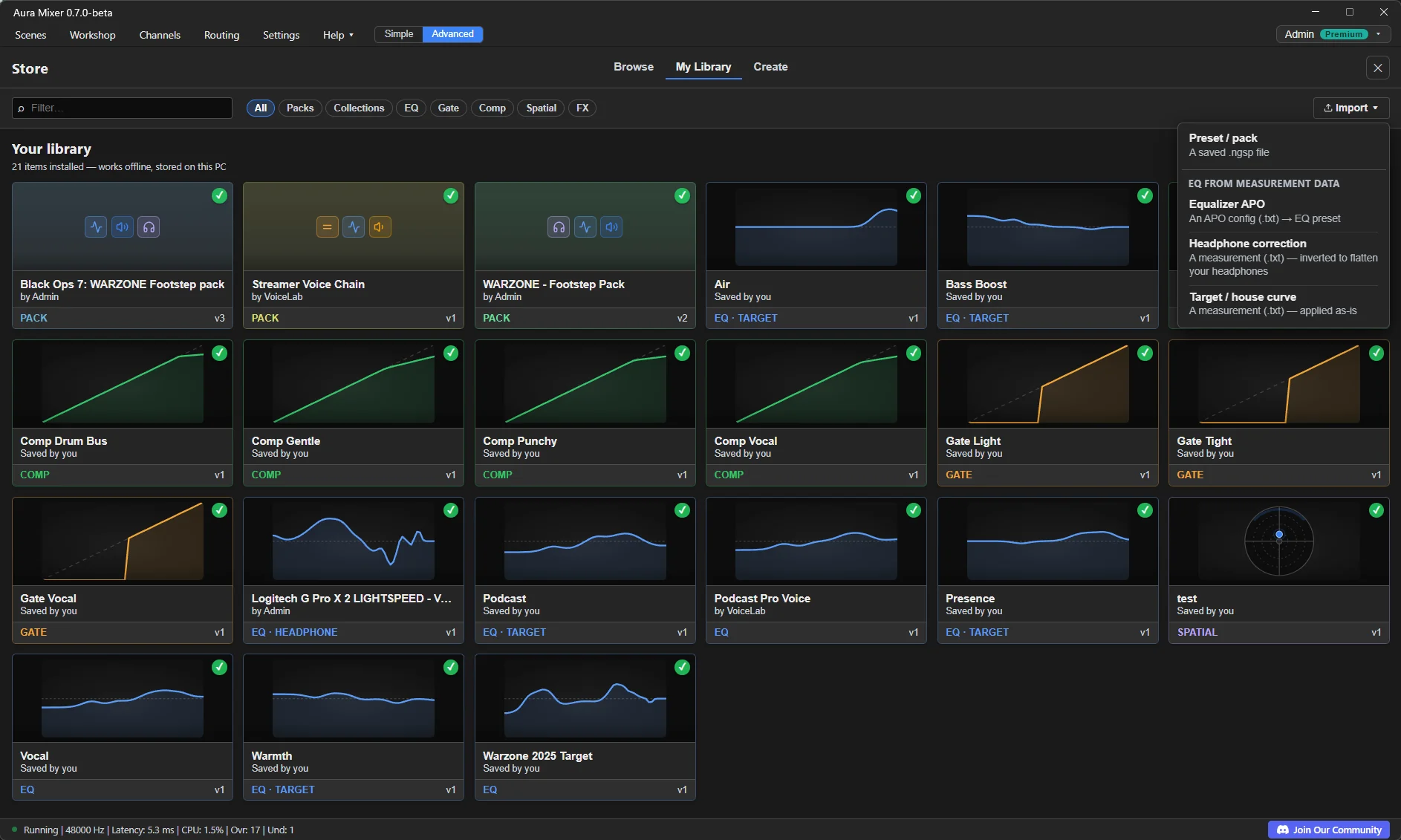
- In Workshop ▸ My Library, use Import ▾ ▸ Headphone correction and pick that file — Aura Mixer inverts it into a correction curve automatically.
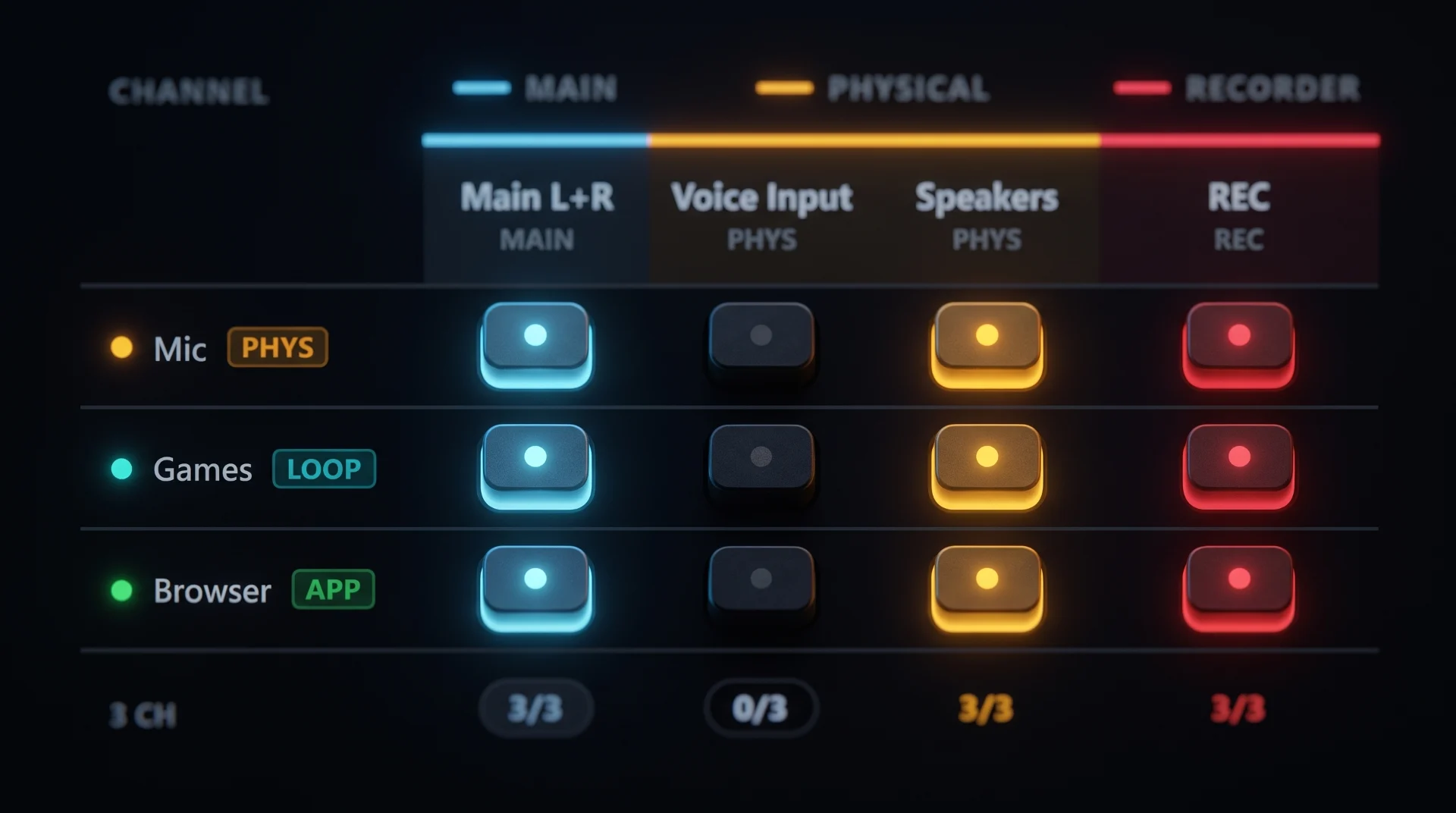
- Apply the result to your headphone output bus (Main L+R, or a dedicated headphones bus) — Aura only offers it there, never on an input channel, so you can't put it in the wrong place.
- Already have a published correction for your exact model in the Workshop? Simple mode's Sound setup button does this in two clicks, no download needed.
- This whole workflow — the EQ, the import, applying it — is entirely free, no Premium required.
Almost no headphones are tuned flat. Some hype the bass, some sound harsh above 4 kHz, some bury vocals in a midrange dip — it's normal, not a defect, and it's exactly what a correction curve fixes. Someone has almost certainly already measured your exact headphones and published the result for free; this guide finds it and gets it working in Aura Mixer.
Open Simple mode and use the Sound setup button: answer "Which headphones do you have?" and Aura Mixer searches the Workshop's own published corrections and applies one for you — no download, no import. This guide is for headphones that don't have one yet, or if you'd rather build your own from a measurement.
What you need
- Aura Mixer 0.7.0 or newer (download).
- The exact headphone model you want to correct.
- A few minutes on a frequency-response measurement site — squig.link is actually a network of many independently run measurement databases (not one single site), each covering a different set of headphones/IEMs. If your first one doesn't have your model, try another.
Step 1: Find your headphones' measurement
- Open a measurement database — for example one of the sites listed at squig.link — and search for your exact model.
- Select it so its curve is plotted, then look for a download icon next to it (usually near a small row of icons under the graph: smoothing, visibility, target-pin, download, remove).
- Download the file. It's a plain text measurement — don't worry about the format, Aura Mixer reads it directly.
Some sites measure the left and right channel separately and give you two files. Pick either one — Aura Mixer's EQ applies the same correction to both channels regardless (there's no way to give each ear a different curve), so a left/right pair only ever produces one result anyway.
Try the closest model in the same product line, or a headphone that's widely described as sounding similar. A close match still helps a lot more than no correction.
Step 2: Import it into Aura Mixer
- Open Workshop in the menu bar, then My Library.
- Click Import ▾ and choose Headphone correction.
- Pick the file you downloaded.
Aura Mixer inverts the measurement into a correction curve automatically — nothing to configure. It's compressed down to a handful of parametric bands and added to your library as a new EQ preset, tagged HEADPHONE.
Step 3: Apply it to your headphone output
Select the new preset in My Library and press Apply. Because it's tagged as a headphone correction, Aura Mixer only lists output buses as valid targets — pick Main L+R (or whichever bus actually plays to these headphones, if you've set up a separate one).
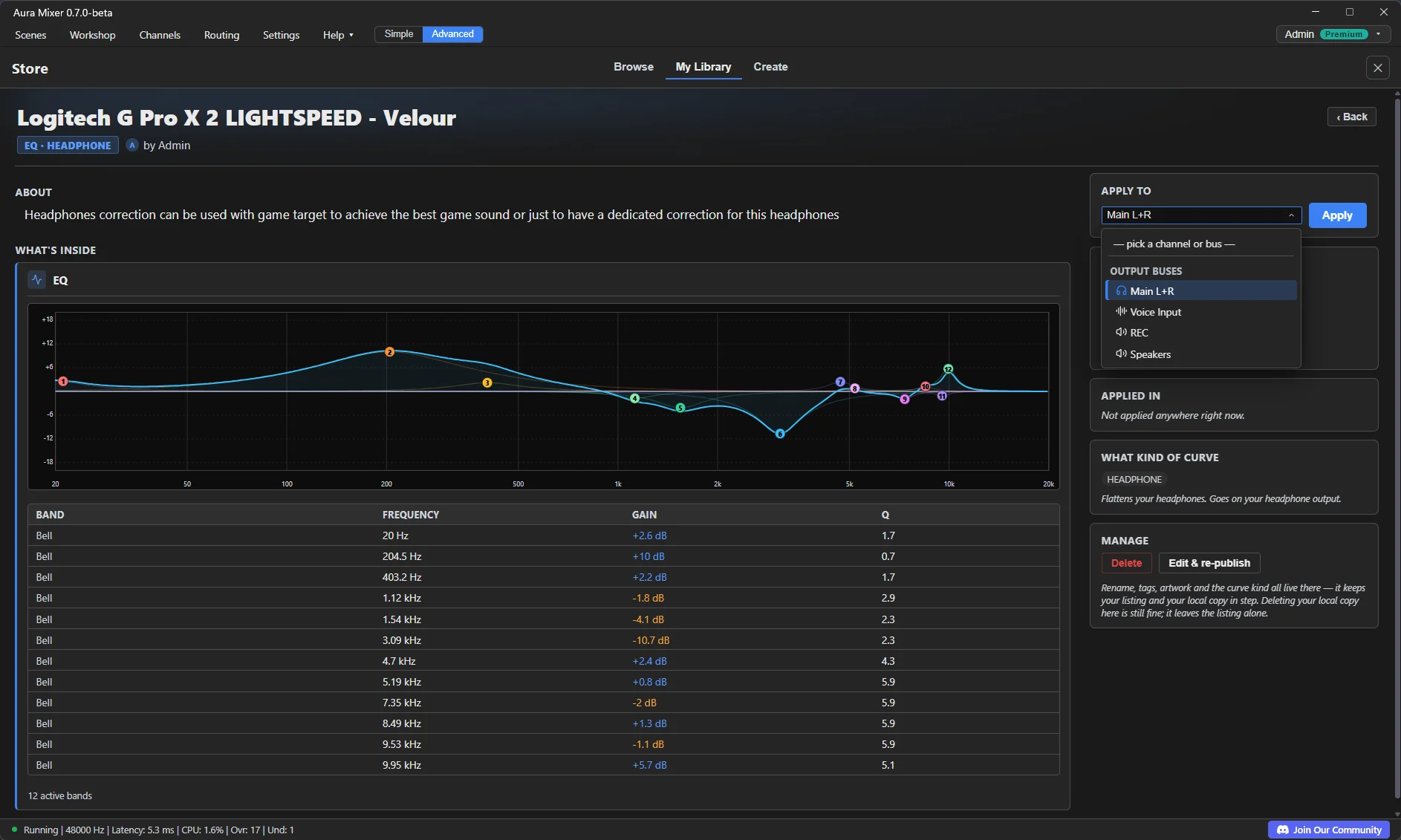
Applying replaces that bus's current EQ bands. If you'd tuned something there already, save it first (its own PRESET ▾ menu) if you might want it back.
Step 4: Check it worked
Play something you know well — music you're familiar with is the easiest test. Toggle the bus's EQ ON/off a few times: with it on, the coloration you were used to should noticeably calm down — less boomy, less harsh, more even from bass to treble.
What each import option actually does
The Import menu offers three ways to bring in measurement data — this guide uses the first one, but it's worth knowing what the others are for:
| Option | What it does | Where it goes |
|---|---|---|
| Headphone correction | Inverts a raw measurement to flatten that exact transducer | Output bus, once |
| Target / house curve | Keeps a measurement as-is, as a sound goal rather than a correction | Input channel, layered on top of a correction |
| Equalizer APO | Imports an already-computed parametric EQ file as-is (some sites export a ready config instead of a raw measurement) | Whichever the file's own content suggests — check the role My Library assigns it |
Make it yours
- Layer a sound goal on top. A headphone correction flattens the transducer; a target curve (or something like a footstep-focused EQ) shapes the sound on top of that, on the input channel carrying the source you want it for. Import a measurement as a Target / house curve instead of a correction to build one yourself.
- Watch for double-correction. If you ever apply a headphone-correction curve on a channel as well as a bus (or two curves that both already include a correction), My Library flags it under Worth checking with a one-click fix — you don't have to catch this yourself.
- Feeding a separate headphones bus, not Main L+R? If you followed how to send audio to two devices at once, apply the correction to that dedicated bus instead.
- Hold the result at a steady loudness, independent of the EQ: Loudness & Normalization (Premium).
If something's off
| You notice… | Try… |
|---|---|
| Import says it couldn't read the file | Make sure you downloaded the raw measurement (a .txt), not a webpage or an image of the graph. |
| It sounds thin, hollow, or over-corrected | The measurement may be noisy, or your exact unit varies from the sample that was measured — try a different published measurement of the same model if one exists. |
| Everything sounds a little quiet after applying it | Some measurements include a preamp/gain note that Aura Mixer doesn't apply automatically — this is expected and generally minor; adjust the bus's own Output Gain if you want to compensate. |
| My Library flags "Worth checking" | You (or a preset you applied) put a correction in two places at once — follow its one-click fix. |
| Apply doesn't offer any channels | That's expected for a headphone correction — it's bus-only by design, so you literally can't put it in the wrong place. |
Frequently asked questions
What if my exact headphone model isn't on any of these sites?
Try the closest model in the same line, or a very similar-sounding one from another brand. A close match beats no correction at all.
Is this the same as squig.link's own computed EQ?
Not quite. Some measurement sites can also generate a ready parametric EQ file (in Equalizer APO format) — Aura Mixer can import that too, as a separate option, if you'd rather use theirs.
Do I need Premium for this?
No. The EQ itself, the import, and applying the result are all fully available on Free.
I got two files, one for the left channel and one for the right — which do I import?
Either one. Aura Mixer's EQ applies the same curve to both channels regardless (it can't correct each ear differently), so a left/right pair can only ever produce one result.
Can I add a sound-focused EQ (like a footstep boost) on top of the correction?
Yes, that's a separate curve applied to an input channel instead of the bus — see Make it yours. Aura Mixer even warns you if a channel and a bus end up correcting the same headphones twice.