How to Build a Soundboard for Gaming and Streaming
A Soundboard is a grid of up to 15 one-shot clips you can trigger instantly — sound effects, voice lines, alerts — each with its own global hotkey that works even when Aura Mixer isn't in focus. Here's how to build one.
QUICK ANSWER
- Add a channel, set its type to SOUNDBOARD — pad grid of clips.
- Click Manage pads, then Add pad(s), and pick one or more audio files (WAV, MP3, FLAC, OGG) — each becomes its own pad, up to 15.
- Give each pad a hotkey (Click to set hotkey…) so it triggers globally, even when Aura Mixer isn't focused — perfect for mid-game.
- Click a pad to play it, click it again to restart from the top, or turn on Hold to play for a pad that should only sound while held down.
- Soundboard is Premium, but you can build and fully configure the whole board for free first — pads just stay silent until you upgrade.
Dropping a sound effect, a voice line, or a meme clip the instant it's funniest usually means alt-tabbing to some other app and hunting for the right file — by the time it plays, the moment's gone. A Soundboard channel fixes that: a grid of up to 15 clips, each one click (or global hotkey) away, mixed directly into whatever you're already sending to your ears, your stream, or your voice chat.
It's built on the same playback engine as Player, just aimed at "press a button, hear a sound" instead of a continuous track — and its hotkeys work even when Aura Mixer isn't the focused window, so it fires mid-game without you leaving what you're doing.
What you need
- Aura Mixer 0.6.0 or newer (download).
- Short audio clips — WAV, MP3, FLAC or OGG — for whatever you want on hand: sound effects, voice lines, alert sounds.
- Premium for pads to actually make sound.
You don't need Premium to try this out. A Free-tier board can be fully built — pads loaded, named, colored, hotkeys assigned — it's only the actual sound on trigger that needs Premium. Set the whole thing up first, then decide.
Step 1: Add a Soundboard channel
- Open Channels in the menu bar, then the INPUTS tab.
- Click + Add channel.
- Set the type to SOUNDBOARD — pad grid of clips, and give it a name.
- Click Add Channel.
Step 2: Load your clips
- Click Manage pads (on the channel's HOME tab, or from the Channel Manager).
- Click Add pad(s) and pick one or more audio files at once — each file becomes its own pad, up to 15 per board.
Step 3: Set up each pad
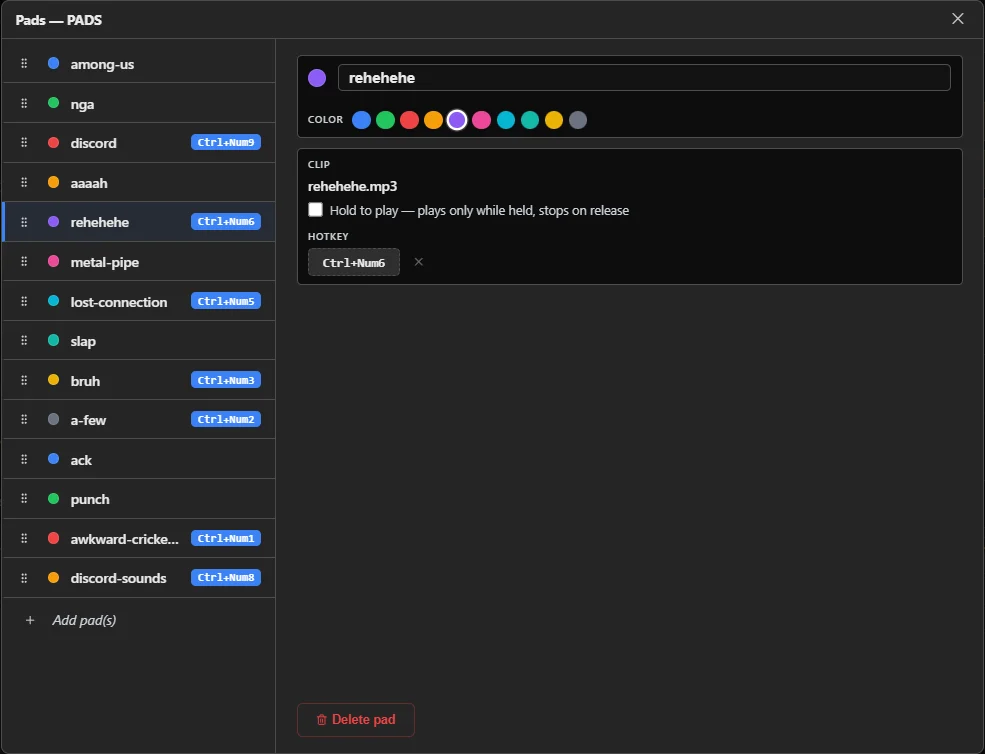
Select a pad in the editor and set:
- Name and color — the same color shows on its tile everywhere.
- Hold to play — on for a pad that should only sound while you're pressing its key or clicking it; off for a normal click-and-forget clip.
- Hotkey — click Click to set hotkey… and press a key combo. This works globally, exactly like any other Aura Mixer hotkey — even mid-game, with the app unfocused.
A regular pad's hotkey retriggers every press, same as clicking it. A Hold to play pad's hotkey plays on key-down and stops on key-up — no extra setup needed for that behavior.
Step 4: Trigger it
The pad grid appears on the channel's HOME tab in Advanced, and the same grid shows up in Simple's Media tray — identical behavior in both.
- Click a pad to play it from the start.
- Click it again while it's playing to restart it from the top.
- The currently-playing pad shows a small ▶ badge.
- Stop explicitly stops whatever's currently playing, regardless of which pad started it.
Only one pad ever plays at once — triggering a different pad always cuts whatever was already playing on that board.
Step 5: Route it where it should be heard
A Soundboard channel routes like any other input — light its cell in the Routing matrix for wherever you want it heard: your own ears (Main L+R), a separate stream mix, or a Discord-bound bus. Confirm it lands where you expect before relying on it live.
Good to know
| Thing | What it means |
|---|---|
| 15 pads per board | The cap for a single Soundboard channel. |
| One voice per board | Triggering a pad cuts whatever's already playing on that same channel — add a second Soundboard channel for two clips to overlap. |
| Simple mode | The same pad grid, Stop button and Manage pads live in the Media tray, alongside Player and Recorder. |
| Deleting a pad | Needs a second confirming click — no accidental deletes. |
| Reordering pads | Purely cosmetic (drag the ⠿ handle) — hotkeys and everything else stay bound by identity, not position. |
Make it yours
- A panic-stop key for the whole board. Beyond per-pad hotkeys, Soundboard: Stop is its own Hotkey — or Automation/Open API — action, stopping whatever's playing regardless of which pad started it.
- Send it to your stream too, not just your own ears. Same routing idea as any channel — see how to send different audio on stream.
- Give your voice lines to Discord as well. See Discord Voice Setup for routing a channel into a voice app as a "microphone" source.
Only that pad's own hotkey does that. The shared Hotkey/Automation/Open API catalog only exposes a whole-board Stop — there's no generic "trigger pad 3" action beyond the pad's own key binding.
If something's off
| You notice… | Try… |
|---|---|
| Clicking a pad does nothing audible | Check you're on Premium — Free lets you build and trigger a board, but pads stay silent until you upgrade. |
| A pad's hotkey doesn't fire | Confirm it's actually bound — the button shows the key combo once set, not just "Click to set hotkey…". Check it doesn't clash with another global hotkey. |
| Two pads seem to fight each other | Expected — one board is one voice. Add a second Soundboard channel if you want two clips to overlap. |
| A Hold-to-play pad keeps playing after you let go | The app needs to actually receive the key-up. Some games capture input exclusively and can swallow it — test the pad outside the game first. |
| Nothing shows up where you expected to hear it | Check the channel's routing in the Routing matrix — a Soundboard channel routes like any other input. |
Frequently asked questions
Is this Premium? Yes, but you can build and configure a full board on Free first — only playback is silent until you upgrade.
Can two pads play at the same time? No. One board is one voice — triggering a pad always cuts whatever's already playing on it. Add a second Soundboard channel if you want two clips overlapping.
Do the hotkeys work while I'm in a game? Yes. Pad hotkeys are global, the same as any other Aura Mixer hotkey — they work even when the app isn't in focus.
What audio formats can I use? WAV, MP3, FLAC, OGG.
Can I remotely trigger a specific pad, e.g. from a Stream Deck? Only through that pad's own hotkey. The shared Hotkey/Automation/Open API catalog only exposes a whole-board Stop, not "trigger pad 3" — there's no generic per-pad remote trigger beyond its own key binding.
Frequently asked questions
Is this Premium?
Yes, but you can build and configure a full board on Free first; only playback is silent until you upgrade.
Can two pads play at the same time?
No. One board is one voice — triggering a pad always cuts whatever's already playing on it. Add a second Soundboard channel if you want two clips overlapping.
Do the hotkeys work while I'm in a game?
Yes. Pad hotkeys are global, the same as any other Aura Mixer hotkey — they work even when the app isn't in focus.
What audio formats can I use?
WAV, MP3, FLAC, OGG.
Can I remotely trigger a specific pad, e.g. from a Stream Deck?
Only through that pad's own hotkey. The shared Hotkey/Automation/Open API catalog only exposes a whole-board Stop, not "trigger pad 3" — there's no generic per-pad remote trigger beyond its own key binding.