How to Hear Footsteps Better in Warzone (PC): Full Audio Setup
The complete Warzone audio setup: route the game's 7.1 into Aura Mixer, fold it to 3D matched to your ears, and lift quiet footsteps without making gunfire louder.
QUICK ANSWER
- In Warzone's Audio settings, set the game sound device to the VB-Audio Hi-Fi Cable with Speaker Output 7.1, turn Enhanced Headphone Mode off, and use the Headphone Bass Cut mix.
- Capture the game in Aura Mixer on its own channel (APP on cod.exe, or LOOP on the cable) with Channel mode set to 7.1 Surround.
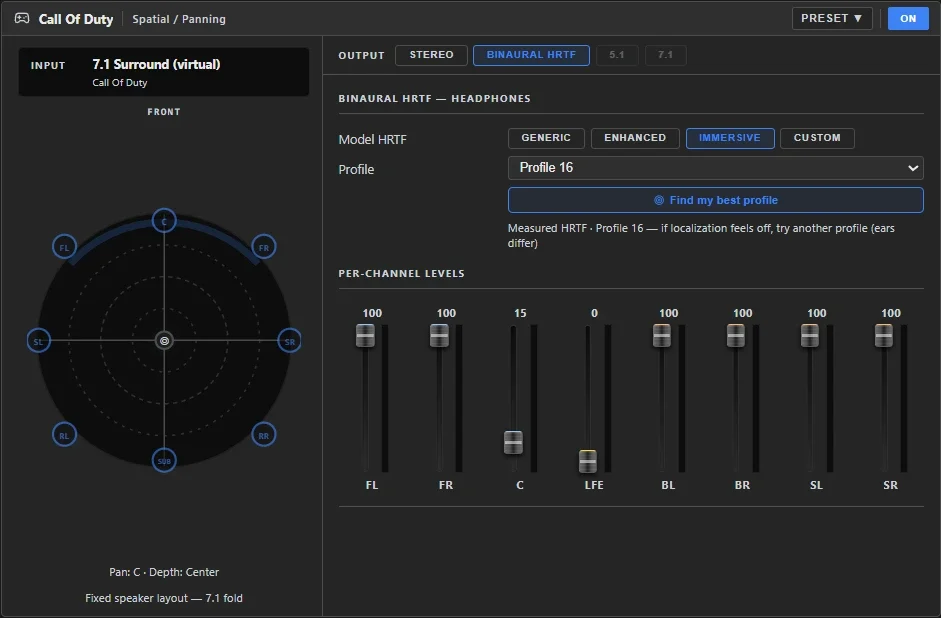
- Fold the 7.1 to 3D with Binaural HRTF (centre 15 %, LFE 0 %) and use the profile the Find my best profile test picks for your ears.
- Add Loudness Equalization BEFORE the channel EQ, apply the footstep EQ curve, and switch the channel's gate and compressor off.
- Route the channel to your headphones and add a headphone-correction EQ on that output.
In Warzone the footsteps are in the mix. They're just hard to pick out. Two things bury them. First, direction gets lost: the game can produce 7.1 surround, but stereo headphones squash it to left and right, so an enemy behind you sounds like one in front of you. Second, quiet sounds get drowned out: steps sit far below gunfire, vehicles and ambience, and turning the volume up only makes the loud stuff louder.
This guide builds a complete fix. Warzone sends real 7.1 into Aura Mixer, Aura Mixer folds it into 3D sound matched to your ears, a loudness stage lifts quiet sounds without making gunfire louder, and an EQ brings the footstep frequencies forward. You can do it in one click with a Workshop pack, or by hand with full control over every value; both routes are covered.
What you need
- Aura Mixer 0.7.0 or newer (download).
- Premium for the full result: the measured Immersive 3D profiles, the profile test and Loudness Equalization are Premium. On Free you still get 7.1 folded to 3D with the Enhanced or Generic model, plus the footstep EQ (see step 5).
- VB-Audio Hi-Fi Cable (free): a virtual 7.1 audio device that carries the game's sound into Aura Mixer. Aura Mixer's first-run setup asks you to install it; if you skipped that, step 1 covers it.
- Any stereo headphones. No surround headset needed.
- Windows 11 or Windows 10 build 20348+ if you want to use the APP capture option in step 3.
How the signal flows
| Stage | Where | What happens |
|---|---|---|
| 1 | Warzone | Plays 7.1 surround into the Hi-Fi Cable instead of your headphones. |
| 2 | Aura Mixer channel | Captures that 7.1 (from the game or the cable). |
| 3 | SPATIAL (Binaural HRTF) | First thing on the channel: folds 7.1 into 3D for two ear cups, using the profile that fits your ears. |
| 4 | Loudness Equalization | Lifts quiet sounds (footsteps), holds loud ones (gunfire) back. |
| 5 | Channel EQ | Cuts rumble, brings the footstep band forward. |
| 6 | Main L+R | Plays the result on your headphones, with your headphone correction. |
Because the game plays into the cable, its raw audio never reaches your headphones: you only hear the processed version.
Part 1: Get 7.1 out of Warzone
Step 1 (optional): Install the VB-Audio Hi-Fi Cable
Already installed it during Aura Mixer's first-run setup? Skip to step 2. You'll see Hi-Fi Cable Input (VB-Audio Hi-Fi Cable) among your Windows playback devices if it's there.
- Download the Hi-Fi Cable from VB-Audio, run the installer and restart Windows.
- That's it: the cable installs as a 7.1 device at 48 kHz, exactly what Warzone and Aura Mixer need. In Windows it shows up as Hi-Fi Cable Input (VB-Audio Hi-Fi Cable).
If you've used the cable for something else, check it's still 7.1 and 48 kHz: the classic Windows Sound panel (Start ▸ type mmsys.cpl ▸ Enter) ▸ Playback ▸ Hi-Fi Cable Input ▸ Configure for 7.1 Surround, and Properties ▸ Advanced for 48000 Hz.
Step 2: Set up Warzone's audio
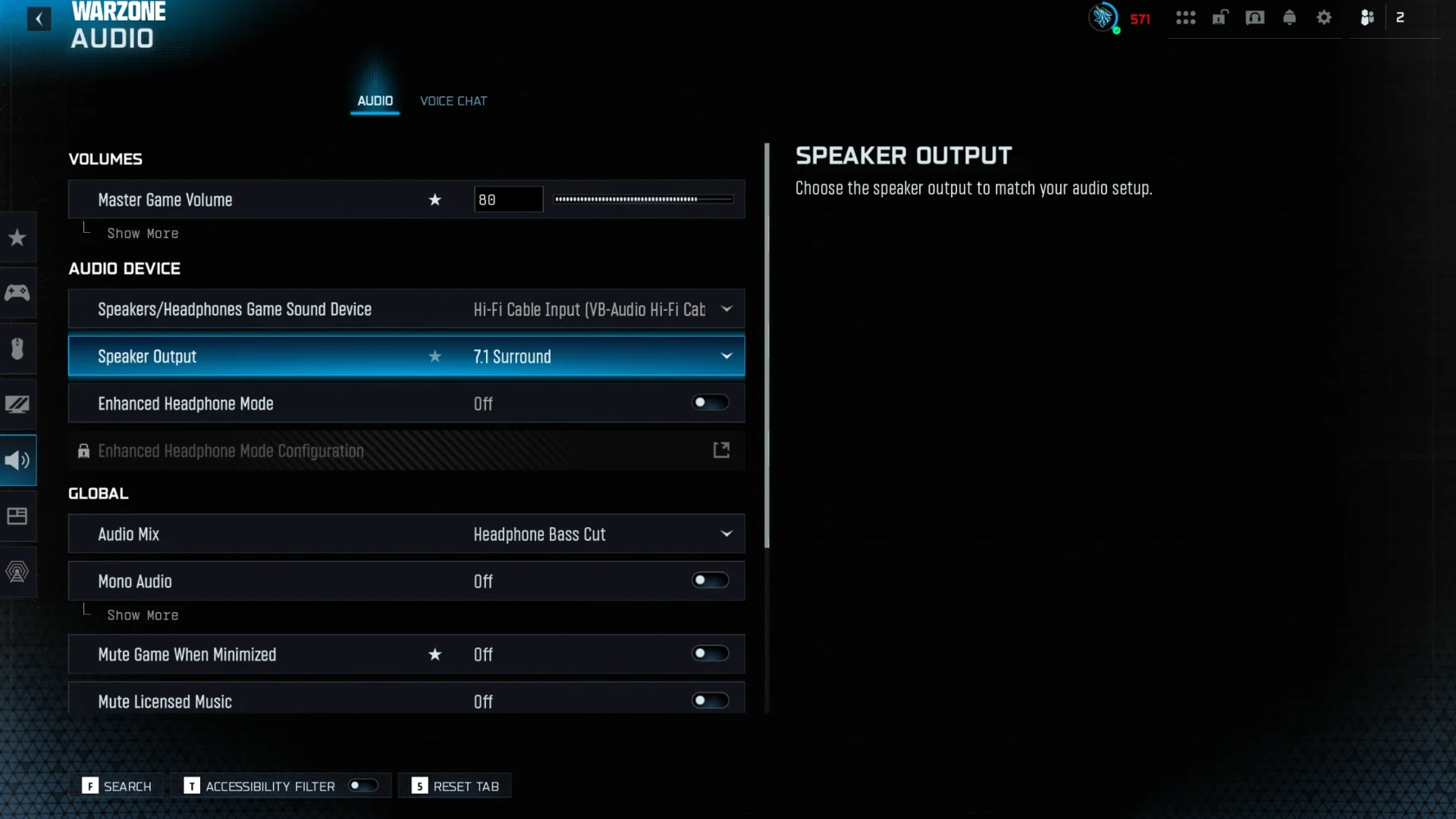
Everything below lives in Warzone under Settings ▸ Audio tab ▸ Audio sub-tab.
Audio Device section: send the game into the cable, in 7.1.
| Setting | Set to | Why |
|---|---|---|
| Speakers/Headphones Game Sound Device | Hi-Fi Cable Input (VB-Audio Hi-Fi Cable) | The game plays into the cable, and Aura Mixer takes it from there. |
| Speaker Output | 7.1 (instead of Stereo) | Only offered once the cable is selected. This is the true surround Aura Mixer turns into 3D. |
| Enhanced Headphone Mode | Off — required | It's the game's own headphone 3D. On top of Aura Mixer's it processes direction twice and blurs it. |
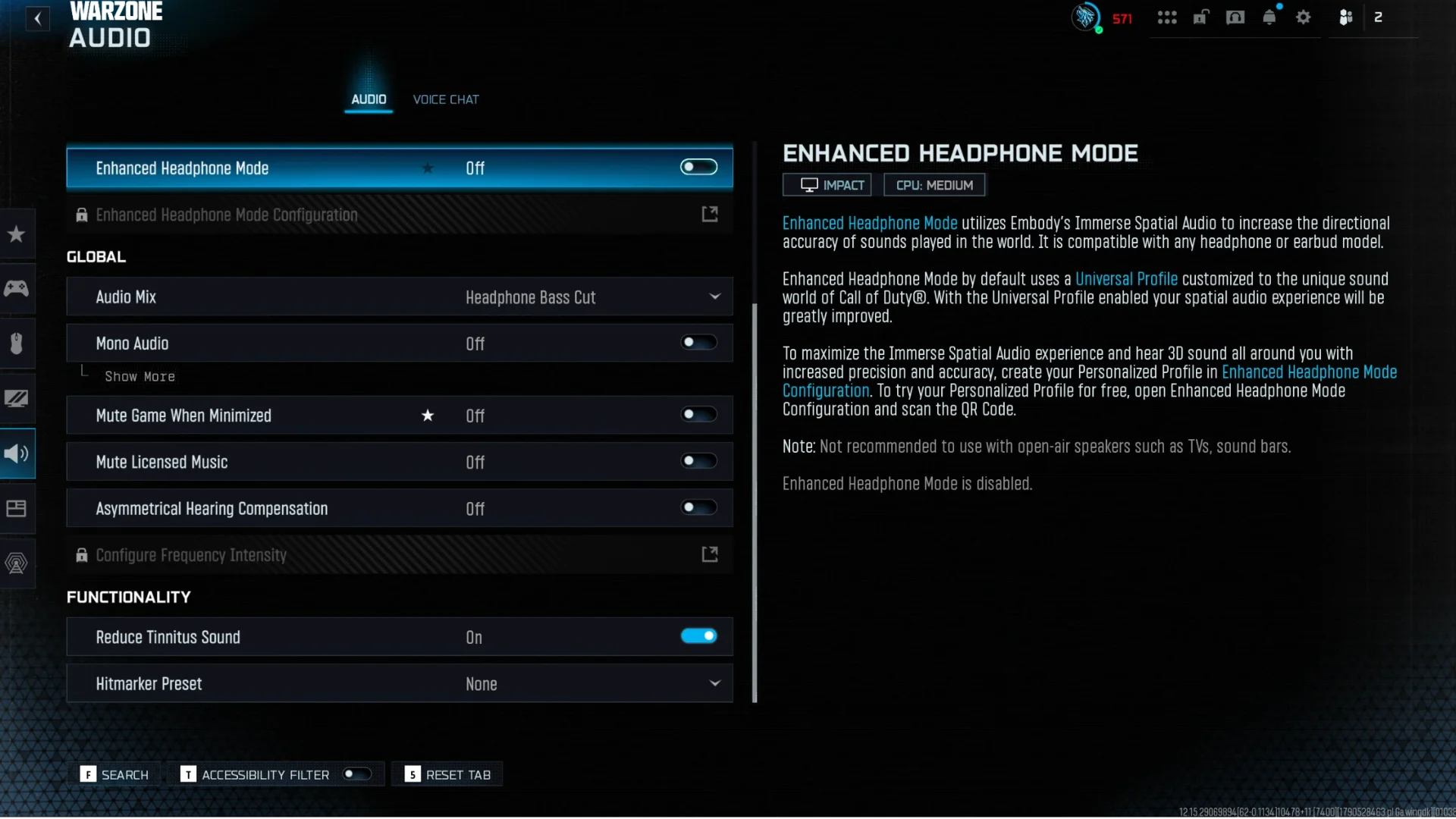
Global section: a clean mix to work with.
| Setting | Set to | Why |
|---|---|---|
| Audio Mix | Headphone Bass Cut (recommended) or Headphones | A headphone-oriented mix; the bass cut keeps explosion rumble from masking footsteps. |
| Asymmetrical Hearing Compensation | Off — required | It rebalances left against right, which skews where sounds seem to come from. |
Functionality section: take away sounds that cover footsteps.
| Setting | Set to | Why |
|---|---|---|
| Reduce Tinnitus Sound | On | Removes the high-pitched ringing after nearby explosions, which would bury footsteps for several seconds. |
| Hitmarker Preset | None | Hit sounds are loud and constant in a fight, and cover the steps you need to hear. |
From now on Warzone plays into the cable, not your headphones. Sound comes back as soon as Aura Mixer's channel is set up in Part 2.
Part 2: Capture the game in Aura Mixer
Switch the menu bar toggle to Advanced; the SETUP, SPATIAL and FX tabs live there.
Step 3: Add a channel for Warzone
Open Channels in the menu bar ▸ Inputs ▸ Add channel, name it Warzone, and pick one of two capture types:
| Option | Pick | Captures | Best when |
|---|---|---|---|
| A (recommended) | APP — application loopback | Only Warzone's own audio (the cod.exe process). |
You're on Windows 11 or Windows 10 build 20348+. Nothing else can leak into the channel. |
| B | LOOP — WASAPI loopback | Everything playing into the Hi-Fi Cable. | Older Windows builds, or if APP capture misbehaves. Make sure only the game plays to the cable. |
Press Add Channel.
Step 4: Point it at the game and switch to 7.1
SELECT the Warzone channel and open its SETUP tab:
- Channel mode ▸ 7.1 Surround.
- The source:
- Option A (APP): Application Process ▸
cod.exe(Warzone runs inside Call of Duty's process). Not listed? Make sure the game is running and making sound, then click ↺. Tick Include child processes. - Option B (LOOP): Loopback Source ▸ Hi-Fi Cable Input (VB-Audio Hi-Fi Cable).
- Option A (APP): Application Process ▸
- Check the capture badge: it should show the source delivering audio.
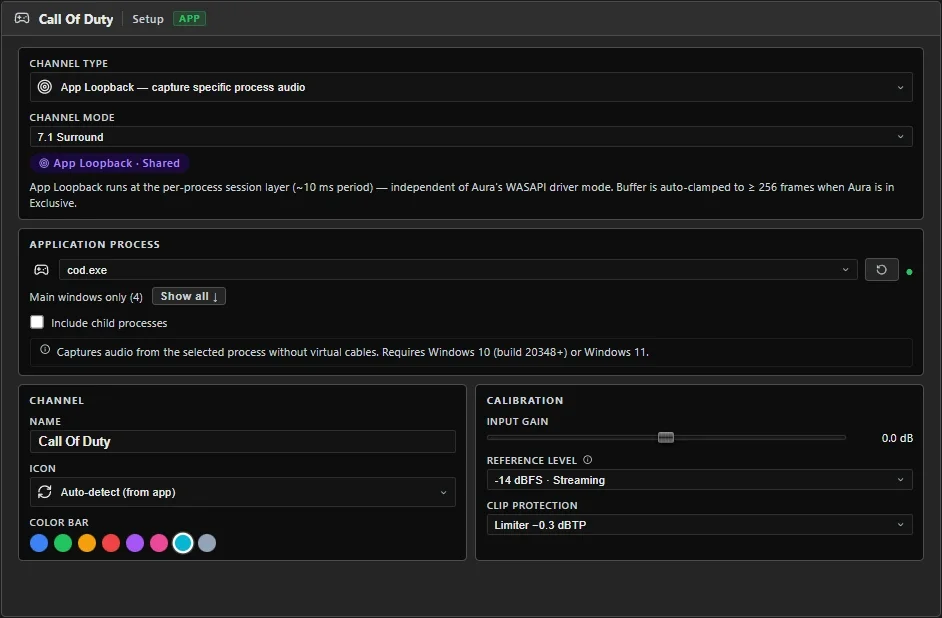
A LOOP channel offers 7.1 only when the device itself is 7.1. The cable installs as 7.1; if it was changed, see the tip in step 1.
Part 3: Choose your route
Quick route: the Workshop pack below sets the spatial fold, EQ, Loudness Equalization and gate/compressor in one click. Apply it, then do step 6 (your HRTF profile) and continue at Part 5.
Manual route: skip the pack and follow Part 4, steps 5 to 9, for full control over every value.
To apply it: Workshop ▸ Browse ▸ search, Download ▸ My Library ▸ select it ▸ Apply… ▸ leave every stage ticked ▸ pick your Warzone channel ▸ confirm. A surround pack only lists channels in 7.1 mode, which is why step 4 comes first.
Warzone's audio changes with each Call of Duty release, so this pack is updated for the current one. Older tunings stay in the Workshop as separate items if you play an older version.
Part 4: Manual setup
Step 5: Fold 7.1 into 3D
Open the channel's SPATIAL tab:
- Switch the mode to Binaural HRTF.
- Model HRTF ▸ Immersive.
- Under PER-CHANNEL LEVELS, click the number above the C fader and type
15, then do the same for LFE with0. Leave the others at 100.
Why: the centre channel carries voices, UI sounds and your own gun, and LFE carries explosion rumble. Pulling them down lets the side and rear speakers, where footsteps around you live, stand out.
Immersive uses real measured head profiles and is part of Premium. On Free, pick Enhanced instead (our own model with ear-shape cues for better front/back), or Generic as a last resort. Both still fold the game's 7.1 into 3D, just without a measured profile, so skip step 6.
Step 6: Find the 3D profile that fits your ears
3D audio works by recreating how your head and ears filter sound, and every head is different. A profile that fits someone else can blur front and back for you. Aura Mixer has a short listening test that picks the best one:
- Still on the SPATIAL tab, click Find my best profile under the Profile dropdown.
- Follow the headphones check, set a comfortable volume, do the practice round, and choose Quick (~4 min) or Thorough (~7 min).
- For each sound, point where you heard it and rate how sure you were. Being unsure is a useful answer; don't guess confidently.
- On the result, press Apply for the recommended profile, for example Profile 16.
The winning profile gets a ★ in the Profile dropdown. More detail: Finding your best HRTF profile.
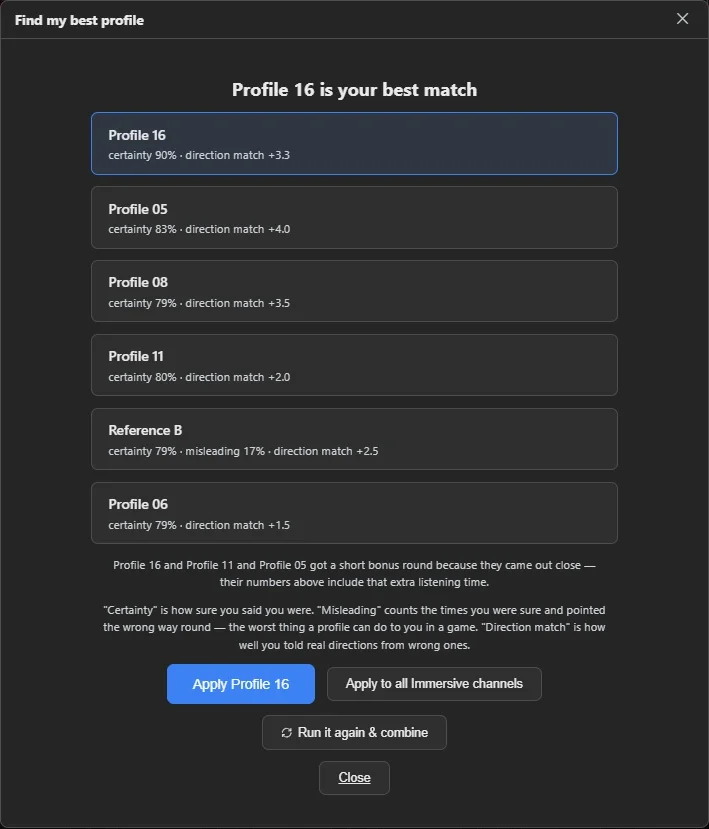
The pack sets a neutral profile (Reference B). Run this test anyway and apply your own result; it's the single biggest improvement for telling front from back.
Step 7: Apply the footstep EQ
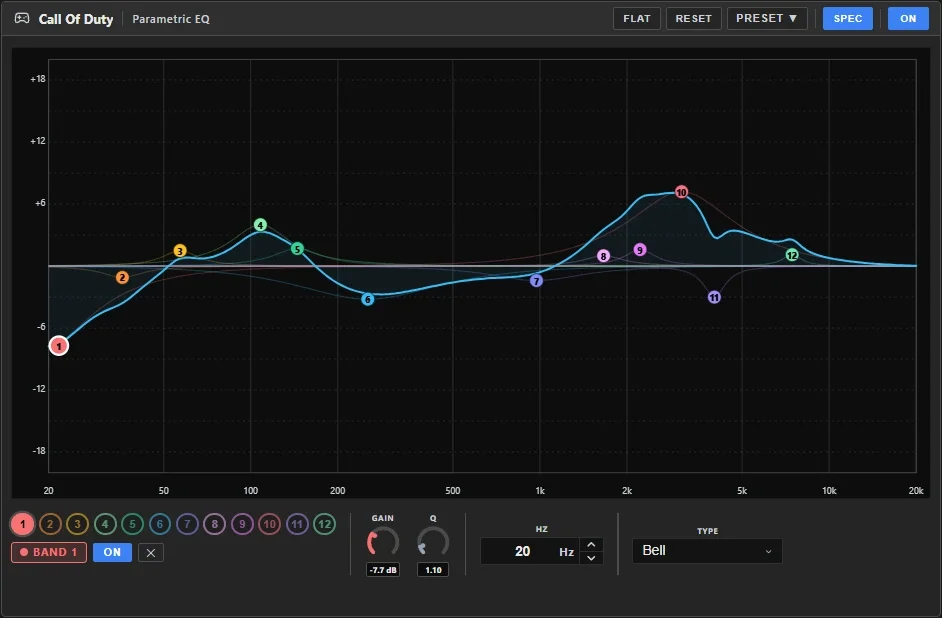
Open the EQ tab. Apply the Warzone footstep curve from the tab's PRESET ▾, or enter the 12 bands by hand from the exact values.
The curve cuts sub rumble and low-mid mud and lifts the band around 3 kHz, where the scuff of a boot lives. It's headphone-agnostic: your headphone correction comes separately, in step 10.
Step 8: Add Loudness Equalization before the EQ
Loudness Equalization must sit before the channel EQ. If the EQ ran first, the leveler would treat the boosted footstep band as "too loud" and turn it back down.
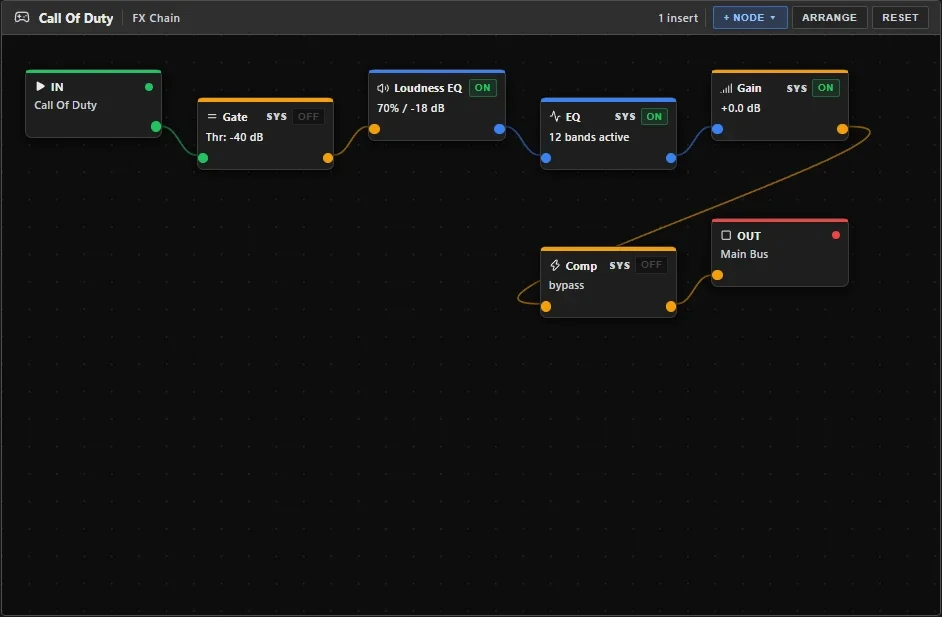
- Open the FX tab. You'll see IN, Gain, Gate, EQ, Comp, OUT.
- Click the Gain node to select it, then + NODE ▾ ▸ Dynamics ▸ Loudness Equalization. A new node always lands right after the selected one, so it sits before the EQ.
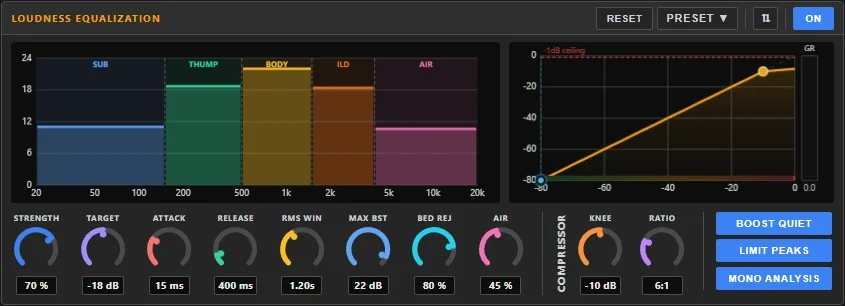
- Pin a dock panel to it with ⇅ and set it up. Start with Default:
| Control | Default (recommended) | Max footsteps |
|---|---|---|
| STRENGTH | 70 % | 85 % |
| TARGET | −18 dB | −18 dB |
| ATTACK | 15 ms | 15 ms |
| RELEASE | 400 ms | 400 ms |
| RMS WIN | 1.20 s | 1.20 s |
| MAX BST | 22 dB | 24 dB |
| BED REJ | 80 % | 80 % |
| AIR | 45 % | 50 % |
| KNEE (compressor) | −10 dB | −14 dB |
| RATIO (compressor) | 6:1 | 10:1 |
| BOOST QUIET / LIMIT PEAKS / MONO ANALYSIS | On / On / On | On / On / On |
- Default is tuned for fast, dynamic shooters like Warzone and is what the Workshop pack sets: footsteps clearly lifted, gunfire kept natural.
- Max footsteps pulls quiet sounds up harder and clamps loud ones sooner, for the loudest possible steps at the cost of a flatter, more compressed mix.
The panel's own compressor (KNEE and RATIO, on the right) is what keeps gunfire and explosions from spiking. That's why the channel's regular compressor gets switched off in step 9: this one already does the job.
Step 9: Switch the gate and compressor off
The channel's own Gate and Compressor sit in the dock on the left. Switch both OFF:
- Gate: it mutes anything below a threshold, which is exactly where distant footsteps live.
- Compressor: Loudness Equalization has its own compressor that already tames gunfire (step 8). Two compressors in a row squash the mix and flatten the quiet cues.
On the FX tab the chain now reads Gain → Loudness Equalization → EQ, with Gate and Comp bypassed.
Part 5: Route it to your headphones
Step 10: Send the channel to your headphones
- Channels ▸ select
Warzone▸ under Routing, make sure Main L+R is ON (new channels start routed there). - Check that Main L+R plays to your headphones (the bus's SETUP tab ▸ Output Destination).
- Add a headphone-correction EQ on Main L+R, not on the Warzone channel. The footstep EQ is tuned for the game; the correction evens out your specific headphones. See Output EQ.
Step 11: Check it works
Load into a match or the firing range:
- The channel's meter shows eight bars, and the side and rear bars move when sound comes from beside or behind you.
- On the SPATIAL tab, flip ON / OFF while someone walks around you: with it on, steps sit clearly in front of, beside or behind you.
- On the FX tab, flip Loudness Equalization ON / OFF: with it on, distant steps come up while gunfire stays at the same level.
What each stage does
| Stage | What it does | Why it helps you hear footsteps |
|---|---|---|
| Hi-Fi Cable (7.1) | Gives Warzone a 7.1 device to play into. | Without it the game sends stereo, and direction is already lost before Aura Mixer sees it. |
| Loudness Equalization | Lifts quiet sounds per frequency band, holds loud ones back. | Footsteps come up without gunfire getting louder. |
| Channel EQ | Cuts rumble (20 Hz) and mud (254 Hz), lifts ~3 kHz. | Clears what masks steps, brings the boot scuff forward. |
| Binaural HRTF | Folds 7.1 into 3D on stereo headphones; C 15 %, LFE 0 %. | Keeps each speaker's direction; side/rear cues stand out. |
| Your HRTF profile | Matches the 3D filtering to your ears. | The biggest single gain for front/back accuracy. |
| Gate / Comp off | Nothing mutes or double-compresses the quiet cues. | Loudness Equalization's own compressor already tames gunfire. |
Exact values (current Workshop tuning), to set it up by hand
SPATIAL: Binaural HRTF
Model Immersive, Profile: your test result (the pack uses Reference B). Per-channel levels: FL 100 · FR 100 · C 15 · LFE 0 · BL 100 · BR 100 · SL 100 · SR 100.
FX: Loudness Equalization (before the EQ)
| Control | Value | Control | Value |
|---|---|---|---|
| STRENGTH | 70 % | TARGET | −18 dB |
| ATTACK | 15 ms | RELEASE | 400 ms |
| RMS WIN | 1.20 s | MAX BST | 22 dB |
| BED REJ | 80 % | AIR | 45 % |
| KNEE | −10 dB | RATIO | 6:1 |
| BOOST QUIET | On | LIMIT PEAKS | On |
| MONO ANALYSIS | On |
EQ: 12 bell bands (Black Ops 7 tuning)
The EQ is the one stage that changes with each Call of Duty release. These are the values at the time of writing; the Workshop pack always carries the latest curve (take just the EQ from it via the EQ tab's PRESET ▾).
| Band | Frequency | Gain | Q |
|---|---|---|---|
| 1 | 20 Hz | −7.7 dB | 1.1 |
| 2 | 36 Hz | −1.1 dB | 2.5 |
| 3 | 57 Hz | +1.5 dB | 2.9 |
| 4 | 108 Hz | +4.0 dB | 1.7 |
| 5 | 145 Hz | +1.7 dB | 2.1 |
| 6 | 254 Hz | −3.2 dB | 0.7 |
| 7 | 973 Hz | −1.4 dB | 1.1 |
| 8 | 1660 Hz | +1.0 dB | 2.5 |
| 9 | 2220 Hz | +1.6 dB | 3.3 |
| 10 | 3090 Hz | +7.2 dB | 0.9 |
| 11 | 4010 Hz | −3.0 dB | 4.5 |
| 12 | 7450 Hz | +1.1 dB | 4.5 |
Gate and Compressor
Both off on this channel.
Make it yours
- Loudness: try Max footsteps from step 8 if steps still aren't loud enough for you. Every control is explained in Loudness Equalization.
- Profile: not sure about the test result? Run it again & combine on the result screen pools both runs into a steadier answer.
- Headphones: a correction EQ for your exact model on Main L+R makes the footstep EQ land the way it was tuned.
If something's off
| You notice… | Try… |
|---|---|
| No game sound at all | Warzone plays into the cable now: finish Part 2 so Aura Mixer picks it up and routes it to your headphones. |
| Only two meter bars move | The game is sending stereo. Check Speakers/Headphones Game Sound Device is the Hi-Fi Cable and Speaker Output is 7.1 (step 2), Channel mode is 7.1 Surround (step 4), and the cable is still 7.1 (tip in step 1). |
| Directions sound smeared or doubled | Make sure Enhanced Headphone Mode and Asymmetrical Hearing Compensation are off in Warzone (step 2), and no Windows or headset 3D is on. |
| Hit sounds or ringing cover the steps | Hitmarker Preset ▸ None and Reduce Tinnitus Sound ▸ On (step 2). |
| 7.1 Surround isn't offered in Channel mode (LOOP) | The cable's Windows setting was changed from 7.1: see the tip in step 1. |
cod.exe isn't in the process list |
Warzone must be running and making sound. Click ↺. |
| The pack won't offer your channel | The channel isn't in 7.1 Surround mode. |
| Front and back still blur | Run Find my best profile (step 6) and apply the result. |
| Footsteps too quiet | Try the Max footsteps column in step 8. |
| Everything sounds squashed | Go back to the Default column in step 8, and make sure the channel's own Compressor is OFF (step 9). |
| Crackles or dropouts | Check the cable is still at 48 kHz (tip in step 1) and raise the buffer in Settings ▸ Audio. |
| Nothing sounds different | Check SPATIAL and the Loudness Equalization node are ON. On Free, Loudness Equalization has no effect and Immersive falls back to Generic: use Enhanced (step 5) or see Premium. |
Frequently asked questions
Why do I need a virtual cable for Warzone?
Warzone only offers its 7.1 output when the device it plays to can take 7.1, and ordinary headphones report stereo. Sending the game to the VB-Audio Hi-Fi Cable gives it a 7.1 device, and Aura Mixer then turns that 7.1 into 3D sound for your headphones. The cable also keeps the game's raw audio out of your headphones, so you only hear the processed version.
Do I need a 7.1 or surround gaming headset?
No. Any stereo headphones work. Aura Mixer folds the game's 7.1 into 3D (binaural) sound for two ear cups. Turn a headset's own virtual 7.1 off: two surround processors in a row blur directions instead of sharpening them.
Can I do this without Premium?
Partly. On Free you can still route Warzone's 7.1 into Aura Mixer, fold it to 3D with the Enhanced or Generic model, and apply the footstep EQ. The measured Immersive profiles, the Find my best profile test and Loudness Equalization need Premium.
Which Warzone audio settings matter most?
Speaker Output 7.1 on the Hi-Fi Cable, Enhanced Headphone Mode off and Asymmetrical Hearing Compensation off. The first gives Aura Mixer real surround; the other two would otherwise distort direction before Aura Mixer ever sees it.
Does Aura Mixer change or touch the game?
No. Aura Mixer never injects into or modifies the game. It processes the audio the game plays through Windows, the same way any audio mixer does.
The channel only shows two moving bars. What's wrong?
The game is sending stereo. Check that Warzone's output device is Hi-Fi Cable Input (VB-Audio Hi-Fi Cable) with its 7.1 option selected, and that the channel's Channel mode is 7.1 Surround.