How to Fix 3D Audio That Sounds Wrong on Your Headphones?
If directions blur, or something behind you seems to come from the front, it's usually not your headphones — it's a doubled-up spatial effect or an HRTF profile that doesn't match your ears. Works for games, movies and music.
QUICK ANSWER
- Turn off Windows' own spatial-sound effect and your headset software's virtual surround — two 3D processors running at once blur direction instead of sharpening it.
- On the channel's SPATIAL tab, switch to Binaural HRTF: start with Generic, move to Enhanced for stronger front/back cues, or Immersive (Premium) for the most accurate result.
- On Immersive, run Find my best profile — HRTF is personal, and a mismatched profile is the single most common cause of front/back confusion.
- Feeding it a 5.1/7.1 source? Balance the per-speaker sliders in the fold panel instead of the whole mix.
- Confirm it worked with something whose direction you already know — someone walking around you, or a directional test clip.
If a sound behind you seems to come from the front — or everything just feels flat and "in your head" instead of around you — that's not a headphone problem. It's almost always one of two things: something is processing the signal twice, or the 3D model doesn't match your ears. Both are fixable in a few minutes, and neither needs new hardware.
This applies to any source with directional or surround audio: games, movies, and multichannel music, not just one app or one game.
What you need
- Aura Mixer 0.7.0 or newer (download).
- Any stereo headphones. No surround headset needed — in fact, a headset's own "virtual surround" is one of the two problems this guide fixes.
- The channel carrying the audio you want fixed (game, browser, media player) routed into Aura Mixer.
Turning off double processing and moving from Generic to Enhanced already fixes most front/back confusion, and both are free. Immersive (measured, personal profiles) and its Find my best profile test are Premium — the last step for the most accurate result, covered in step 3.
Why this happens
| Cause | What it feels like |
|---|---|
| A second spatial processor is stacked on top of Aura Mixer's | Directions smear, double, or swap side to side |
| Using Generic and expecting sharp front/back | Left/right is fine, but front and back sound the same |
| An Immersive profile that doesn't match your ears | Some directions are clear, others consistently wrong or reversed |
| A 5.1/7.1 source folded with unbalanced speaker levels | One direction (often centre or rear) drowns out or disappears |
| The source is plain stereo to begin with | Nothing about position changes no matter what you set — there's no directional information to work with |
Step 1: Turn off every other spatial effect
Aura Mixer's HRTF processing has to be the only thing shaping direction. Stacking a second one on top doesn't add anything — it blurs what the first one already got right.
- Windows spatial sound: Settings ▸ System ▸ Sound ▸ your headphones ▸ Spatial audio ▸ Off (this covers Windows Sonic, Dolby Atmos for Headphones, DTS Headphone:X if enabled here).
- Your headset software's own virtual surround / 3D mode — turn it off in the manufacturer's app, not just in Windows.
- Any system-wide EQ or "gaming enhancement" on the same output device (e.g. Equalizer APO profiles built for a different setup).
Step 2: Set the channel to Binaural HRTF and pick a model
Open the channel in Aura Mixer, switch to Advanced, and open its SPATIAL tab.
- Switch the mode to Binaural HRTF.
- Under Model HRTF, start with Generic and confirm basic positioning (left/right, roughly front vs. back) feels right.
- Move up to Enhanced — Aura Mixer's own model with added ear-shape cues, still free — for noticeably stronger front/back and height separation.
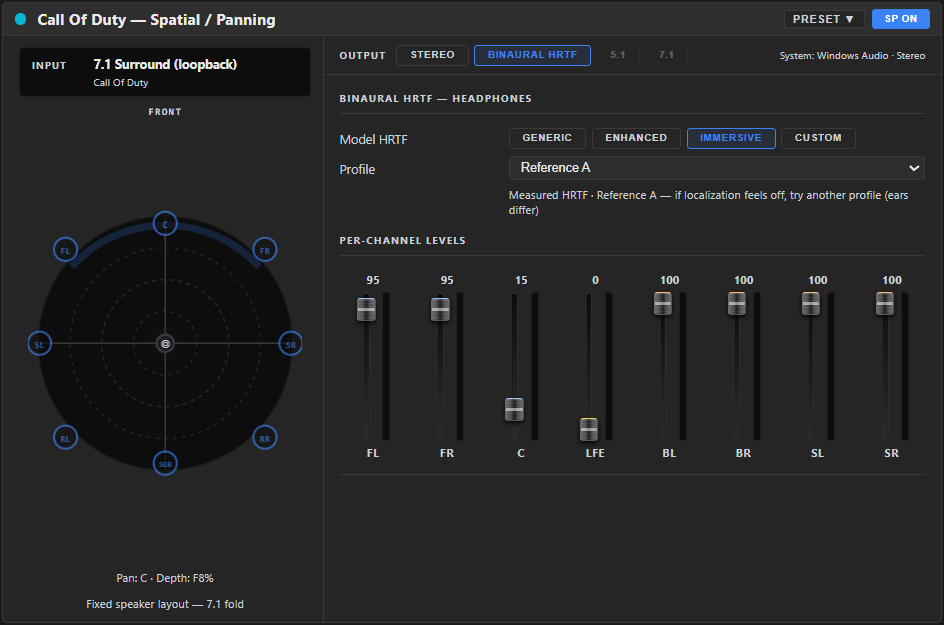
If the channel's source is 5.1 or 7.1 (set in its SETUP tab), Binaural HRTF folds every speaker to a 3D headphone image instead of placing a single point. A per-channel levels panel appears — if one direction feels wrong, balance its slider there rather than changing the model.
Step 3: Match the profile to your actual ears (Premium)
If you're on Premium, switch Model HRTF to Immersive. This uses real measured head profiles instead of a synthetic approximation — but HRTF is personal, and a profile built around someone else's head can blur exactly the directions you're trying to fix.
- Click Find my best profile, right under the Profile dropdown (or Help ▸ Find my best profile from anywhere).
- Follow the headphones check, set a comfortable volume, and pick Quick (~4 min) or Thorough (~7 min).
- For each sound, point where you heard it and rate how certain you were — an honest "unsure" is more useful than a confident guess.
- Apply the result. If two profiles tie, either is genuinely fine — the test isn't hiding a "real" answer from you.
Not on Premium, or don't want to run the test right now?
Stay on Enhanced. It won't match your ears as precisely as a personal Immersive profile, but it fixes most of the front/back confusion that Generic can't, and it's free.
Step 4: Check it actually worked
Test with something whose direction you already know — a person walking around you while you listen, a game's firing range, or any clip labelled "3D audio test". You should be able to tell, without looking, roughly where the sound is coming from — including telling front from back, not just left from right.
If a Custom HRIR profile sounds too bright or harsh once positioning is right, that's a separate, smaller fix: the Treble softening slider on that model (−6…0 dB) takes the edge off without touching direction.
If it's still off
| You notice… | Try… |
|---|---|
| Can't tell front from back at all | Move from Generic to Enhanced or Immersive — front/back needs ear-shape cues Generic doesn't model. |
| Directions feel smeared, doubled, or swapped | Something is still processing the signal twice — recheck Windows spatial sound and your headset's own app (step 1). |
| An Immersive profile sounds off or hard to place | Run Find my best profile instead of picking by ear — or try Run again & combine on the result screen for a steadier answer. |
| Surround fold sounds unbalanced (one direction too loud/quiet) | Adjust that speaker's level slider in the fold panel, not the whole channel. |
| Nothing changes no matter what you set | The source itself may be plain stereo — there's no directional information in a stereo signal for HRTF to work with. |
| A Custom HRIR sounds too bright or harsh | Increase Treble softening (more negative). |
Frequently asked questions
What is HRTF, in plain terms?
A head-related transfer function describes how your head, shoulders and outer ears subtly change a sound depending on which direction it came from. Recreating those changes on headphones tricks your brain into hearing a sound at a real point in space instead of "inside your head."
Do I need Premium to fix this?
No. Turning off double processing and switching to Enhanced already fixes most front/back confusion, and both are free. Premium's Immersive model and its profile test get you the last, most precise step.
Does this work for movies and music too, not just games?
Yes — anything Aura Mixer captures with directional or surround content. The steps are identical regardless of the source.
Why did the same profile sound perfect on one pair of headphones and off on another?
HRTF only models your head and ears, not your headphones' own frequency response. A headphone-correction EQ on your output bus handles that separately.
Can bad headphones prevent 3D audio from working at all?
Very cheap or heavily bass-boosted headphones can mask some directional cues, but the effect should still be clearly audible on any real stereo headphones. If it isn't, work through the troubleshooting table above before suspecting the hardware.